

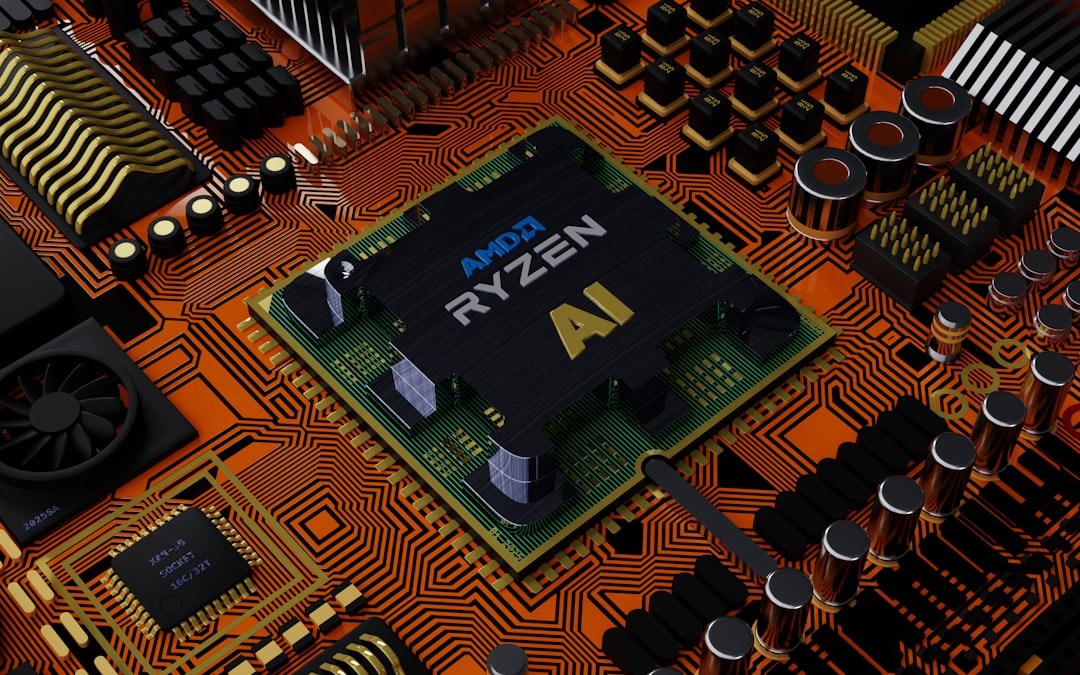
BIOS is the built-in startup firmware that wakes your computer, checks key hardware, and hands control to the operating system. It runs before Windows, Linux, or any other system loads. On newer PCs, the older BIOS model has mostly been replaced by UEFI, but many people still use “BIOS” as the general name for startup firmware. Microsoft describes UEFI as modern firmware that initializes hardware and starts the boot process [source: Microsoft].
TLDR: BIOS is the small but critical software stored on your motherboard that starts your PC before the operating system takes over. For example, if your laptop takes 42 seconds to reach the login screen, BIOS or UEFI settings may account for several of those seconds before Windows even appears. A common user case is changing the boot order so a repair USB starts first when Windows will not load. If Secure Boot, storage mode, or boot priority is wrong, a perfectly healthy drive can look “missing,” which is frustrating and wastes time.
What BIOS Actually Does
BIOS stands for Basic Input Output System. It is firmware, not a regular app. Firmware sits between hardware and software. It lives on a chip on the motherboard and starts working as soon as the PC receives power.
Its first job is simple: make the machine usable enough to boot. That means checking the processor, memory, keyboard, display output, storage devices, and other attached hardware. This early check is called POST, short for Power On Self Test.
If POST succeeds, BIOS looks for a bootable device. That might be an internal SSD, a hard drive, a USB stick, a DVD drive, or a network location. Then it starts the boot loader, which loads the operating system.

BIOS vs UEFI
Strictly speaking, many modern computers do not use old-style BIOS anymore. They use UEFI, short for Unified Extensible Firmware Interface. UEFI is newer, faster, and more flexible.
Still, people say “enter the BIOS” even when they mean “open the UEFI setup screen.” That habit is common. Manuals, support forums, and repair shops often use both terms loosely.
Here are the main differences:
- BIOS is older and usually has a text-based setup screen.
- UEFI often supports a mouse, graphics, and larger storage drives.
- UEFI supports Secure Boot, which helps block unauthorized boot code.
- BIOS usually boots from MBR partitioned disks.
- UEFI usually boots from GPT partitioned disks.
For most users, the practical result is the same. This firmware decides how your computer starts and which device it starts from.
What Happens During Startup
The startup process is short, but a lot happens. You press the power button. The power supply sends stable power to the board. The firmware begins execution. Then POST runs.
If something fails early, your PC may beep, flash an LED code, or show an error message. No display? The firmware may not have reached video output yet. Bad RAM is a common reason. A failed storage drive can also stop the boot process, though the setup screen may still open.
Once the basic checks pass, BIOS or UEFI reads the configured boot order. If your internal SSD is first, the firmware attempts to boot from it. If a USB device is first, the computer may try that instead. Honestly, it feels like a small setting until your PC refuses to start because an old USB installer is still plugged in.

Common BIOS Settings You May See
Most users should not change firmware settings casually. Still, there are several options worth recognizing.
- Boot order: Chooses whether the PC starts from the SSD, USB drive, optical drive, or network.
- Secure Boot: Helps prevent unsigned or unauthorized boot software from running.
- TPM: A security chip or firmware feature used by Windows 11, BitLocker, and other tools.
- SATA mode: Often set to AHCI or RAID. Changing it can stop an installed OS from booting.
- Virtualization: Required for many virtual machines, Android emulators, and some security features.
- Fan control: Adjusts cooling behavior and noise levels.
- Date and time: Stored in firmware settings and used during early startup.
Some settings affect security. Others affect performance or compatibility. A wrong change can cause boot errors, missing drives, or overheating. That is why repair technicians often take photos of original settings before making changes.
How to Enter BIOS or UEFI Setup
You usually enter setup by pressing a key right after powering on the computer. Common keys include Delete, F2, F10, F12, or Esc. The correct key depends on the manufacturer.
Desktop motherboards often use Delete or F2. Laptops vary more. Dell systems often use F2 for setup and F12 for the boot menu. HP systems often use Esc or F10. Lenovo laptops may use F1, F2, or a small Novo button.
Expect to waste time on timing if the computer boots quickly. Some modern SSD systems pass the keypress window in under two seconds. If that happens in Windows, hold Shift while selecting Restart, then go to Troubleshoot, Advanced options, and UEFI Firmware Settings.
Why BIOS Matters for Troubleshooting
BIOS is often the first place to check when a computer will not boot. If the firmware cannot see your SSD, the operating system is not the first suspect. The drive, cable, slot, or controller setting may be the issue.
If a newly built PC turns on but shows no operating system, the boot order may be wrong. If Windows 11 setup says the PC is unsupported, TPM or Secure Boot may be off. If a Linux USB will not start, Secure Boot may be blocking it.

Firmware also matters during hardware upgrades. Newer CPUs may require a BIOS update before the motherboard can recognize them. Memory compatibility can improve after updates too. This is common with gaming desktops and custom workstations.
Should You Update BIOS?
A BIOS update can fix bugs, improve hardware support, patch security issues, or add CPU compatibility. But it should not be treated like an ordinary app update.
If the update fails, the motherboard may not boot. Some boards have recovery features, dual BIOS chips, or USB flashback tools. Many do not. Read the manufacturer’s instructions carefully. Use the exact model number. Do not interrupt power during the update.
Good reasons to update include:
- You are installing a newer supported processor.
- The manufacturer lists a security fix you need.
- You have a documented stability problem.
- A support technician instructs you to update.
Poor reasons include curiosity, vague speed hopes, or pressure from a random forum post. If the system is stable and secure, leaving firmware alone is often the safer choice.
BIOS Security and Passwords
BIOS and UEFI settings can include administrator passwords, user passwords, Secure Boot controls, TPM settings, and device restrictions. These tools help protect business laptops and shared systems.
A firmware password can stop someone from changing boot settings or starting from a USB drive. Secure Boot can reduce the risk of boot-level malware. TPM can help protect encryption keys used by BitLocker and similar software.
There is a downside. Forgotten firmware passwords can be hard to remove. On some laptops, only the manufacturer or an authorized service center can reset them. Do not set one unless you have a safe way to store it.
Practical Takeaways
- BIOS or UEFI starts your computer before the operating system loads.
- POST checks essential hardware and reports serious startup faults.
- Boot order matters when using USB installers, repair drives, or multiple disks.
- Secure Boot and TPM affect modern Windows security and upgrade support.
- BIOS updates can help, but they carry real risk if done carelessly.
BIOS is easy to ignore when everything works. The moment a PC refuses to start, it becomes one of the most useful diagnostic tools you have. Treat it with care, change only what you understand, and record original settings before making edits.