

Seeing a green flicker flash across your iPhone screen can be alarming—especially when you rely on your device for everything from work emails to late-night scrolling. While the problem might look serious, a green flickering screen doesn’t always mean your iPhone is permanently damaged. In many cases, the issue can be traced back to software glitches, display settings, or temporary hardware strain.
TLDR: A green flickering screen on an iPhone can be caused by software bugs, iOS updates, display settings, or hardware issues like screen damage. Start by adjusting brightness, disabling True Tone, and updating iOS before assuming the worst. If software fixes don’t work, the problem may be related to the OLED display or internal components. Professional repair may be necessary for persistent issues.
Why Is My iPhone Screen Flickering Green?
The green flicker effect often appears as brief flashes, vertical green lines, or an overall green tint that comes and goes. Some users notice it only at low brightness levels, while others experience it randomly when unlocking the phone or switching apps.
The root cause usually falls into one of two categories:
- Software-related issues (iOS bugs, display settings conflicts, app glitches)
- Hardware-related problems (OLED panel damage, loose connectors, physical impact)
Understanding which category your issue falls into is the key to applying the right fix.
Software-Related Causes
1. iOS Update Bugs
Apple frequently releases iOS updates to improve performance and security. However, some updates unintentionally introduce display-related bugs. Green flickering became particularly common on certain OLED iPhone models after specific iOS versions were released.
If your screen started flickering shortly after an update, the issue is likely software-based.
What to try:
- Check for a newer iOS update (Apple often patches display bugs quickly).
- Restart your iPhone.
- Reset all settings (without erasing data).
2. Brightness and Display Settings
OLED screens, used in many modern iPhones, control each pixel individually. At very low brightness levels, some panels may produce a faint green tint or flicker due to voltage inconsistencies.
Settings that may contribute:
- Low Brightness Mode
- Auto-Brightness
- True Tone
- Night Shift
Quick Fix:
- Go to Settings > Display & Brightness.
- Turn off True Tone.
- Disable Night Shift.
- Increase brightness slightly above minimum.
If the flickering stops after adjusting these settings, the issue is likely related to display calibration rather than hardware damage.
3. App-Specific Glitches
Sometimes the green flicker appears only when using a particular app, especially video streaming or gaming apps that apply HDR effects.
To test this:
- Close the app completely and reopen it.
- Check if the flicker appears on the home screen.
- Uninstall and reinstall the problematic app.
If the flickering happens only within a single app, the issue is almost certainly software-related.
Hardware-Related Causes
If software troubleshooting doesn’t resolve the issue, hardware might be the culprit.
1. OLED Screen Degradation
iPhones with OLED displays (such as iPhone X and newer Pro models) are more prone to green flickering under certain conditions. OLED panels can degrade over time, especially if frequently exposed to:
- High brightness for long periods
- Static images that cause burn-in
- Excessive heat
In early stages, degradation can show up as green flashes at low brightness.
2. Physical Damage
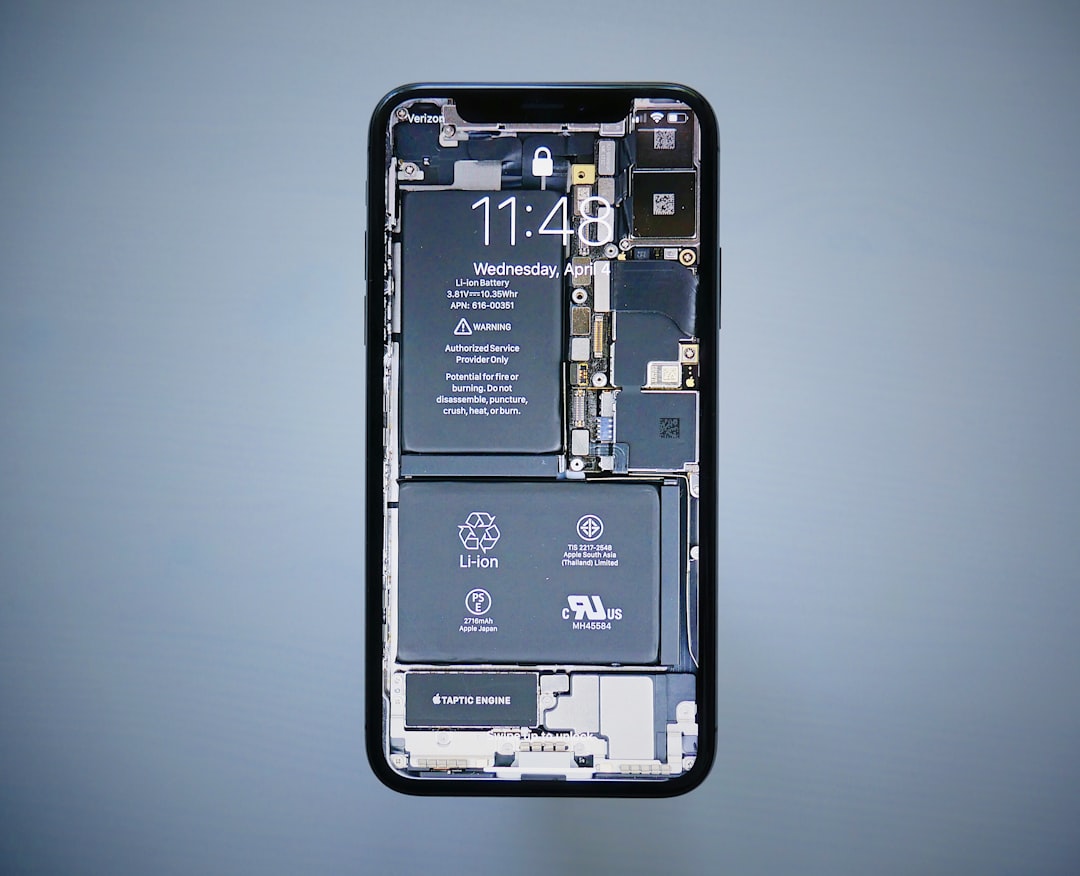
Even a minor drop can loosen internal display connectors or damage the screen panel. Sometimes, cracks are not visible but internal components are affected.
Signs of hardware damage include:
- Persistent green vertical lines
- Screen flickering regardless of brightness
- Display issues that worsen over time
- Touch responsiveness problems
If any of these symptoms appear, software fixes are unlikely to help.
3. Water or Moisture Exposure
Although modern iPhones are water-resistant, they are not waterproof. Moisture exposure can corrode display connectors and cause screen discoloration, flickering, or green tinting.
If your phone was recently exposed to water or high humidity, internal damage may be developing.
Step-by-Step Fixes to Try First
Before heading to a repair shop, try these practical solutions:
1. Force Restart Your iPhone
A force restart can clear temporary glitches affecting the display driver.
For iPhone 8 and newer:
- Press and quickly release Volume Up.
- Press and quickly release Volume Down.
- Hold the Side button until the Apple logo appears.
2. Update iOS
Go to Settings > General > Software Update and install any available updates.
3. Reset All Settings
This will not erase your data but will reset display, Wi-Fi, and system settings.
- Go to Settings > General > Transfer or Reset iPhone.
- Select Reset > Reset All Settings.
4. Restore in DFU Mode (Advanced)
If the issue persists, a Device Firmware Update (DFU) restore can reinstall the entire system firmware. This is more thorough than a standard reset but requires backing up your data first.
When to Seek Professional Repair
If you’ve tried all software fixes and the screen still flickers green, it’s time to consider hardware repair.
You likely need professional help if:
- The flicker is constant and worsening.
- Green lines remain permanently visible.
- The screen was recently dropped.
- Your phone overheats frequently.
Apple or authorized repair centers can run diagnostics to confirm whether the OLED panel needs replacement.
How Much Does It Cost to Fix?
Repair costs vary depending on your model and warranty status.
- Under AppleCare+: Screen repairs are significantly discounted.
- Out of warranty: OLED screen replacements can range from moderate to expensive depending on model.
Third-party repair shops may offer lower prices, but always verify that they use high-quality replacement screens to avoid future flickering issues.
How to Prevent Green Flickering in the Future
While some hardware wear is unavoidable, you can reduce the likelihood of display problems with a few smart habits:
- Avoid prolonged maximum brightness.
- Use Auto-Brightness wisely.
- Update iOS regularly.
- Avoid exposing your phone to extreme heat.
- Use a protective case to reduce impact damage.
Preventative care can significantly extend the lifespan of your OLED screen.
Is Green Flickering Dangerous?
In most cases, green screen flickering is not dangerous—but it can signal underlying issues. If it stems from software, you’re likely safe. If hardware is failing, ignoring it may lead to a completely unusable display later.
The good news? Green flickering rarely means total device failure. Early troubleshooting often prevents more expensive repairs.
Final Thoughts
An iPhone screen flickering green may look dramatic, but it’s usually manageable. Start by ruling out simple software settings like brightness and True Tone. Update your device and reset settings if needed. Only after these steps should you consider hardware repair.
The key takeaway: Don’t panic. Most green flickering issues have identifiable causes and practical fixes. By understanding whether your problem is software-related or hardware-based, you can take the right steps and potentially save yourself time and money.
If the problem persists despite your best efforts, consulting Apple Support or a certified technician ensures your device gets the professional care it needs.
