

Dark mode makes Facebook easier to look at, especially at night. It uses darker colors that reduce eye strain and can save battery on some devices. Many people use it because it feels more comfortable and looks cleaner. Here is a straightforward guide to turn on Facebook’s dark mode on a computer, Android phone, or iPhone.
What Facebook’s Dark Mode Does?
Dark mode changes the bright white background to a dark one. It does not change how Facebook works. It only changes how the page looks, so it feels easier to use at night or in dim rooms.
How to Turn On Facebook Dark Mode on a Computer
These steps work on Windows and Mac:
- Go to Facebook.com and log in.
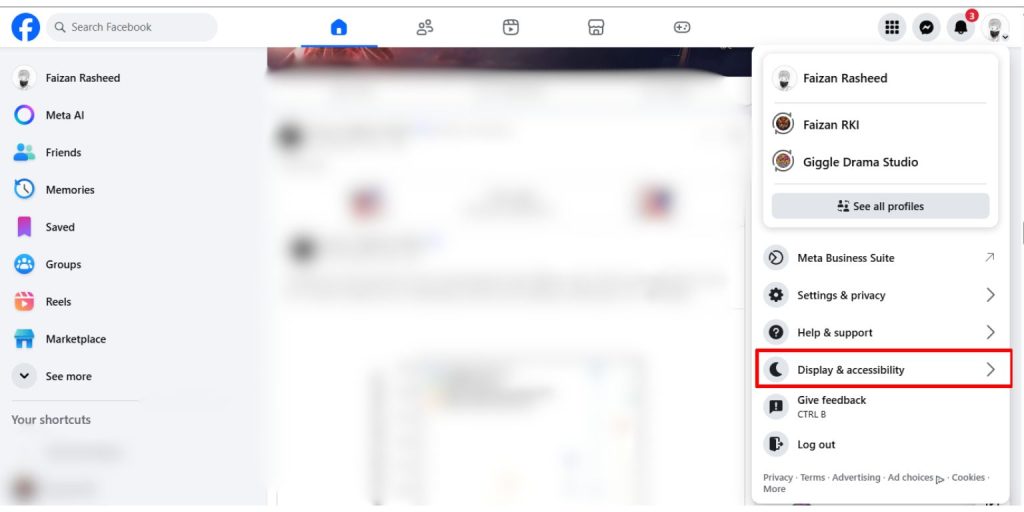
- In the top right corner, click the downward-facing arrow icon.
- In the menu that appears, click Display and Accessibility.
- Under the Dark Mode section, click On to turn it on.
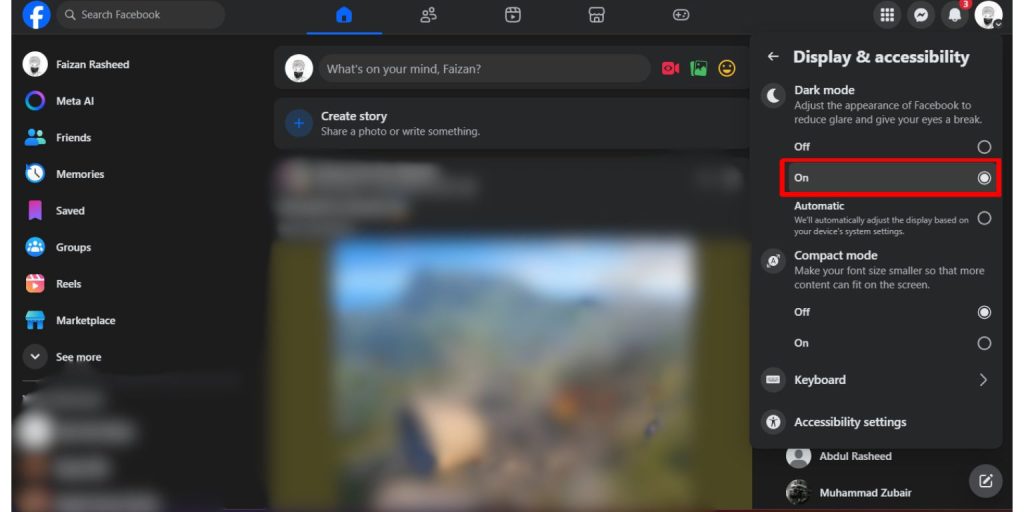
- You can also pick Automatic to match your device’s dark or light settings.
Your Facebook page will switch to a dark theme right away.
How to Turn On Facebook Dark Mode on Android
Follow these steps in the Facebook app:
- Open the Facebook app.
- Tap the menu button in the top right corner.
- Tap Settings and Privacy.
- Tap Dark Mode.
- Choose On or System.
Picking System tells Facebook to match your phone’s theme.
How to Turn On Facebook Dark Mode on iPhone
The Facebook app on iPhone has a similar layout.
- Open the Facebook app.
- Tap the menu button in the bottom right corner.
- Tap Settings and Privacy.
- Tap Dark Mode.
- Choose On or System.
If your iPhone uses its own dark mode, System will match it.
How Does System Dark Mode Affect Facebook?
Some devices change themes based on your system settings. If you pick System inside Facebook, the app will switch between dark and light mode automatically depending on your device theme.
What to Do If You Do Not See Dark Mode
Try these simple fixes:
- Update the Facebook app
- Restart your phone or computer
- Log out and sign in again
- Check for software updates
- Use a browser if the app does not show the option
Once updated, the dark mode setting usually appears.
Final Thoughts
Dark mode is quick to turn on and can make Facebook easier on your eyes. Whether you use a computer, Android phone, or iPhone, the steps are simple. Try it out and see which theme feels best for you.
If this guide helped you, feel free to share it or leave a comment.
