

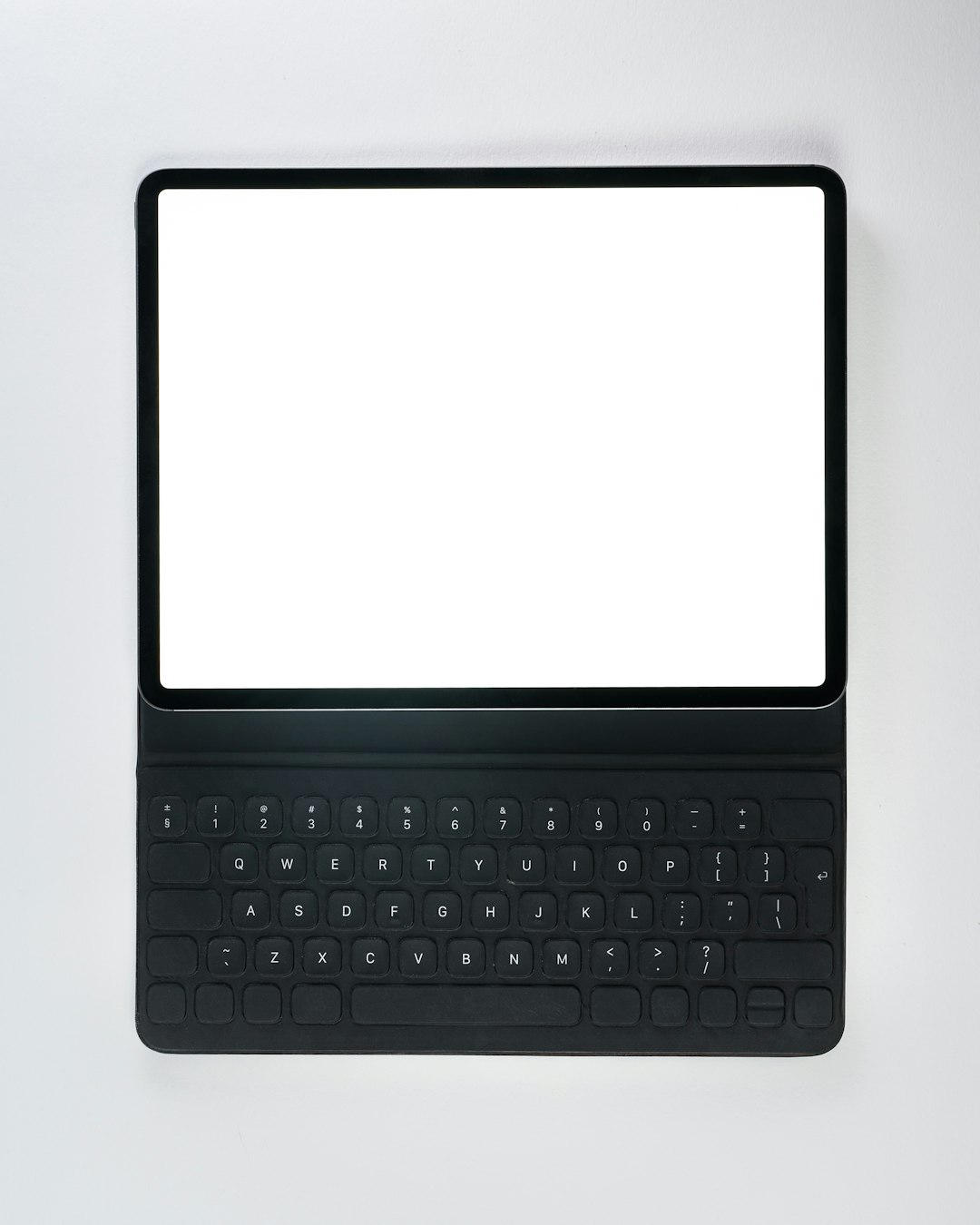
For users of the Microsoft Surface Book, the ability to seamlessly switch between laptop and tablet modes is one of its most appealing features. The device is engineered with a unique fulcrum hinge and a dynamic detachable screen that makes this transition both elegant and functional. However, knowing how to properly detach the screen is essential for maintaining your device’s longevity and user experience.
TL;DR (Too Long; Didn’t Read)
Detaching the screen from a Surface Book is straightforward but requires following the proper steps to avoid damage. Press and hold the dedicated detach key on the keyboard or use the Windows Detach tool to release the screen. Ensure all applications are closed and the device is not running resource-heavy tasks before attempting removal. Always wait for visual or audible confirmation before detaching.
Understanding the Surface Book’s Detachable Feature
The Surface Book is different from typical convertible laptops. It doesn’t rely on a 360-degree hinge but rather features a dedicated mechanism called “Muscle Wire” to physically release the screen. This design not only offers better performance separation between GPU-heavy processes but also provides a true tablet experience when the screen is removed.
Preparing to Detach the Surface Book Screen
Before initiating the detachment, it’s critical to ensure that your system is in a stable state. The separation mechanism is controlled by software, so any interference can potentially cause errors or incomplete detachments.
Steps to prepare:
- Save all your work.
- Close any open applications, especially those using dedicated GPU resources.
- Make sure you’re not using external displays connected through the Surface Book’s ports.
- Fully charge your battery or keep it plugged in to prevent any power interruptions.
How to Detach the Screen Using the Detach Key
The fastest way to detach the screen is by using the keyboard’s Detach key, usually located at the top-right area near the function keys. Here’s how:
- Locate the Detach button (it has an icon of a screen splitting from a keyboard).
- Press and hold the button for about a second.
- Wait for the “Ready to Detach” notification that appears on the screen.
- Once you hear a click or see the screen wobble slightly, gently lift the screen away from the keyboard.
Note: Do not try to forcefully remove the screen without confirmation from the device, as this can permanently damage the mechanical lock.
Detaching the Screen via Software (Windows Toolbar Method)
If the Detach key is unresponsive or you’re experiencing keyboard malfunctions, the screen can also be separated using the Windows settings tool:
- Click the Surface Detach icon located in the system tray (next to the clock).
- Select “Detach screen” from the context menu.
- Wait for the screen to notify “Ready to Detach.” A green light usually appears on the Detach key.
- Remove the screen gently once prompted.
If the icon doesn’t appear, check if you’re running the latest Surface firmware and drivers. Update your system through Windows Update.
Common Issues When Trying to Detach
Occasionally, users may find that the system refuses to detach the display. This is usually a protective measure by the Surface Book to prevent hardware issues.
Possible causes include:
- High CPU/GPU usage from apps like Photoshop or games
- Ongoing background software updates
- Pending hardware or firmware updates
- Malfunction in the battery or power supply
To troubleshoot:
- Close all applications and try again.
- Shut down completely and reboot your device.
- Check battery health using the Surface Diagnostic Toolkit.
- Ensure both the clipboard (screen) and base battery are charged.
Switching Back to Laptop Mode
After using your Surface Book in tablet mode, reattaching the screen is as simple as aligning the ports and letting the magnetic strip engage. Make sure you hear or feel the click that confirms a secure reconnect.
Once attached, the GPU and other components housed in the keyboard base will be re-engaged for optimal performance.

Maintaining the Detach Mechanism
To keep the detachment system working smoothly, follow these maintenance tips:
- Keep the hinge and attachment points clean and free of dust.
- Avoid excessive pressure or tilting while attaching/detaching.
- Update your Surface Book regularly to ensure firmware compatibility.
- If mechanical sounds seem strained, visit a Microsoft Store for a quick inspection.
Manual Override: When Nothing Else Works
In rare cases, the software detachment system might fail completely. Microsoft does not recommend forced manual removal; however, certain generations of Surface Book have an emergency paperclip hole reset on the backside of the keyboard base.
Use this only when:
- Battery isn’t charging.
- The detachable button is unresponsive.
- There are no visuals on the screen.
Details on using the manual release can be found in the official Surface Book support documents. Always seek professional help where possible.
FAQ: Frequently Asked Questions
- Q1: Why does my Surface Book say “Cannot Detach Screen”?
- A: This usually happens when the GPU is in use, or an app is preventing detachment. Close all apps and try again after a few moments.
- Q2: Can I detach the screen while the Surface Book is off?
- A: No. The detach mechanism is electronic and software-controlled, requiring the device to be powered on and functional.
- Q3: Does detaching the screen affect battery life?
- A: Not directly. However, the keyboard base often contains additional battery capacity. When detached, you’re relying only on the screen battery.
- Q4: Can I use the keyboard base with another device after detaching?
- A: No. The Surface Book keyboard base is designed specifically to connect only with its paired screen.
- Q5: Can I use touchscreen or pen features in laptop mode?
- A: Yes. All touchscreen and pen input features remain functional whether the screen is attached or not.
By understanding how to properly detach your Surface Book’s screen, users can maximize the flexibility of their device while maintaining its hardware health. Whether for presentation, drawing, or casual browsing, the transition to tablet mode should always be smooth, secure, and stress-free.
