

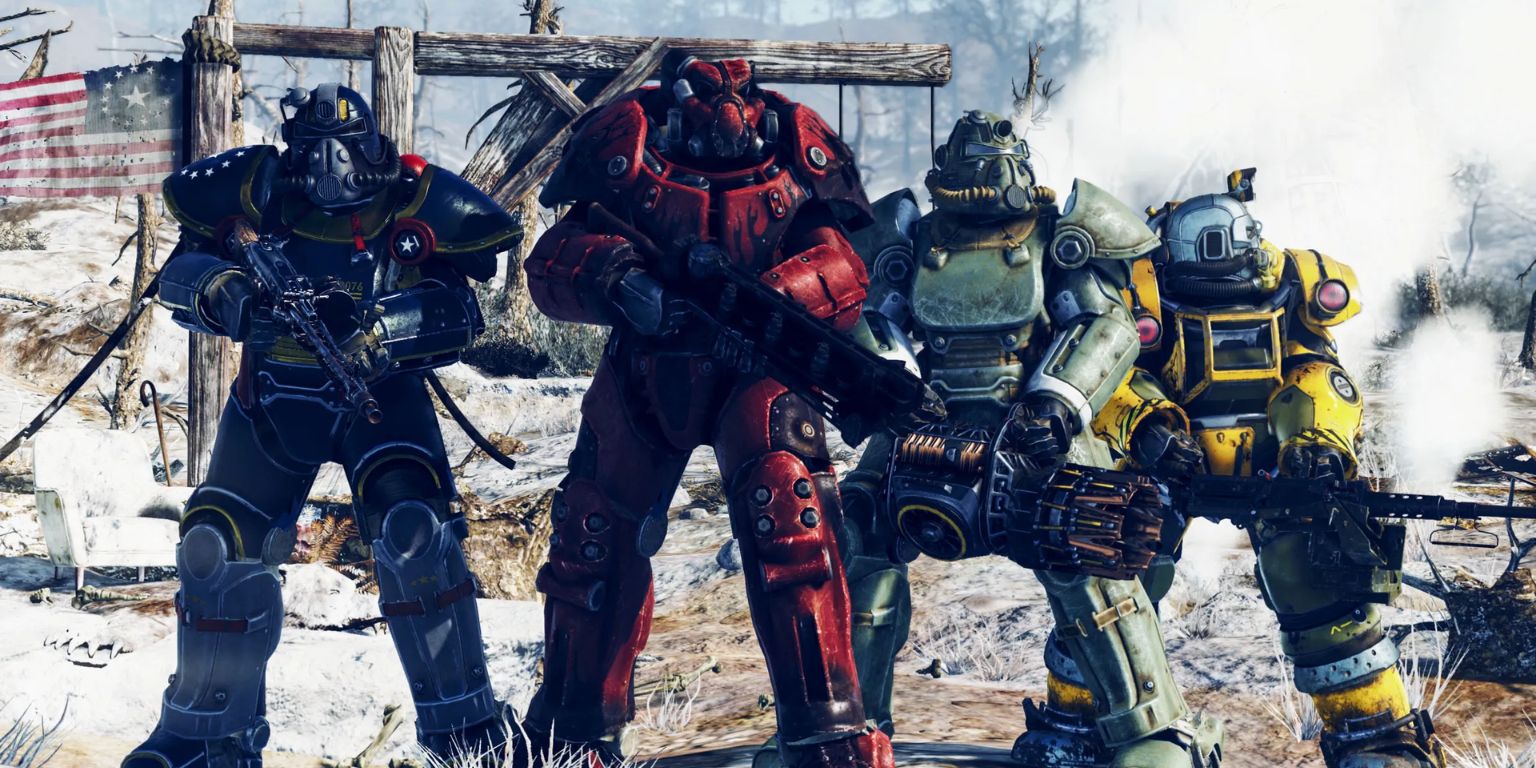
Wandering through the post-apocalyptic West Virginian landscape in Fallout 76 can be an immersive and often lonely experience—unless you open up and connect with other players in-game. Bethesda’s shared-world RPG encourages community interaction, whether you’re teaming up to loot a vault, battling mysterious cryptids, or simply showing off your shelter. But to do any of that effectively, you’ll need to master the art of communication within the game.
TL;DR
Talking with other players in Fallout 76 enhances your experience, enabling better teamwork, fun social encounters, and improved gameplay strategies. You can communicate through public voice chat, team chat, emotes, and text messaging. Audio devices and settings need to be configured correctly for voice chat to work smoothly. Experiment with different methods to find what suits your playstyle and comfort level.
Understanding Communication Options in Fallout 76
Fallout 76 offers several ways to interact with other players, from direct voice communication to more subtle, gesture-based interactions. Below are the primary methods:
- Public Voice Chat
- Team Voice Chat
- Text Chat (for PC players)
- Emotes and Gestures
- Private Messaging via Bethesda.net
Let’s explore each of these in more detail.
1. Public Voice Chat
By default, Fallout 76 enables proximity-based public voice chat. This means that you can hear and talk to nearby players in the game world as long as your voice mic is active.
To use public voice chat effectively:
- Make sure you’re using a functioning microphone or headset.
- Check your system settings to ensure the correct audio input is selected.
- In-game, press the appropriate button to activate your mic (usually this is Push-to-Talk or Open Mic depending on your settings).
You can toggle voice chat modes by navigating to:
Menu → Settings → Audio → Voice Chat Mode
Here you can choose between settings like Always On, Push-to-Talk, or Off.

2. Team Voice Chat
Joining a team activates a more private form of voice communication. This is ideal for coordinating with friends or other players you’re working with. Team Voice Chat helps reduce ambient noise and background conversations that might occur in public chat.
To activate this:
- Join or form a team via the social menu or invite screen.
- Go to Settings → Audio and check that Team Voice Chat is enabled.
- Talk freely when in a team—if Push-to-Talk is enabled, use the assigned key.
Keep in mind that Team Chat becomes the default if you’re part of a team, even if you’re near other players in-game.
3. Text Chat (PC Exclusive)
Though not available on consoles, PC players can use the in-game text chat system to type messages to other players. This is especially useful if you prefer not to use voice chat or are in a quiet environment.
To use text chat:
- Press Enter to bring up the chat box.
- Use /zone to speak to everyone in the vicinity.
- Use /team to communicate only with your team.
- Use /whisper [player name] to send a private message.
This feature is streamlined and fairly intuitive, but it might take you a few tries to get used to the commands.
4. Emotes and Gestures
Emotes offer a silent but expressive way to communicate in Fallout 76. From waving and laughing to threatening poses or dancing, these actions help you make a statement without saying a word.
To use emotes:
- Open the Emote Wheel by holding the correct button (typically Down on the D-pad for consoles or G on PC).
- Select an emote using your joystick or mouse.
- Release to activate the emote.
Some emotes are unlocked as rewards from events, quests, or the Atomic Shop. Experiment with them to create your own non-verbal communication style!

5. Private Messaging via Bethesda.net
For more direct and persistent communication, you can make use of Bethesda.net’s friend and messaging system. This is especially useful for organizing future play sessions or sending messages across platforms.
Steps to send a private message:
- From the Main Menu, go to Social.
- Choose a friend from your contacts or search their Bethesda.net username.
- Select Message and start chatting!
Keep in mind that while this feature doesn’t function as real-time communication in the game world, it’s an excellent way to reinforce connections you make in-game.
Optimizing Your Audio Settings
One of the most common issues players face is with misconfigured audio. If voice chat isn’t working correctly, double-check these in-game and system settings:
- Default Audio Devices: Ensure your mic and speakers/headphones are set as default in your system settings.
- In-Game Sensitivity: Adjust mic sensitivity levels in Settings → Audio to avoid being too quiet or too loud.
- Mute Options: Make sure you haven’t accidentally muted yourself—or other players—from the Social Menu.
- Parental Controls: If playing on a family-managed account, voice features may be restricted.
When in doubt, test your mic setup in other software (such as Discord or Xbox Party Chat) to isolate the issue.
When to Use Which Method
Every communication method has its ideal context. Here’s a quick breakdown to help you decide which to use during certain scenarios:
| Method | Best For |
|---|---|
| Public Voice Chat | Random exploration, trading, nearby encounters |
| Team Voice Chat | Group events, dungeon runs, coordinating tactics |
| Text Chat | Quiet environments, PC players who prefer not to talk |
| Emotes | Quick greetings, expressing emotions, role-playing |
| Bethesda Messaging | Scheduling games, maintaining friendships outside sessions |
Staying Safe and Respectful
While it’s fun to chat with fellow adventurers, always remember to maintain good manners and be respectful in your interactions. Bethesda moderates toxic behavior, and players have the ability to report abuse directly via the social menu.
You can also mute or block offensive users quickly:
- Open the Social Menu
- Select the offending player
- Choose Mute or Block
Stay alert and use your judgment—friendly alliances sometimes turn into risky encounters in the wasteland.

Conclusion
Whether you’re planning a raid on a Scorchbeast nest or just want to dance around the campfire at your C.A.M.P., knowing how to communicate with others can make all the difference in Fallout 76. With multiple tools at your disposal—including voice, text, gestures, and messages—you’re all set to make friends, form alliances, and survive the Appalachian wilds together.
Take the time to master these tools
