

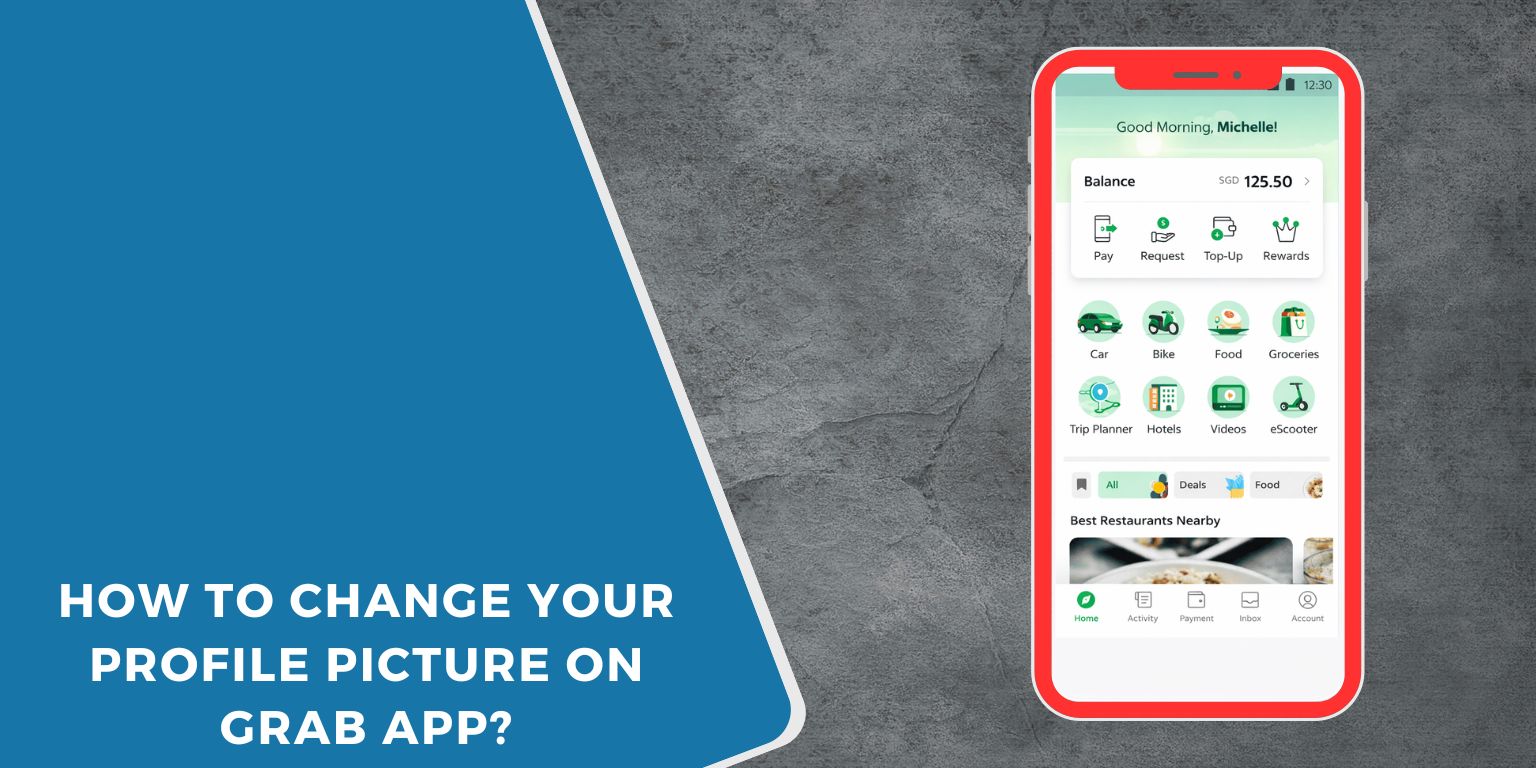
Want to update your photo on the Grab app but not sure where to tap? Don’t worry, it’s simple. Whether you use Grab for rides, food delivery, or GrabPay, your profile picture helps keep your account personal and recognizable. Both Android and iPhone users can change it inside the app settings. It only takes a minute if you know where to look.
In this guide, you’ll learn how to change your profile picture, what you need before updating it, and what to do if the option does not appear.
What Is a Profile Picture on Grab?
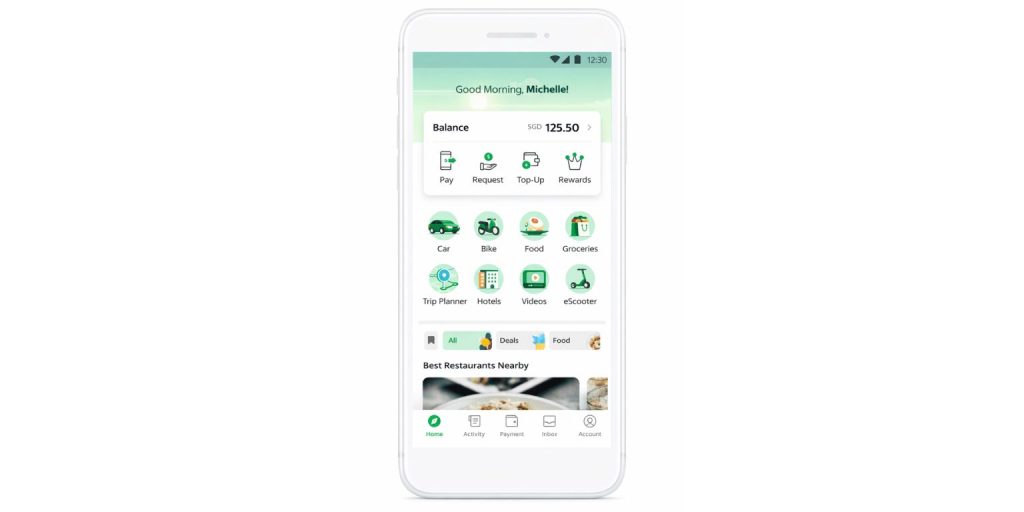 Your profile picture on Grab is the photo linked to your Grab account. It appears in your account dashboard and helps identify you when using services like GrabCar, GrabFood, and GrabPay. Drivers and merchants may see your profile image during transactions or ride bookings. Grab uses this image as part of account recognition and identity verification. It connects to the same account details tied to your phone number and email address. Keeping it updated helps avoid confusion, especially if your old photo looks different now.
You can see your profile picture inside the Account tab of the Grab app. It may also appear during ride bookings or in your transaction history.
Requirements Before Changing Your Profile Picture
Before updating your photo, make sure everything is ready. A small issue like app permissions can block the upload.
- Latest version of the Grab app installed
- Stable Wi-Fi or mobile data connection
- Camera and gallery permission enabled
- Clear and bright photo
- Face visible and not covered
Checking these first saves time.
How to Change Your Profile Picture on Grab App?
Follow these simple steps to update your Grab profile photo. The process works almost the same on Android and iPhone.
- Open the Grab app on your phone.
- Tap on the Account or Profile tab.
- Tap your current profile picture.
- Select Edit or Change Photo.
- Choose Camera to take a new photo or Gallery to upload one.
- Adjust the image if needed.
- Tap Confirm or Save.
The new profile picture should update within a few seconds. If it does not refresh immediately, close and reopen the app.
What to Do If You Cannot Change Your Profile Picture?
Sometimes the change option does not appear or the upload fails. This usually links to app or connection issues.
- Update the Grab app from Google Play Store or Apple App Store
- Restart your phone and try again
- Clear app cache on Android through Settings > Apps > Grab
- Reinstall the Grab app
- Switch to a stable internet connection
- Contact Grab Support through the Help Center inside the app
Most users fix the issue by updating or restarting the app.
Tips for Choosing a Good Profile Picture
Pick a clear photo with good lighting. Avoid heavy filters or dark backgrounds. Make sure your face is centered and visible. Do not use group photos because it may confuse drivers or merchants. A simple headshot works best. Keeping your profile image professional also helps with account verification and security checks. Clean, simple, clear. That’s enough.
Conclusion
In short, changing your profile picture on the Grab app is quick and easy. Just open the Account tab, tap your current photo, and upload a new one. The process works on both Android and iOS devices. As long as your app is updated and permissions are enabled, the change should go smoothly.
Keep your profile updated so your account stays accurate and recognizable. If the feature does not work, use the Help Center in the Grab app. If this guide helped you, share it with others and leave a comment below.
