

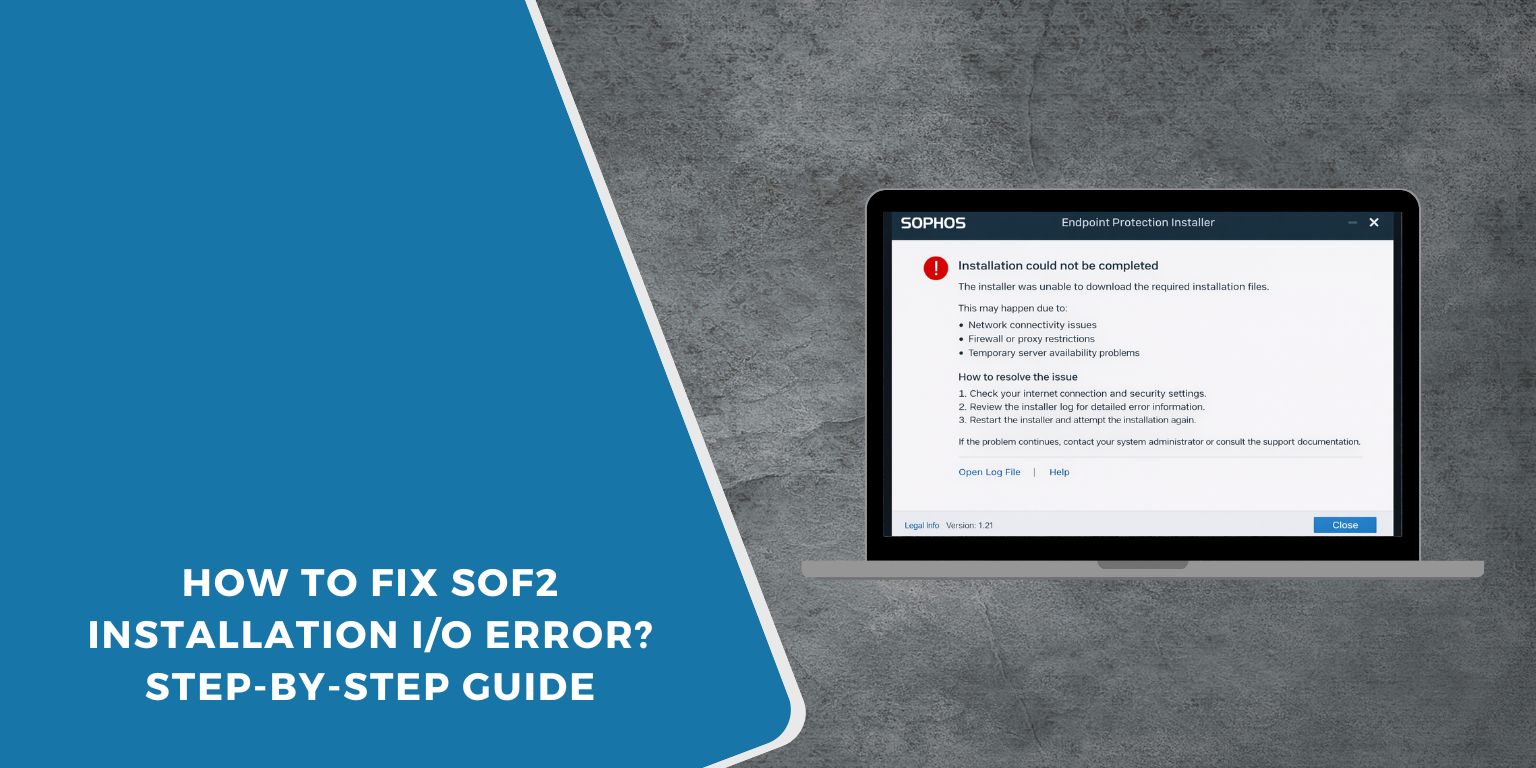
Many players still install Soldier of Fortune II: Double Helix, often called SOF2, to enjoy its classic single-player missions and multiplayer modes. But sometimes the installation runs almost to the end and suddenly stops with an I/O error. The setup window freezes, files stop copying, and the game refuses to install.
This problem usually happens when the installer cannot read or write a file during the installation process. The error might come from the installation disc, ISO image, hard drive, or system permissions. In this guide, you will learn what the SOF2 installation I/O error means, why it appears near the end of setup, and several practical ways to fix it so the game installs successfully.
What Is the SOF2 Installation I/O Error?
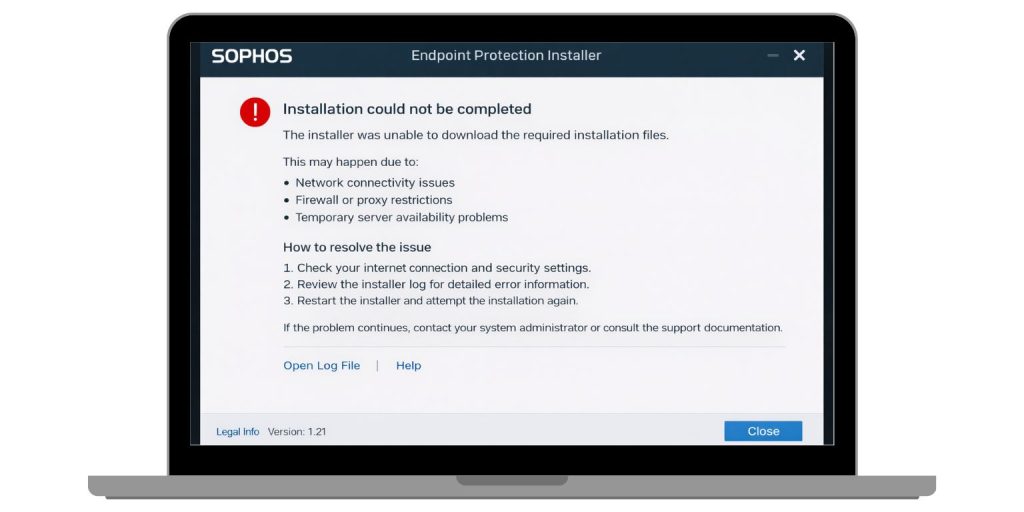 An I/O error, short for Input/Output error, occurs when a computer fails to read or write data during an operation. During the installation of Soldier of Fortune II, the setup program copies game files from the installation source such as a CD, DVD, or ISO image to the system’s hard drive or SSD. Each file must be read from the installation media and written to the destination folder. If the system cannot access the source file or cannot store it properly on the disk, the installer stops and displays the I/O error message.
This interruption commonly appears when the installer reaches a specific file that cannot be read correctly. The cause may involve scratched discs, corrupted installation files, disk read problems, or permission restrictions within the Windows operating system. Because the installation process relies on a continuous flow of file transfers, even a small read failure can stop the entire setup.
Players usually encounter the error near the end of the installation process. The setup wizard may pause during file copying or extraction, especially when the installer reaches larger game files stored on the installation media.
Common Causes of SOF2 Installation I/O Error
The I/O error usually signals a problem with the system’s ability to access installation files or store them on the disk. Several conditions may cause the setup to fail.
Common causes include:
- Scratched or damaged SOF2 installation disc
- Corrupted ISO image or installation files
- Faulty or aging CD/DVD drive
- File system errors on the hard drive
- Lack of administrator permissions during installation
- Insufficient disk space on the system drive
- Antivirus software interfering with the installer
Most of these problems occur because the installer cannot read data correctly from the installation source.
How to Fix SOF2 Installation I/O Error
Several troubleshooting steps can help resolve this issue. The goal is to ensure that the system can read installation files and write them to the disk without interruption.
Fix #1 Clean the Installation Disc
If you are installing SOF2 from a physical CD or DVD, dirt or scratches may prevent the drive from reading certain files.
Follow these steps:
- Remove the disc from the drive
- Use a soft cloth to gently clean the surface
- Wipe from the center outward
- Reinsert the disc into the drive
- Restart the installation process
Cleaning the disc often improves read accuracy.
Fix #2 Copy Installation Files to the Hard Drive
Running the installer directly from a disc can cause read errors if the drive struggles to access certain files.
Try this approach:
- Insert the SOF2 installation disc
- Open the disc in File Explorer
- Copy all installation files to a folder on your hard drive
- Run the setup file from the copied folder
Installing from the hard drive reduces the chance of disc read errors.
Fix #3 Run the Installer as Administrator
Older games like Soldier of Fortune II sometimes require elevated permissions to install files correctly.
Follow these steps:
- Locate the SOF2 installer
- Right-click the setup file
- Select Run as administrator
Administrator privileges allow the installer to create folders and write files without restrictions.
Fix #4 Check the Hard Drive for Errors
Disk errors on the system drive may prevent files from being written during installation.
To scan the disk:
- Open Command Prompt as administrator
- Type the command
chkdsk /f - Press Enter
- Allow Windows to check the disk for errors
This tool repairs file system issues that may cause I/O failures.
Fix #5 Verify the ISO File
If you are installing the game from a downloaded ISO image, the file itself might be corrupted.
To fix this:
- download the ISO again from a trusted source
- verify the file size and integrity
- mount the ISO again before running the installer
A corrupted ISO often leads to installation errors.
Fix #6 Use Compatibility Mode
Because SOF2 was released years before modern Windows versions, compatibility settings may help the installer run correctly.
Follow these steps:
- Right-click the installer file
- Select Properties
- Open the Compatibility tab
- Enable Run this program in compatibility mode
- Choose an older Windows version
Compatibility mode improves support for legacy software.
Fix #7 Disable Antivirus Temporarily
Security software sometimes blocks older game installers when they attempt to create or modify system files.
You can test this by temporarily disabling the antivirus program during installation. After the game installs successfully, enable the antivirus again.
Fix #8 Try Another Disc Drive or Installation Source
If the optical drive struggles to read the disc, the problem may be hardware related.
Possible solutions include:
- using another DVD drive
- installing from an ISO image instead of the disc
- copying the files using another computer
A different drive can read the installation media more reliably.
Prevention Tips to Avoid Errors in the Future
Preventing installation errors helps ensure smooth setup for older games.
Consider these practices:
- store game discs in protective cases
- keep installation media free from scratches
- maintain enough free disk space before installing
- scan the hard drive periodically for errors
- avoid interrupting installations during file copying
- use verified installation files or ISO images
These steps help protect installation files and system storage.
Conclusion
The SOF2 installation I/O error usually occurs when the system cannot read or write game files during the installation process. The issue commonly relates to damaged discs, corrupted installation files, disk errors, or hardware problems with the optical drive.
Most players fix the problem by cleaning the installation disc, copying files to the hard drive, running the installer as administrator, or checking the disk for file system errors. If the error continues, trying a different installation source or drive may resolve the issue.
If you managed to install Soldier of Fortune II successfully after fixing this error, share your experience in the comments. Your solution might help another player finish the installation without frustration.
