

You click Start Streaming in OBS Studio, ready to go live on YouTube or Twitch, and suddenly a message pops up – “Failed to start streaming. No config URL available for the current service.” That stops everything. Your stream does not connect, your audience sees nothing, and you feel stuck. This guide explains what this OBS error means, why it appears, how to fix it step by step, and how to prevent it from happening again.
What Does “No Config URL Available for the Current Service” Mean in OBS?
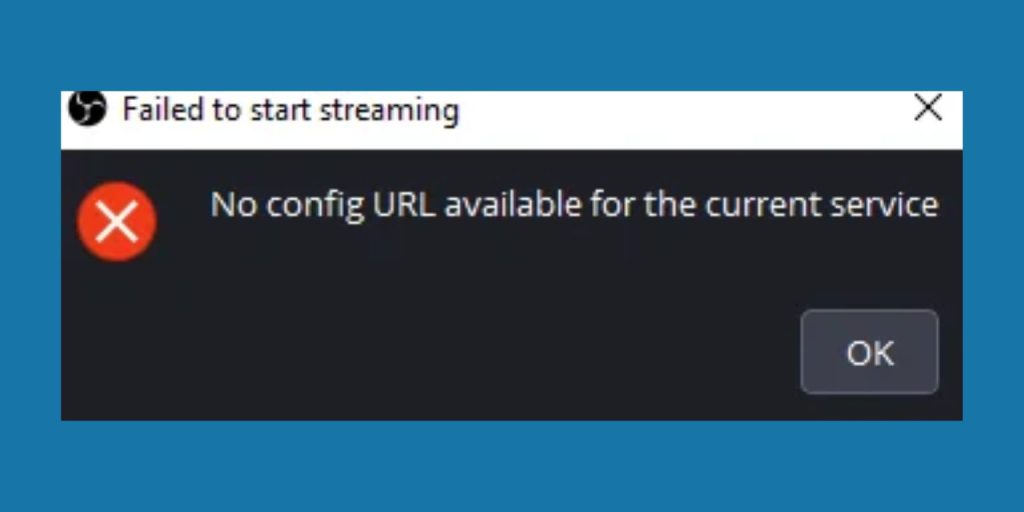 This error appears when OBS Studio cannot find a valid streaming server URL for the selected service. OBS needs two main things to go live: a stream key and a server configuration URL. When you choose YouTube Live, Twitch, Facebook Live, or another supported platform, OBS automatically loads the correct RTMP server settings. However, if the streaming service is not selected correctly or if a custom service lacks a proper RTMP URL, OBS has no server destination. Because of that, the software cannot establish a connection, and the stream fails before it even begins. The config URL is part of the streaming protocol that tells OBS where to send video data. Without it, there is no handshake between OBS Studio and the streaming platform.
You usually see this message inside OBS Studio right after pressing the Start Streaming button. It appears in a small popup window on Windows 10, Windows 11, or macOS. The error may also appear after switching profiles or editing stream settings.
Common Causes of OBS Config URL Error
This error can happen for several configuration reasons inside OBS Studio. Most of the time, it relates to incorrect stream settings or missing service data.
- Streaming service not selected in OBS Stream settings
- Custom streaming service chosen without entering an RTMP server URL
- Stream key missing, deleted, or pasted incorrectly
- Corrupted OBS profile removing saved service configuration
- Outdated OBS Studio version not syncing properly with YouTube or Twitch
- Switching platforms without updating server settings
- Firewall or antivirus blocking RTMP connection
How to Fix “No Config URL Available for the Current Service” in OBS
Fixes depend on how your streaming service is configured. In most cases, correcting the Stream settings inside OBS Studio solves the issue quickly. Follow each solution carefully and test streaming after applying it.
Fix #1: Re-select the Streaming Service
OBS needs a valid streaming platform selected so it can load the proper config URL automatically. If the service is blank or incorrect, the server field remains empty.
Follow the steps below to easily re-select your streaming service.
- Open OBS Studio.
- Click on Settings in the bottom-right corner.
- Go to the Stream tab.
- Under Service, choose YouTube, Twitch, Facebook Live, or your platform.
- Click Apply, then OK.
- Try clicking Start Streaming again.
Once you select a supported platform, OBS automatically loads the correct ingest server configuration.
Fix #2: Enter the Stream Key Again
If your stream key is missing or incorrect, OBS may not complete service configuration properly. YouTube Live and Twitch both require a valid stream key for authentication.
You can perform the following steps to enter your stream key correctly.
- Go to YouTube Studio or Twitch Dashboard in your browser.
- Open the Live Streaming section.
- Copy your stream key.
- Return to OBS Settings.
- Paste the stream key into the Stream Key field.
- Click Apply and restart OBS.
After entering the correct key, OBS connects to the server and completes the authentication process.
Fix #3: Avoid Custom Service Unless Necessary
Custom RTMP service requires manual entry of the server URL and stream key. If you leave the server field empty or enter an incorrect RTMP address, OBS cannot find a config URL. That causes the error instantly. Unless you stream to a private server or use Restream.io, select a built-in platform like YouTube or Twitch. These services load configuration automatically and reduce setup errors.
Fix #4: Reset OBS Profile
Sometimes OBS profile data becomes corrupted, especially after system crashes or forced shutdowns. A damaged profile may remove streaming configuration details.
Follow these easy instructions to reset your OBS profile without confusion.
- Open OBS Studio.
- Click on Profile in the top menu.
- Select New to create a fresh profile.
- Name the new profile.
- Go back to Stream Settings and select your platform again.
- Enter your stream key.
A new profile rebuilds the configuration file and restores proper service settings.
Fix #5: Update OBS Studio
Older versions of OBS Studio may not sync correctly with updated streaming platforms. YouTube Live and Twitch occasionally change integration methods, and outdated software may fail to load config URLs.
Here’s how you can update OBS Studio in just a few seconds.
- Open OBS Studio.
- Click on Help in the top menu.
- Select Check for Updates.
- Install any available update.
- Restart your system.
After updating, OBS refreshes its service integration files.
Fix #6: Check Firewall and Network Settings
Windows Defender Firewall or third-party antivirus software can block outgoing connections from OBS Studio. If the firewall blocks RTMP protocol traffic, OBS cannot reach the streaming server. This prevents the config URL from validating, and the streaming attempt fails. Antivirus software may also restrict network permissions when OBS tries to connect to Twitch or YouTube ingest servers. Because streaming depends on stable outbound connections, blocked ports can interrupt the process.
You can temporarily disable firewall or antivirus to test the connection. If streaming works afterward, add OBS Studio as an allowed application instead of keeping protection disabled.
Prevention Tips to Avoid OBS Streaming Errors in Future
Preventing configuration errors saves time before going live. Small checks reduce streaming interruptions and protect your setup.
- Keep OBS Studio updated regularly
- Double-check streaming service selection before starting
- Store your stream key securely and avoid editing it often
- Avoid switching to Custom RTMP without correct server URL
- Backup OBS profiles after stable configuration
- Test stream settings privately before major live sessions
Conclusion
In short, the “No config URL available for the current service” error means OBS Studio does not have a valid streaming server configuration. This usually happens due to missing service selection, invalid stream key, custom RTMP misconfiguration, outdated OBS version, or firewall restrictions. Most users fix it by re-selecting their streaming platform and entering the correct stream key.
If this guide helped you fix OBS streaming issues, share it with other creators who use YouTube Live or Twitch. If the problem continues, comment below with your streaming platform and OBS version. That makes troubleshooting easier for everyone.
