

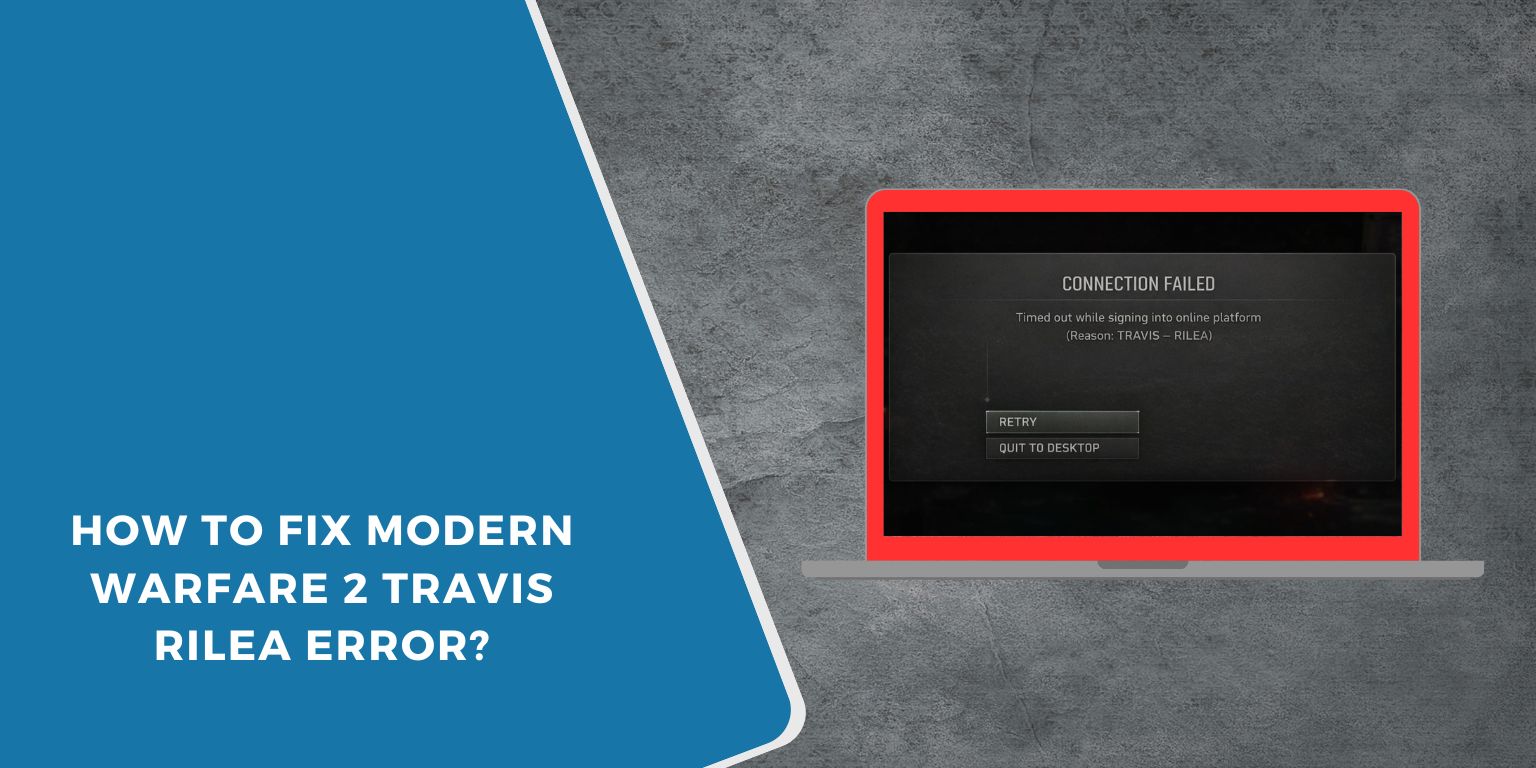
You launch Call of Duty Modern Warfare 2, try to go online, and then the game stops with a Travis Rilea error. Multiplayer does not load, lobbies fail to connect, and nothing works the way it should. This feels annoying because the game opens fine, but online play stays locked.
This guide explains what the Modern Warfare 2 Travis Rilea error means, where it shows up, why it happens, how to fix it step by step, and how to avoid seeing it again.
What Is the Travis Rilea Error in Modern Warfare 2?
 The Travis Rilea error in Modern Warfare 2 means the game cannot connect to online services. Modern Warfare 2 depends on Activision servers to handle login, matchmaking, and multiplayer sessions. When the game fails to reach these services, it shows this error and blocks online access. This error does not mean your account is banned or broken. It usually points to a connection issue.
You often see the Travis Rilea error during startup or when entering multiplayer. Some players see it while searching for a match. Others get it after sitting in the lobby for a while. The error can appear on PlayStation, Xbox, Steam, or Battle.net.
Common Causes of Modern Warfare 2 Travis Rilea Error
This error can happen for several reasons related to servers, network, or system setup. Below are the most common causes.
-
Activision servers are down or unstable
-
PlayStation Network, Xbox Live, Steam, or Battle.net outage
-
Internet connection instability
-
Strict NAT type
-
Router or firewall blocking game traffic
-
DNS routing problems
-
VPN or proxy interference
How to Fix Modern Warfare 2 Travis Rilea Error?
The Travis Rilea error usually appears when Modern Warfare 2 cannot complete online connection checks. The fixes below focus on server availability, network stability, and correct system settings. Apply each fix one by one.
After every fix, restart the game and test online access before moving forward.
Fix #1: Check Activision Server Status
If Activision servers are offline or under heavy load, Modern Warfare 2 cannot connect online. When this happens, local fixes will not work.
Follow the steps below to check server status.
-
Open a web browser
-
Visit the Activision service status page
-
Check Modern Warfare 2 services
-
Review outage or maintenance notices
-
Check official Call of Duty updates
Wait until servers are fully online.
Fix #2: Restart Game, Console or PC, and Network
Temporary system data can block online connections. Restarting clears cached sessions and refreshes network services. This helps when the game worked earlier and suddenly stopped connecting.
Close Modern Warfare 2, shut down your console or PC, unplug the router and modem for about 30 seconds, then power everything back on and launch the game again.
Fix #3: Check Internet Connection Stability
An unstable connection can interrupt server communication during login or matchmaking. Even small drops can trigger this error.
Pause downloads, close streaming apps, and use a wired connection if possible before launching the game again.
Fix #4: Disable VPN or Proxy
VPNs and proxy services can route traffic through unsupported regions. This often blocks Activision servers and causes connection errors.
Follow these easy instructions to disable VPN or proxy services.
-
Close Modern Warfare 2
-
Open your VPN or proxy app
-
Disconnect from the active server
-
Exit the app completely
-
Open network settings
-
Make sure no proxy is enabled
Restart the game after disabling.
Fix #5: Check NAT Type and Router Settings
A strict NAT type can block multiplayer connections. Modern Warfare 2 works best with open or moderate NAT.
Follow the steps below to check router settings.
-
Open your router admin panel
-
Check the current NAT type
-
Enable UPnP if available
-
Avoid double NAT setups
-
Save changes and restart the router
Launch the game and test again.
Fix #6: Change DNS Settings
DNS issues can prevent the game from reaching Activision servers correctly.
Here are the following steps which help you change DNS settings.
-
Open network settings
-
Select your active connection
-
Change DNS to a public provider
-
Save the settings
-
Restart your router
-
Launch the game again
This can improve routing.
Fix #7: Update Modern Warfare 2 and Platform Client
Outdated game files or platform clients can cause connection mismatches. Follow the steps below to update everything.
-
Open your platform client
-
Check for Modern Warfare 2 updates
-
Install all available patches
-
Update Steam, Battle.net, PSN, or Xbox
-
Restart the platform
-
Launch the game again
Updates often fix connection bugs.
Fix #8: Reinstall the Game or Repair Files
If nothing else works, the game installation may be damaged. Perform the following steps carefully to repair or reinstall.
-
Open your platform client
-
Select Modern Warfare 2
-
Choose Repair or Verify files
-
Wait for the process to finish
-
Restart your system
-
Reinstall the game if repair fails
This restores missing files.
Prevention Tips to Avoid Travis Rilea Error
Prevention helps keep online play stable and avoids repeated errors.
-
Monitor Activision server updates
-
Keep the game updated
-
Avoid VPNs while playing
-
Restart your router weekly
-
Use a stable internet connection
-
Keep NAT type open
-
Close background network apps
Conclusion
In short, the Modern Warfare 2 Travis Rilea error means the game cannot connect to online services. This usually happens because of server outages, network instability, or router restrictions. While the error blocks multiplayer, it is often easy to fix.
Try the fixes one by one and follow the prevention tips to keep your connection stable. If the issue continues, contact Activision Support with your platform and network details. If this article helped you, leave a comment and share it with other players who may be stuck on the same error.
