

You open iTubeGo, paste a YouTube URL, hit download… and it fails. Annoying, right? When this happens, it stops your MP4 video or MP3 audio conversion and wastes your time. Sometimes it blocks a full playlist download on Windows 11 or macOS. Don’t worry.
In this guide, you’ll learn what the iTubeGo Download Failed error means, why it shows up, how to fix it with seven practical solutions, and how to stop it from coming back.
What Is iTubeGo Download Failed Error?
 The iTubeGo Download Failed error appears when the software cannot complete a connection between its download engine and the YouTube server. iTubeGo sends a video stream request using a YouTube URL. If that request fails during parsing, authentication, or network response, the app marks the task as failed. It does not always mean your internet is completely down. Sometimes the YouTube API changes, encryption updates, or a local firewall setting interrupts the request.
In simple words, the software tries to fetch the video file, but something blocks the transfer process before it finishes.
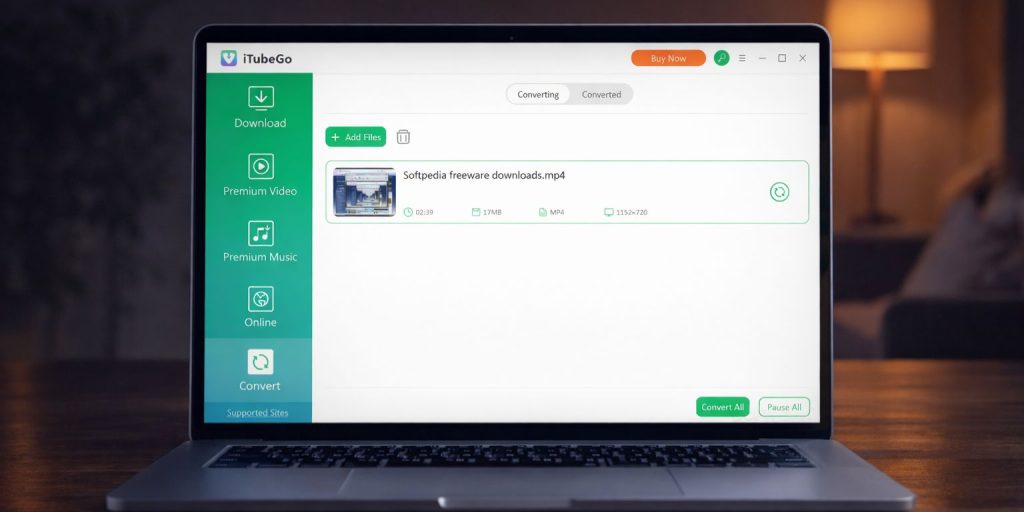
You usually see this message inside the download queue panel. The status column may show “Failed,” or a popup alert appears in the iTubeGo window. On Windows PC, it shows near the download progress bar. On macOS, it appears inside the main dashboard area.
Common Causes of iTubeGo Download Failed Error
This error can happen for several reasons depending on your device settings, internet connection, or software version. Below are the most common causes you should check first.
- Outdated iTubeGo version that does not support recent YouTube platform or API changes
- Weak Wi-Fi signal or unstable Ethernet connection interrupting the video stream
- Windows Defender or third-party antivirus blocking the app’s network access
- Corrupted cache files or damaged temporary download folders
- Private, age-restricted, or region-locked YouTube video URL
- Conflicting VPN or proxy server configuration
- Expired or inactive iTubeGo license activation
How to Fix iTubeGo Download Failed Error?
In most cases, this problem connects to either outdated software, firewall restrictions, or unstable internet. However, small system settings can also trigger it. To resolve this issue efficiently, go through the fixes below one by one.
Fix #1: Update iTubeGo to the Latest Version
YouTube updates its streaming system often. When encryption or video delivery methods change, older versions of iTubeGo may fail to parse the video stream correctly.
Follow the steps below to easily update iTubeGo.
- Open iTubeGo on your Windows or macOS device.
- Click on Settings or Menu.
- Select “Check for Updates.”
- If an update is available, download it.
- Restart your computer after installation.
Once updated, the software reconnects to YouTube servers with improved compatibility.
Fix #2: Check and Stabilize Your Internet Connection
Sometimes the download fails because your network drops for a few seconds. Even a small interruption can break a video stream request.
Try these simple steps to quickly improve your connection.
- Restart your Wi-Fi router.
- Run a speed test using a browser.
- Switch from Wi-Fi to a wired Ethernet connection if possible.
- Pause other large downloads.
- Reopen iTubeGo and try again.
After stabilizing the connection, the download engine can complete the file transfer properly.
Fix #3: Disable Firewall or Antivirus Temporarily
Security software like Windows Defender, Avast, or McAfee can block unknown network requests. If they block iTubeGo, the download fails.
Here are the following steps which help you to temporarily disable Windows Defender.
- Open Windows Security.
- Click on Virus and Threat Protection.
- Select Manage Settings.
- Turn off Real-time Protection.
- Test the download again.
If it works, add iTubeGo to the allowed apps list instead of keeping protection off.
Fix #4: Run iTubeGo as Administrator
Sometimes Windows 11 restricts application permissions. Without admin rights, the software may fail to access system folders or network services.
Follow these easy instructions to run the app as administrator without any confusion.
- Close iTubeGo completely.
- Right-click the iTubeGo shortcut.
- Select “Run as administrator.”
- Confirm the permission prompt.
- Paste the YouTube URL and retry the download.
With elevated permissions, the app can access required system resources.
Fix #5: Clear Cache or Reinstall iTubeGo
Corrupted temporary files inside the download directory can interrupt video processing. Sometimes reinstalling fixes hidden configuration issues.
The following steps will show you how to reinstall the software properly.
- Open Control Panel.
- Click Programs and Features.
- Uninstall iTubeGo.
- Restart your PC.
- Download the latest installer from the official iTubeGo website.
- Install and test again.
A fresh installation removes damaged cache files and resets the configuration.
Fix #6: Re-Activate or Check License Status
If your iTubeGo license expires, some premium features may stop working. Batch downloads or high-resolution formats might fail.
Perform the following steps carefully to verify your license.
- Open iTubeGo Settings.
- Click on Account or License.
- Check activation status.
- Re-enter your activation key if needed.
- Restart the app.
After activation, the software connects properly with its license server and restores full access.
Fix #7: Try a Different YouTube Video URL
Some YouTube videos are private, age-restricted, or region-blocked. If the video is protected by copyright policy or limited by geographic settings, iTubeGo cannot download it. Check if the video plays normally in your browser first.
If it doesn’t load, the issue may relate to regional restrictions, YouTube Terms of Service limitations, or account login requirements. In that case, choose a public video link and test again.
Prevention Tips to Avoid iTubeGo Download Failed Error in Future
Preventing this error saves time and avoids repeated interruptions. A stable system and updated software reduce failure rates. Keep your network, app, and security settings clean and simple. Small habits matter.
- Keep iTubeGo updated regularly
- Restart your router once a week
- Avoid cracked or unofficial versions
- Disable VPN while downloading YouTube content
- Add iTubeGo to firewall exception lists
- Monitor DNS settings if you changed them
- Ensure enough free storage space in the download folder
Conclusion
In short, the iTubeGo Download Failed error means the app cannot complete communication with YouTube servers. Most causes relate to outdated software, unstable internet, firewall blocking, or license problems. The good news is that it’s usually fixable with simple steps.
Try each fix carefully. Test after every change. If the problem continues, contact iTubeGo official support or check their help center for updated guidance.
And if this guide helped you, share your experience in the comments. It may help someone else facing the same issue.
