

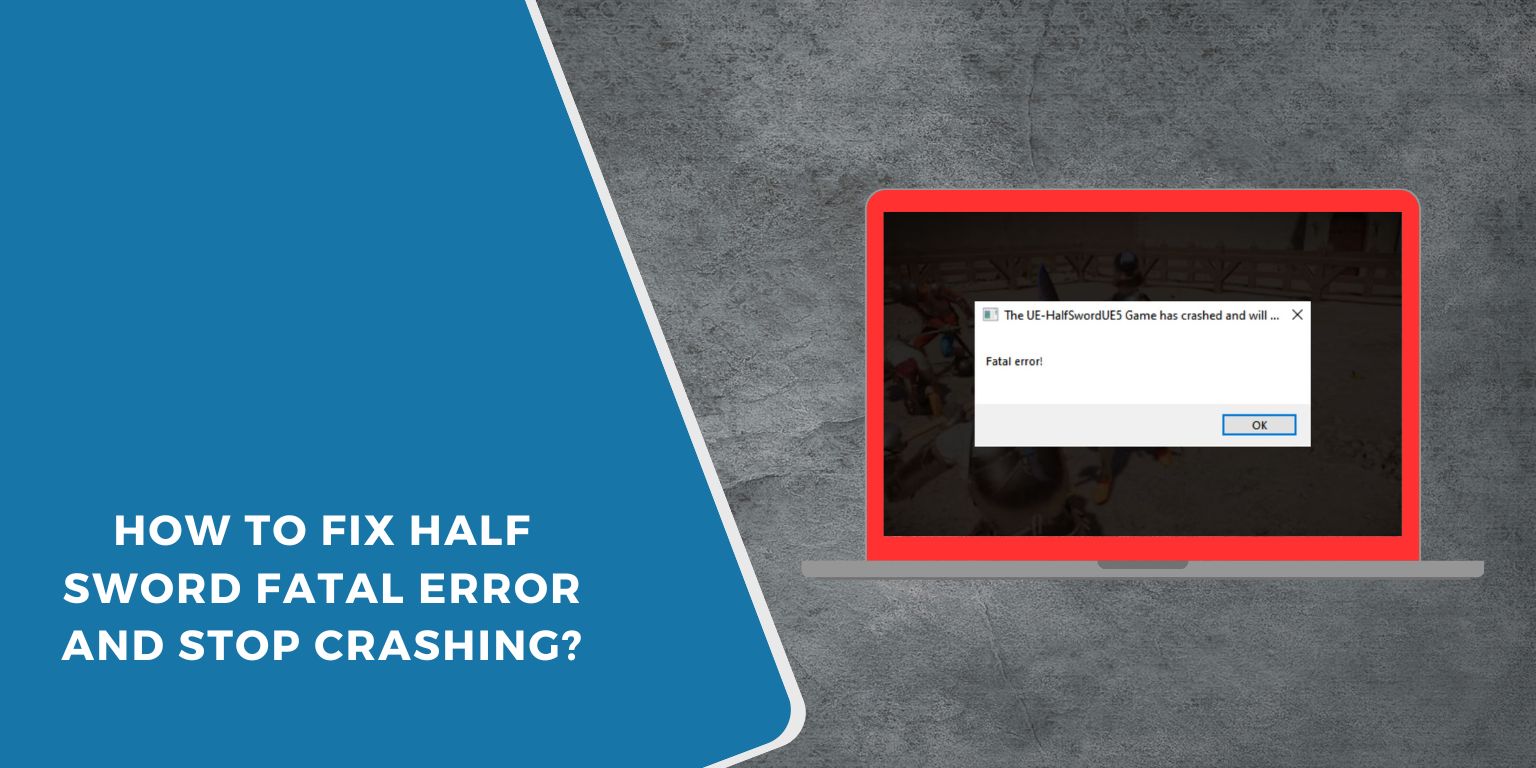
You start the game, everything looks fine, then it crashes. A message pops up saying fatal error, and the game closes. That moment feels annoying, especially when you just want to play. This issue often shows up while launching or playing Half Sword on PC.
This article explains what a fatal error means, why it happens, and how you can reduce the chances of seeing it again. If the crash caught you off guard, don’t worry. Let’s slow it down and understand what’s going on.
What Is a Half Sword Fatal Error?
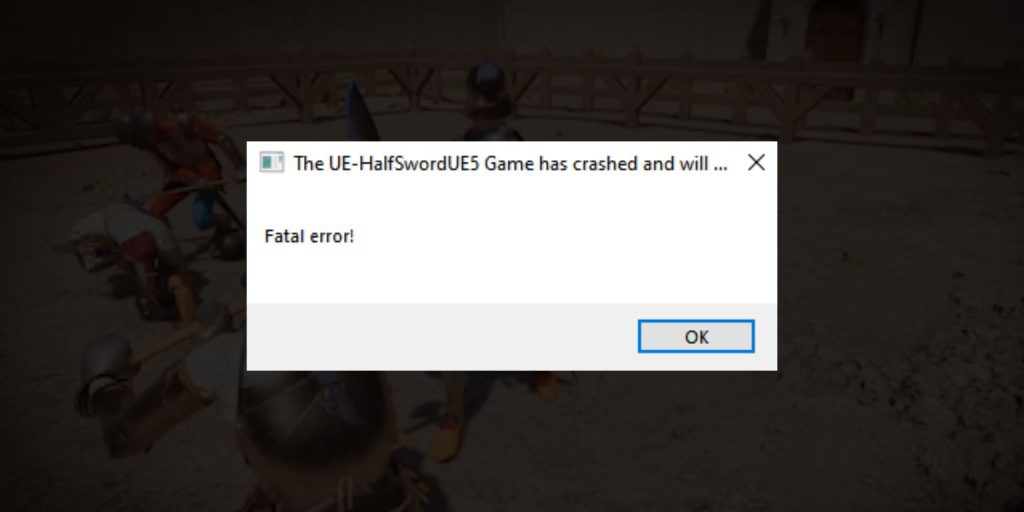 A Half Sword fatal error means the game crashed and could not continue running. When this happens, the game engine stops immediately to avoid further problems. In simple words, something went wrong that the game could not recover from. This can be related to system files, game data, or how the game interacts with your PC. It does not mean your hardware is damaged or your system is broken.
Players usually see this error on Windows PCs, often when launching the game, loading into a match, or during gameplay. In many cases, the crash happens without warning. The message itself does not explain much, which makes the issue feel harder to understand at first.
Common Causes of Half Sword Fatal Error
This error usually comes from a mix of system and game-related problems. Sometimes the issue is temporary. Other times, it’s linked to compatibility or missing files. Knowing the common causes helps you avoid repeating the same crash again and again.
Here are the most common reasons linked to a Half Sword fatal error:
- Corrupted or missing game files
- Outdated graphics drivers on Windows
- Unsupported GPU or system specifications
- Conflicts with background apps or overlays
- Missing DirectX or Visual C++ components
- Low system memory during gameplay
- Bugs in the current game build or early access version
Each of these can interrupt how the game engine runs. When the engine fails, the game shuts down to prevent further issues.
How to Fix Half Sword Fatal Error?
A fatal error means the game hit something it couldn’t handle. Sometimes it’s a quick glitch. Other times it’s files, drivers, or system limits. Because the error message gives little detail, it’s best to try these fixes in order. Apply one fix, launch the game, then test. If it still crashes, move on.
Fix #1: Restart the Game and Steam
The game or launcher can get stuck in a bad state after a crash. That broken state can trigger the same error again.
Close the game fully. Exit Steam as well. Wait a few seconds, then reopen Steam and launch Half Sword again. This simple step often clears temporary launch issues.
Fix #2: Verify Game Files on Steam
Missing or corrupted files are a common cause of fatal errors. Verifying files forces Steam to replace anything broken.
Follow the steps below to verify game files:
- Open Steam
- Go to Library
- Right-click Half Sword
- Select Properties
- Open Installed Files
- Click Verify integrity of game files
- Wait for the process to finish
After verification, try launching the game again.
Fix #3: Update Graphics Drivers
Outdated GPU drivers can crash games during loading or gameplay. Newer drivers often fix stability problems.
Here’s how you can update graphics drivers safely:
- Open your GPU control panel or Device Manager
- Check your current driver version
- Visit the official GPU website
- Download the latest stable driver
- Install the update
- Restart your PC
- Launch the game again
This fix is especially important after Windows updates.
Fix #4: Disable Background Apps and Overlays
Some background apps interfere with games. Overlays from recording tools, chat apps, or performance monitors can cause crashes.
Close unnecessary apps before launching the game. Disable overlays from Steam, screen recorders, or FPS counters. Once those are off, start the game again and see if it runs longer.
Fix #5: Run Half Sword as Administrator
Permission issues can stop the game from accessing system files it needs.
Perform the following steps carefully:
- Close the game
- Open the game installation folder
- Right-click the game executable
- Select Run as administrator
- Confirm the prompt
- Let the game load fully
Running as admin helps avoid access-related crashes.
Fix #6: Update Windows and System Components
Older system files can break compatibility with newer game builds. This includes DirectX and Visual C++ files.
Check for Windows updates and install any pending ones. After updates finish, restart your PC. This ensures required system components load correctly before starting the game.
Fix #7: Reinstall the Game
If none of the above fixes work, the installation itself may be damaged.
Uninstall the game from Steam. Restart your PC. Reinstall the game on the same drive or a different drive if possible. Once installed, launch it without changing settings first and test stability.
How to Prevent Half Sword Fatal Error in the Future?
Prevention won’t stop every crash, but it can lower how often fatal errors appear. These steps focus on keeping your system stable and reducing conflicts while playing.
- Keep graphics drivers updated
- Close unnecessary background programs
- Avoid overlays from recording or chat apps
- Make sure Windows updates are installed
- Monitor system temperature during gameplay
- Use supported hardware settings
- Keep the game updated through the launcher
These habits won’t fix every issue, but they help the game run more smoothly over time.
Conclusion
To summarize, a Half Sword fatal error is a crash that stops the game when it can’t continue safely. It often happens because of system limits, missing files, driver issues, or early access bugs. The error looks serious, but in most cases, it’s fixable or temporary.
If this article helped you understand the problem, consider sharing it with another player who’s facing the same crash. You can also leave a comment below and mention when the error appears for you. That kind of detail helps others find answers faster.
