

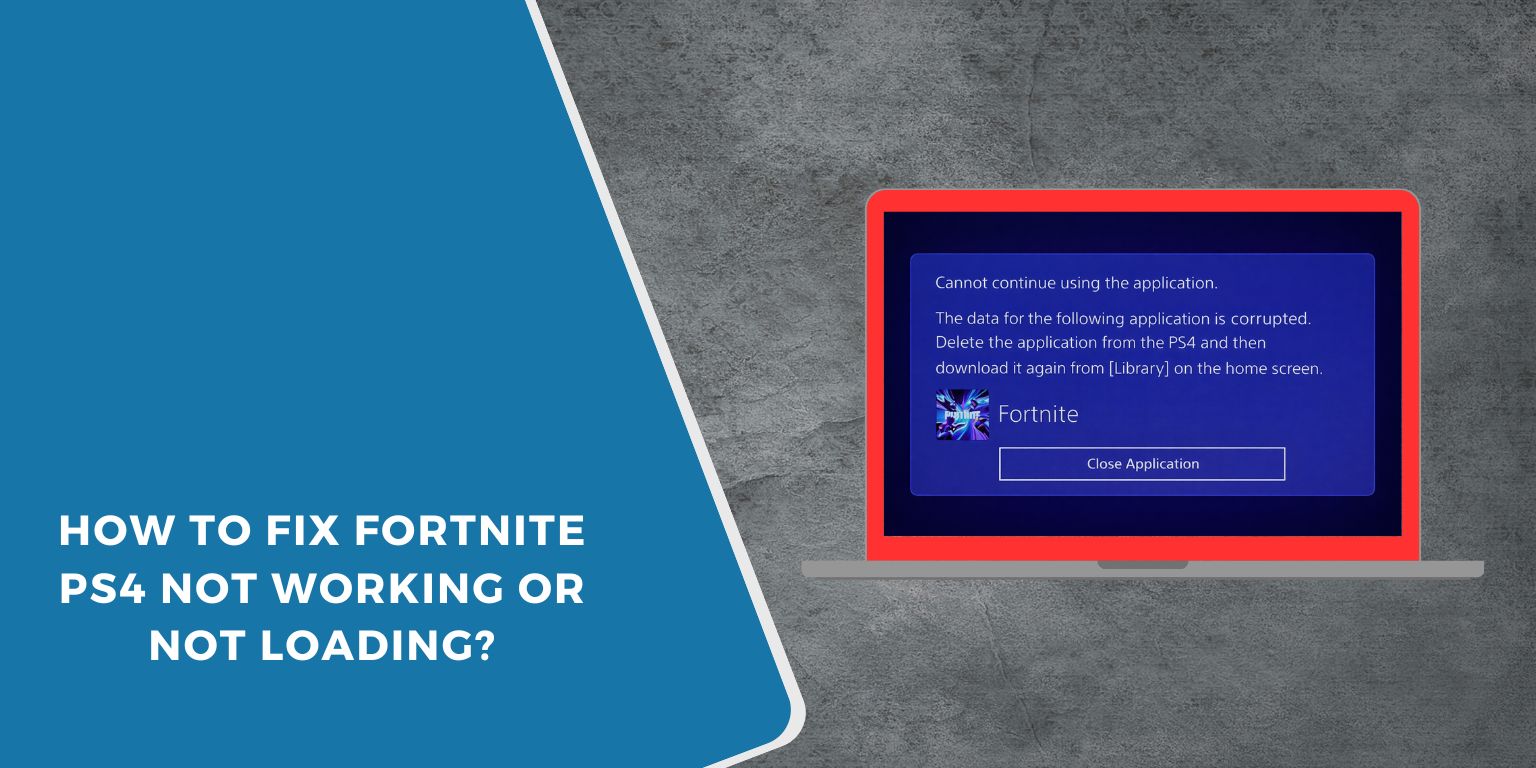
When Fortnite stops working on your PS4, it feels annoying fast. You open the game, expect to jump into a match, and instead get stuck on loading, errors, or crashes. Sometimes the game won’t even start. When this happens, it can block online play, waste time, and ruin plans with friends.
This guide explains what Fortnite PS4 not working really means, why it happens, how to fix it step by step, and how to keep it from coming back again.
What Is Fortnite PS4 Not Working?
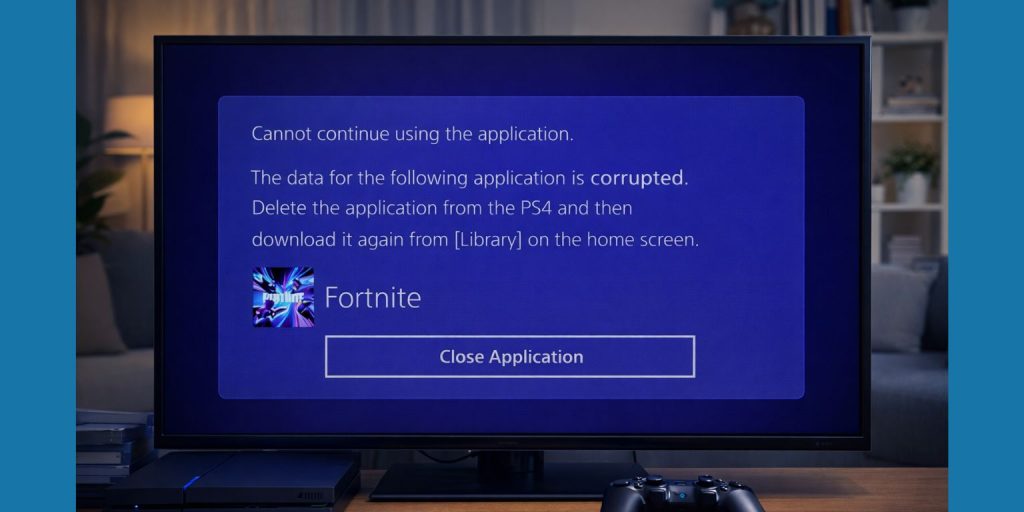 Fortnite PS4 not working means the game fails to run the way it should on a PlayStation 4 system. The issue can show up as the game not launching, freezing during startup, crashing mid-match, or failing to connect online. Fortnite relies on both local system resources and online services from Epic Games, so problems can start from the console, the game files, or the network that links your PS4 to Fortnite servers.
Most players notice the problem on the Fortnite loading screen, during login, or when matchmaking starts. Some see repeated error messages, while others just get a black screen or endless loading loop. In many cases, the PlayStation Network connects fine, but Fortnite itself fails to sync with its online services.
Common Causes of Fortnite PS4 Not Working
This problem can happen for several reasons, and the cause is not always obvious at first. Sometimes it comes from the console itself, and other times it comes from network or server issues outside your control. Knowing the common causes helps narrow things down faster.
- Outdated PS4 system software that no longer matches the current Fortnite version
- Temporary outage or maintenance on Fortnite servers managed by Epic Games
- PlayStation Network service disruptions affecting online games
- Corrupted Fortnite game data stored on the PS4 hard drive
- Weak or unstable internet connection during gameplay
- Strict NAT Type blocking matchmaking and voice chat
- Incorrect DNS settings that stop the PS4 from reaching Fortnite servers
How to Fix Fortnite PS4 Not Working?
In most cases, Fortnite issues on PS4 come from a mix of system settings and network conditions. Some fixes work right away, while others take a few minutes. Start with the simple checks first, then move to deeper fixes if needed.Fix #1: Check Fortnite and PlayStation Network Server Status
This problem often appears when Fortnite servers or PlayStation Network services are down. Even if your PS4 works fine, the game can’t connect when servers are unavailable.
Here’s how you can check the server status in just a few seconds:
- Open a browser on your phone or computer
- Visit the official Epic Games status page
- Check Fortnite service indicators
- Visit the PlayStation Network service status page
- Confirm all PSN services show as online
If servers are down, waiting is the only real fix.
Fix #2: Restart Your PS4 and Internet Router
Temporary system or network glitches can stop Fortnite from loading properly. A restart clears memory issues and refreshes the internet connection.
Try these simple steps to quickly restart everything:
- Close Fortnite fully on the PS4
- Turn off the PS4, not rest mode
- Unplug the PS4 power cable
- Restart your internet router
- Wait one minute
- Plug everything back in and power on
After this, Fortnite often launches normally.
Fix #3: Update PS4 System Software
Fortnite updates depend on the latest PS4 system software. When the console runs outdated firmware, the game may crash or refuse to open.
Follow the steps below to easily update your PS4 system software:
- Go to Settings on your PS4
- Select System Software Update
- Check for available updates
- Download and install the update
- Restart the console after installation
This helps keep Fortnite compatible with system features.
Fix #4: Test and Improve Your Internet Connection
Fortnite needs a stable connection to Epic Games servers. Weak Wi-Fi or packet loss can block login and matchmaking.
You can perform the following steps to test your PS4 network connection:
- Open Settings on PS4
- Select Network
- Choose Test Internet Connection
- Check connection speed and NAT Type
- Move closer to the router or use a wired cable
- Restart the test after changes
A NAT Type set to Type 2 usually works best.
Fix #5: Rebuild PS4 Database Using Safe Mode
Corrupted cache data can cause Fortnite to freeze or crash. Rebuilding the database cleans system data without deleting games.
The following steps will show you how to rebuild the PS4 database properly:
- Turn off the PS4 completely
- Hold the power button until you hear two beeps
- Connect a controller with a USB cable
- Select Rebuild Database from Safe Mode
- Wait for the process to finish
This can take time but often fixes stubborn issues.
Fix #6: Change DNS Settings on PS4
DNS problems can block Fortnite from reaching servers, even when the internet works for other apps.
Below are the steps that will guide you to change DNS settings on PS4:
- Go to PS4 Settings
- Open Network and set up connection manually
- Choose Custom settings
- Select Manual DNS
- Enter a public DNS server
- Save and test connection
Many players see better connection stability after this.
Fix #7: Reinstall Fortnite on PS4
When game files become damaged, reinstalling Fortnite can fix the issue. This removes corrupted data while keeping progress safe through your Epic Games account. Delete Fortnite from the PS4, restart the console, then download the game again from the PlayStation Store. This step takes time, but it often resolves launch and crash problems.
Prevention Tips to Avoid Fortnite PS4 Issues in the Future
Prevention saves time and avoids repeat frustration. Small habits can keep Fortnite running smoothly on your PS4.
- Keep PS4 system software updated
- Install Fortnite updates fully before playing
- Restart your router once a week
- Use a wired internet connection when possible
- Avoid VPN or proxy settings on PS4
- Maintain free storage space on the console
- Watch for overheating and clean vents regularly
Conclusion
To summarize, Fortnite PS4 not working usually means the game fails to launch, connect, or stay stable on a PlayStation 4. The cause often links to server outages, system software issues, corrupted game data, or network problems. Most of these issues have clear fixes that don’t require advanced tools.
Try the fixes one by one and follow the prevention tips to reduce future problems. If Fortnite still doesn’t work, contact Epic Games support or PlayStation support for deeper account or system checks.
If this guide helped you, share it with other players and leave a comment about what worked for you.
