

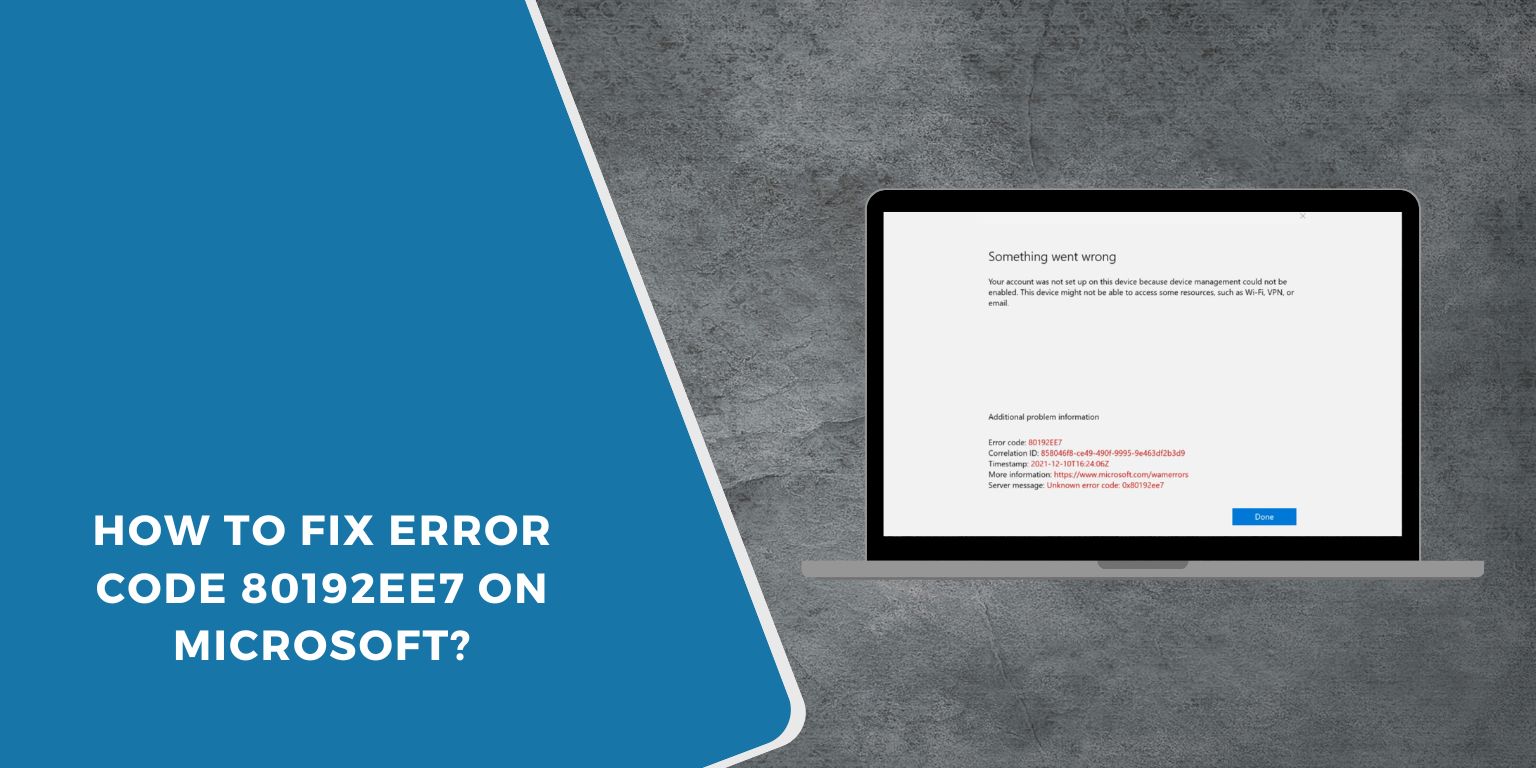
Seeing error code 80192EE7 on Microsoft can stop downloads and updates right away. It often appears when you use the Microsoft Store or Windows Update and nothing moves forward. That’s frustrating, especially when you need apps or security updates fast. This guide explains what the error means, where it shows up, why it happens, how to fix it step by step, and how to avoid it later.
What Is Error Code 80192EE7 on Microsoft?
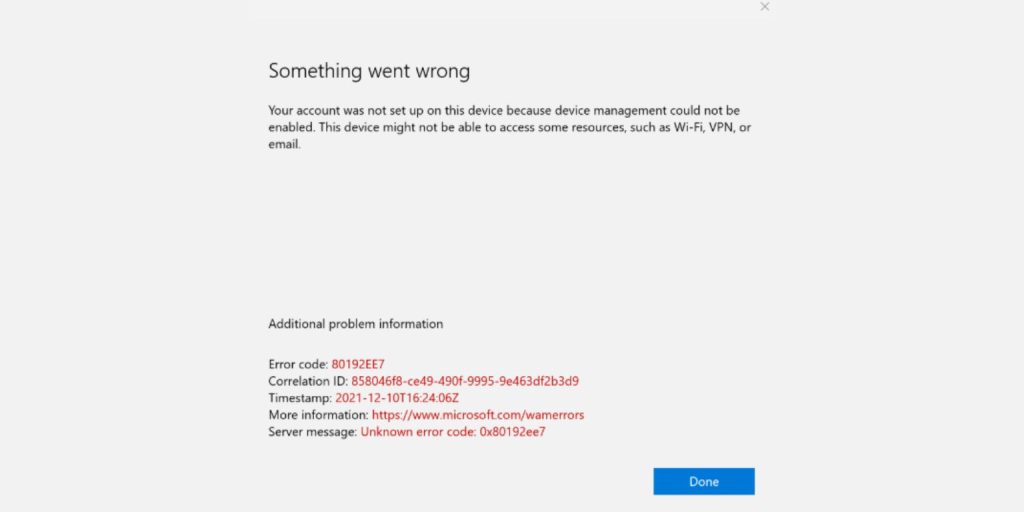 Error code 80192EE7 is a connection-related problem. It means Microsoft services cannot reach the servers they need. When Windows or the Microsoft Store can’t connect, downloads and updates fail.
You usually see this error in the Microsoft Store during app downloads or updates. It can also appear while Windows Update checks for updates or installs them. Sometimes the message shows after a long wait, other times it appears right away.
Common Causes of Error Code 80192EE7
This error usually happens when network or service settings block Microsoft connections.
- Unstable or disconnected internet
- Incorrect DNS settings
- VPN or proxy interference
- Firewall blocking Microsoft services
- Windows Update services not running
- Corrupted system files
- Temporary Microsoft server outage
How to Fix Error Code 80192EE7 on Microsoft?
In most cases, this issue can be fixed by adjusting network settings and restarting Microsoft services. Try the fixes below in order.
Fix #1: Check Your Internet Connection
Microsoft services need a stable connection. Follow these steps to check your connection.
- Open a web browser
- Visit a few websites
- Restart your router if pages load slowly
- Switch to a wired connection if possible
- Avoid downloads running in the background
Once the connection is stable, try again.
Fix #2: Restart Microsoft Store
Temporary glitches can stop downloads. Here’s how you can restart Microsoft Store.
- Close Microsoft Store completely
- Press Windows + R
- Type
wsresetand press Enter - Wait for the Store to reopen
This clears short-term Store issues.
Fix #3: Reset Microsoft Store Cache
Corrupted cache data can cause this error. Follow these easy steps to reset the cache.
- Press Windows + R
- Type
wsreset.exe - Press Enter
- Wait for the process to finish
Try downloading the app again.
Fix #4: Change DNS Settings
DNS issues can block Microsoft servers. Below are the steps that will guide you to change DNS safely.
- Open Network Settings
- Go to Adapter options
- Open your active network
- Select Internet Protocol Version 4
- Set DNS to a public option like Google DNS
- Save changes and restart the PC
This often fixes connection problems.
Fix #5: Disable VPN or Proxy
VPNs and proxies can redirect traffic and cause errors. Turn off your VPN or proxy and connect directly to your internet. Then retry Microsoft Store or Windows Update.
Fix #6: Check Windows Update Services
Required services must be running. Follow these steps to check them.
- Press Windows + R
- Type
services.msc - Find Windows Update
- Make sure the service is running
- Restart the service if needed
Also check Background Intelligent Transfer Service.
Fix #7: Run Windows Network Troubleshooter
Windows can detect network problems automatically. Try these steps.
- Open Settings
- Go to Network & Internet
- Select Network Troubleshooter
- Follow on-screen instructions
Apply any fixes it finds.
Fix #8: Repair System Files
Broken system files can block Microsoft services. Here’s how you can repair them.
- Open Command Prompt as administrator
- Type
sfc /scannow - Press Enter
- Wait for the scan to finish
- Restart your PC
This restores missing or damaged files.
Fix #9: Update Windows to the Latest Version
Outdated Windows builds may contain bugs. Open Settings, go to Windows Update, and install all available updates. Restart your system after updates complete.
Prevention Tips to Avoid Error Code 80192EE7 in the Future
Prevention helps keep Microsoft services working smoothly.
- Use a stable internet connection
- Avoid VPNs during updates
- Keep DNS settings reliable
- Allow Microsoft services through firewall
- Restart your PC after updates
- Keep Windows up to date
- Check Microsoft service status during outages
Conclusion
In short, error code 80192EE7 on Microsoft means the system cannot connect to required servers. It usually links to network settings, DNS problems, or stopped services.
Try the fixes one by one and follow the prevention tips. If the error keeps showing, contact Microsoft support for further help. If this guide helped you, share it and leave a comment so others can fix the issue faster.
