

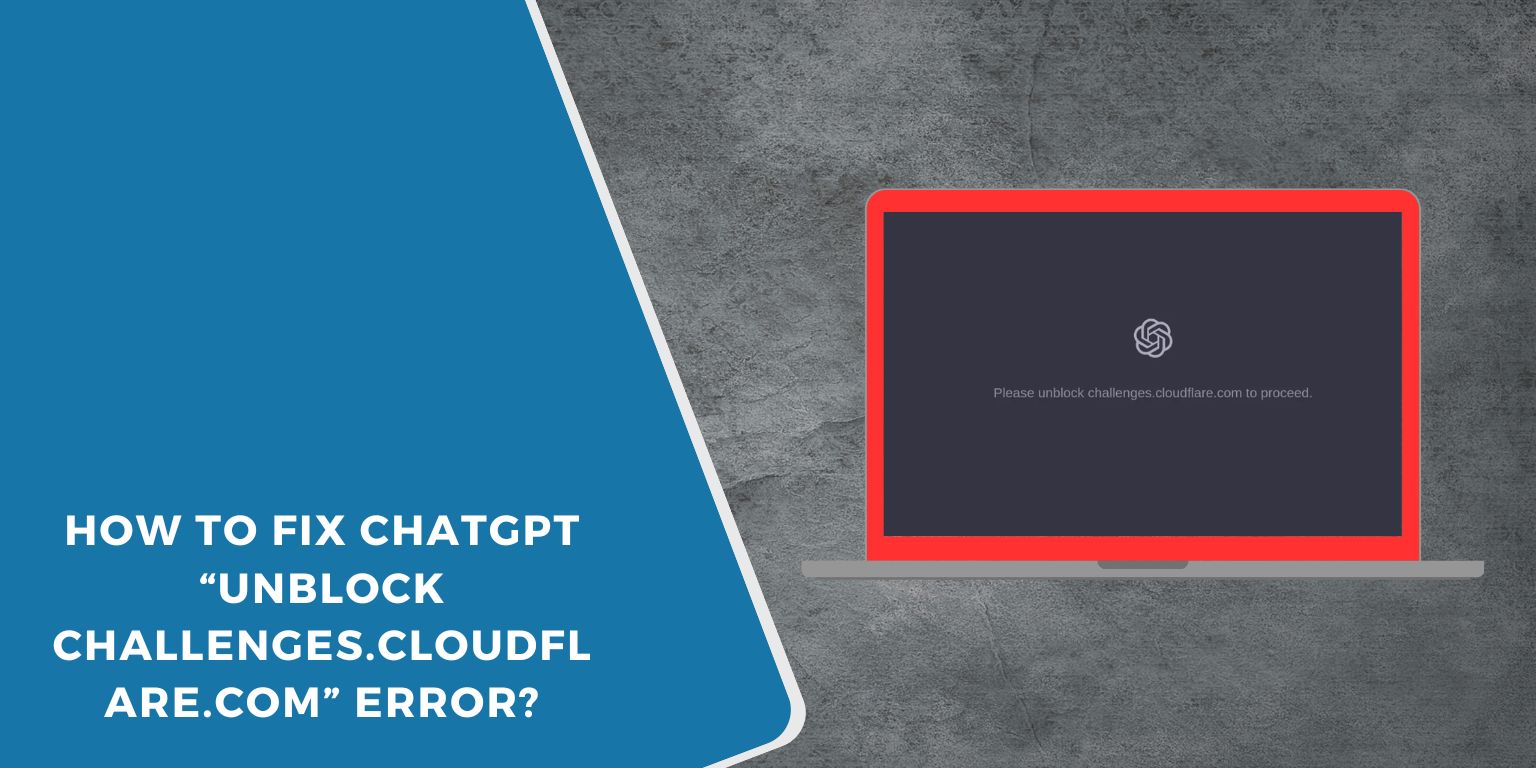
You open ChatGPT, expecting it to load, but instead you hit a wall. A message appears saying “Please unblock challenges.cloudflare.com to proceed”, and nothing moves forward. That moment feels confusing because you didn’t do anything wrong. This issue often blocks access completely and leaves users stuck on a loading screen.
In this article, you’ll learn what this message means, why it appears, and how to avoid running into it again while using ChatGPT.
What Does “Please Unblock challenges.cloudflare.com to Proceed” Mean?
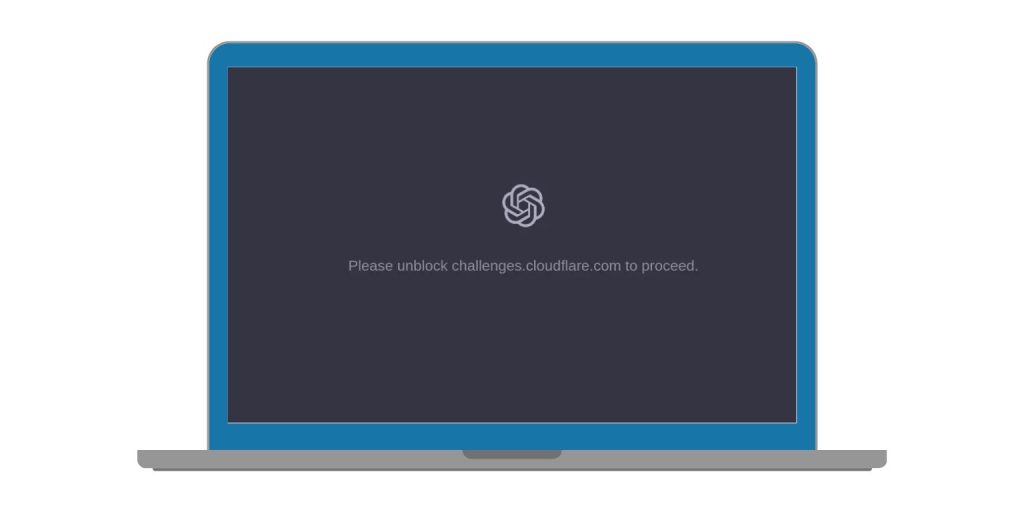 This message is a security block, not an error with ChatGPT itself. It appears when Cloudflare cannot complete its security check in your browser or network. Cloudflare uses the domain challenges.cloudflare.com to confirm that a real user is accessing the site and not an automated script. When that check is blocked, ChatGPT cannot load.
The message usually shows up in your browser before ChatGPT fully opens. Some users see a blank page, others see a reload loop, and some see the message directly. It does not mean your account is banned, limited, or reported.
Why ChatGPT Uses challenges.cloudflare.com?
ChatGPT is protected by Cloudflare to manage traffic, prevent abuse, and keep the service stable. Cloudflare acts as a gatekeeper between your browser and the ChatGPT servers. It checks basic things like browser behavior, cookies, and script execution.
Sometimes, these checks fail even for real users. This happens when the browser or network blocks part of the security process. When that happens, Cloudflare stops the page from loading and asks you to unblock its challenge system.
Common Causes of This Error
This issue usually comes from browser or network restrictions. In many cases, the user never changed anything intentionally. Still, small settings or tools can interfere with security checks.
Here are the most common reasons this error appears:
- VPN or proxy services blocking Cloudflare requests
- Browser extensions blocking scripts or cookies
- Corporate or school firewalls restricting external domains
- JavaScript disabled in the browser
- Corrupted cookies or site data
- Custom DNS resolvers filtering requests
- IP reputation issues on shared networks
- ISP-level filtering
Each of these can prevent challenges.cloudflare.com from loading properly.
How to Fix “Please Unblock challenges.cloudflare.com to Proceed”?
This block happens when a security check can’t run. Most of the time, something in the browser or network stops it. Because the message gives little detail, try these fixes in order. Apply one fix, reload the page, and test. If it still doesn’t load, move on.
Fix #1: Turn Off VPN or Proxy Services
VPNs and proxies often break security checks. They hide your real network details, which can stop the challenge from loading.
Turn off any VPN or proxy. Close the browser. Open it again and try loading ChatGPT. Many users see the page load right after this.
Fix #2: Try a Different Browser
Sometimes the issue is browser-specific. Extensions, settings, or profiles can block required scripts.
Open ChatGPT in another browser like Chrome, Firefox, Edge, or Safari. If it works there, your main browser likely has a blocking setting.
Fix #3: Clear Cookies and Site Data
Broken or blocked cookies can stop the security check from completing.
Follow these steps to clear site data:
- Open browser settings
- Go to Privacy or Site settings
- Find Cookies or Site data
- Search for openai or cloudflare
- Remove related data
- Close the browser
- Open it again and reload the page
This forces a fresh security check.
Fix #4: Disable Ad Blockers and Privacy Extensions
Some extensions block scripts from security domains. That stops the challenge page from loading.
Turn off ad blockers, script blockers, and privacy tools. Reload the page. If it works, re-enable extensions one by one to find the cause.
Fix #5: Make Sure JavaScript Is Enabled
The security check requires JavaScript. If it’s off, the page can’t proceed.
Here’s how you can check quickly:
- Open browser settings
- Go to Privacy or Content settings
- Find JavaScript
- Set it to Allowed
- Reload the page
After enabling it, the challenge should run.
Fix #6: Switch to a Different Network
Work and school networks often block security domains by default.
If possible, switch to mobile data, home Wi-Fi, or a personal hotspot. Reload the page. If it works on another network, the issue is with the original network.
Fix #7: Change DNS to Default or Public DNS
Custom DNS resolvers can block or filter requests.
You can try switching DNS back to automatic or to public DNS. After changing DNS, restart the browser and try again.
Fix #8: Ask the Network Admin to Whitelist the Domain
If you’re on a managed network, you may not have control.
Ask the admin to allow challenges.cloudflare.com through the firewall. This is common on office or school networks where security rules are strict.
Why This Error Is Common on Work or School Networks?
Office and school networks often use strict firewalls. These firewalls block unknown domains by default. Since challenges.cloudflare.com is part of a security system, it sometimes gets blocked automatically.
Shared networks also reuse IP addresses. If one user triggers security limits, others on the same network may face blocks too. That’s why ChatGPT may work fine at home but fail on a work or campus connection.
How to Prevent This Error in the Future?
You can’t control every security system, but a few habits reduce how often this block appears. The goal is to let Cloudflare complete its checks without interference.
- Use a standard browser with default settings
- Avoid aggressive script or tracker blockers
- Keep cookies enabled for trusted sites
- Use stable, trusted networks
- Avoid switching IPs too frequently
- Keep your browser updated
- Limit unnecessary privacy extensions
These steps help Cloudflare identify you as a normal user.
Conclusion
To summarize, the “Please unblock challenges.cloudflare.com to proceed” message is a security block, not a ChatGPT problem. It appears when Cloudflare cannot run its verification process due to browser, network, or firewall restrictions. While it looks serious, it usually has a simple cause.
If this article helped you understand what’s happening, share it with someone else facing the same issue. You can also leave a comment below and mention where you’re accessing ChatGPT from, home, office, or school. That detail helps others troubleshoot faster.
