

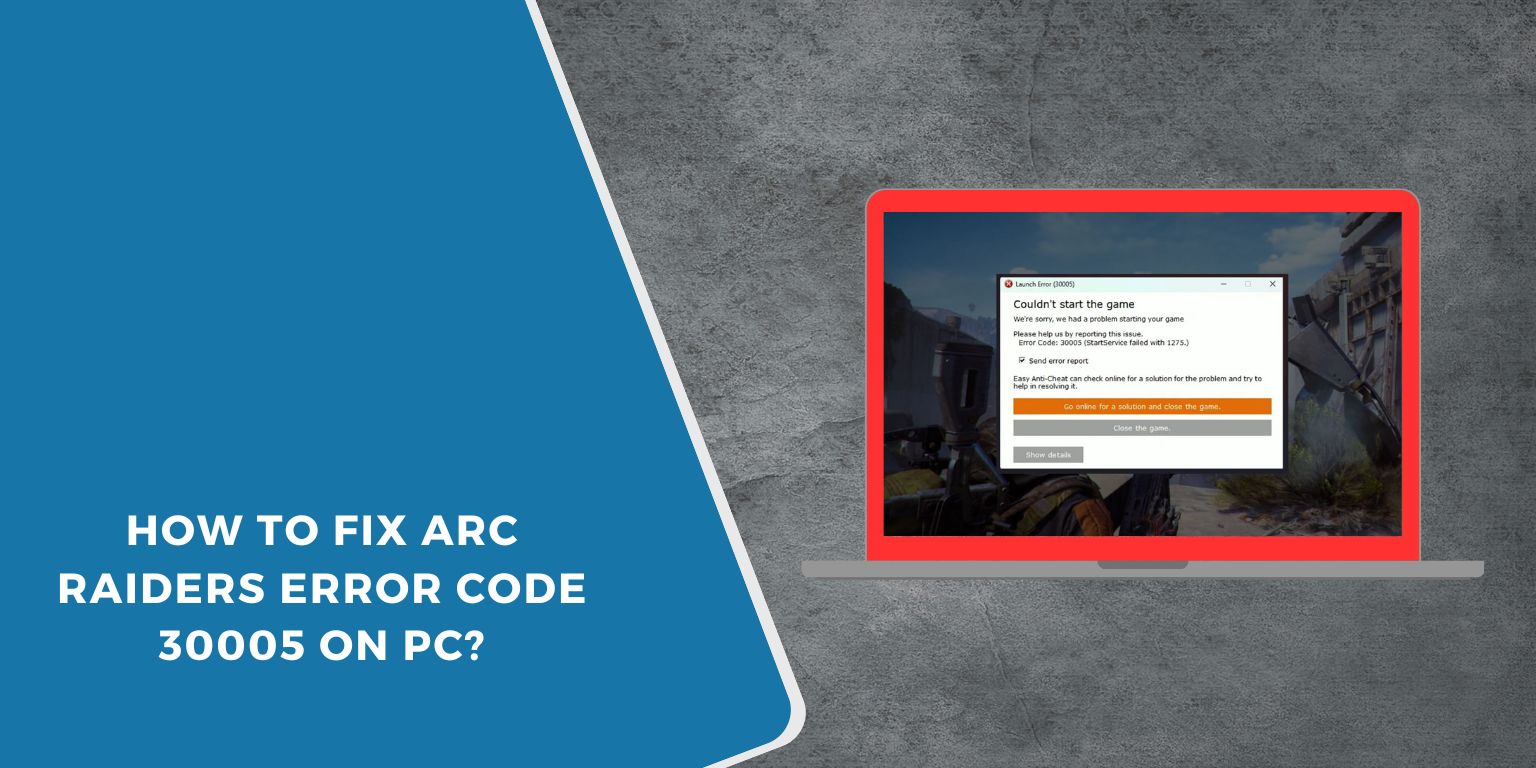
Seeing error code 30005 in Arc Raiders can stop everything fast. You press play, the game starts loading, and then it blocks you. No menu. No match. Just the error. This matters because the game never gets a chance to run. Many players see this after an update or system change. The good part is this error is common and fixable.
This guide explains what it means, why it happens, how to fix it step by step, and how to avoid it later.
What Is Arc Raiders Error Code 30005?
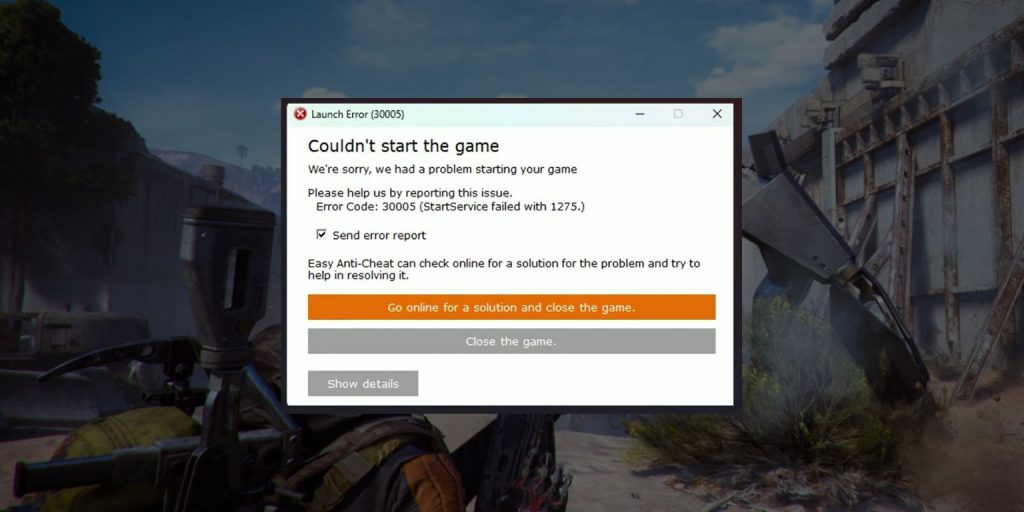 Error code 30005 appears when ARC Raiders fails a required system check during launch. The game runs security and service checks before it opens fully. When one of those checks fails, the game stops loading and shows this code. This is not a gameplay bug. It is a launch-level block meant to protect the game environment. The issue usually connects to permissions, background services, or system access.
Players usually see error code 30005 at startup. It may appear in the game launcher, on the loading screen, or right before matchmaking. The game closes or freezes at that point and does not continue.
Common Causes of Arc Raiders Error Code 30005
This error usually comes from system or security conflicts. It often has nothing to do with your internet speed or graphics card power. Small system-level issues can trigger it.
- Anti-cheat service not starting correctly
- Game not running with administrator rights
- Antivirus blocking game files
- Firewall blocking game connections
- Corrupted or missing game files
- Conflicting background programs
- Required Windows services disabled
- Outdated system drivers
- Damaged game cache
How to Fix Arc Raiders Error Code 30005?
Fixes depend on system permissions and background behavior. Start with simple steps first. Restart when needed. Test after every fix. This saves time and avoids new problems.
Fix #1: Restart Your PC and Game Launcher
A restart clears locked services and stuck background tasks. Some services fail silently and only recover after a fresh system start. Restarting resets memory, reloads Windows services, and gives the game a clean environment.
After restarting, the launcher often works normally and the error disappears.
Here’s how you can restart cleanly:
- Close the game launcher
- Restart your PC
- Wait until the system fully loads
- Open the launcher again
- Try starting the game
Fix #2: Run Arc Raiders as Administrator
Arc Raiders needs permission to start system services. Without admin access, Windows may block these actions. This causes the launch process to fail.
Once the game runs with admin rights, system access becomes available and the error may stop.
Follow these easy instructions to run the game as admin:
- Close the game
- Right-click the launcher or game shortcut
- Select run as administrator
- Confirm the prompt
- Launch the game
Fix #3: Check Anti-Cheat Service Status
The game depends on its anti-cheat service. If this service does not start, the game blocks access. This often happens after crashes or interrupted updates.
When the service runs correctly, the game allows startup.
Perform the following steps carefully to check services:
- Press Windows key + R
- Type services.msc and press Enter
- Find the game’s anti-cheat service
- Make sure it is running
- Restart it if needed
Fix #4: Verify Game Files Integrity
Missing or corrupted files often cause error code 30005. File verification checks every game file and replaces broken ones automatically.
After verification, the game usually launches without issues.
Follow the steps below to verify game files:
- Open the game launcher
- Go to game settings
- Select verify or repair files
- Wait for the scan to finish
- Restart the launcher
Fix #5: Temporarily Disable Antivirus Software
Antivirus programs sometimes block game services or files. This can trigger launch errors. This test helps confirm if security software is the cause. Disable protection briefly, test the game, then re-enable protection.
Do not leave antivirus disabled after testing.
Fix #6: Allow Arc Raiders Through Firewall
Firewalls can block game connections or background services. When blocked, the game fails its startup checks. Allowing the game through the firewall restores proper communication.
Once allowed, the game usually launches normally.
These are the steps you need to follow to update firewall rules:
- Open Windows Security
- Go to firewall settings
- Allow an app through firewall
- Add Arc Raiders and its launcher
- Save changes
Fix #7: Close Conflicting Background Applications
Some background apps interfere with games. Overlays, system monitors, and recording tools can block services. Closing them removes conflicts.
After closing these apps, the game may start without errors.
Try these simple steps to close background apps:
- Open Task Manager
- Check running applications
- Close unnecessary tools
- Keep only essential apps open
- Launch the game
Fix #8: Update Windows and System Drivers
Outdated drivers and system files can break game startup checks. Updates fix compatibility issues and service failures.
After updating, system stability improves and the game may run properly.
Below are the steps that will guide you to update safely:
- Open Windows Update
- Install all pending updates
- Update graphics drivers
- Restart the system
- Try launching the game
Fix #9: Reinstall Arc Raiders Cleanly
If all else fails, a clean reinstall removes broken settings and damaged files. This resets the game environment fully.
Reinstalling should be the last step, but it often works when nothing else does.
Follow these instructions to reinstall properly:
- Uninstall the game
- Restart your PC
- Delete leftover game folders
- Reinstall the game
- Launch it fresh
Prevention Tips to Avoid Arc Raiders Error Code 30005
Preventing this error saves time and stress. Small habits help keep the game stable.
- Keep Windows and drivers updated
- Avoid aggressive antivirus rules
- Run the game with proper permissions
- Close unused background apps
- Verify files after updates
- Restart your system regularly
- Avoid unofficial modifications
Conclusion
In short, error code 30005 appears when Arc Raiders fails system or security checks during launch. Common causes include permission issues, blocked services, corrupted files, and background conflicts. Most fixes are simple and safe.
Try each fix calmly and one at a time. If the error continues, contact official support for deeper help. If this guide helped you, share it and leave a comment. Your feedback may help other players facing the same issue.
