

You open GTA V or Red Dead Redemption 2, ready to play, and suddenly the Rockstar Games Launcher shows “An error occurred while authenticating with Rockstar Games Services.” That stops everything. You cannot log into Rockstar Social Club, you cannot access GTA Online, and your game feels locked. When this happens, it usually means your PC cannot connect to Rockstar authentication servers. This guide explains what the error means, why it appears, how to fix it step by step, and how to prevent it from coming back.
What Is “An Error Occurred While Authenticating with Rockstar Games Services”?
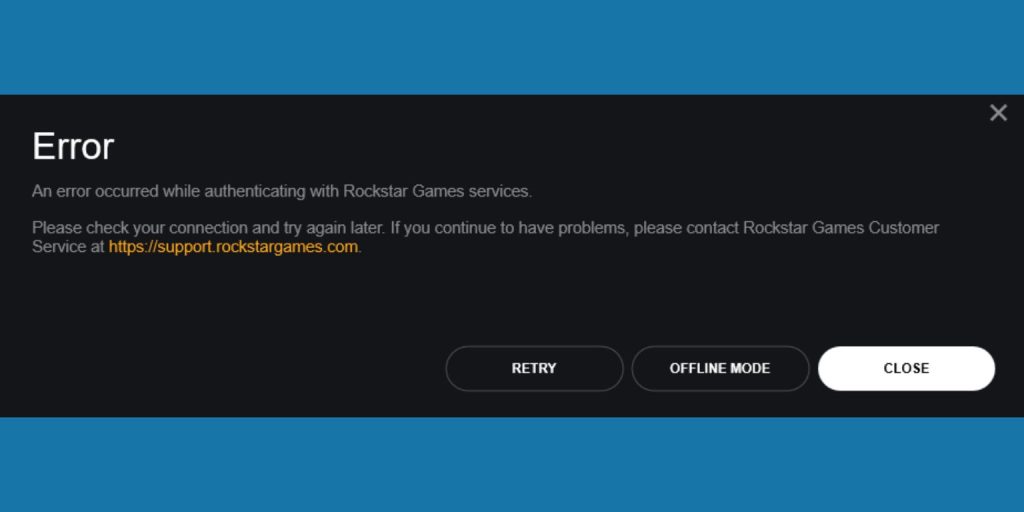 This error appears when the Rockstar Games Launcher fails to verify your Rockstar Social Club account with Rockstar Games servers. During login, the launcher sends your account credentials and license request to Rockstar authentication servers. The server checks your email, password, and game ownership for GTA V or Red Dead Redemption 2. If the connection fails or verification does not complete, the system blocks access. That is why the launcher stops and shows the authentication error instead of loading GTA Online or Story Mode. The issue relates to login validation, network routing, or server communication, not to your game progress or saved files.
You usually see this message on Windows 10 or Windows 11 while launching the Rockstar Games Launcher. It may also appear when starting the game through Steam or Epic Games Store. Sometimes it shows right after entering your login details. Other times, it appears before GTA Online connects to Rockstar servers.
Common Causes of This Rockstar Authentication Error
This error can happen for several reasons depending on your internet connection, system configuration, or Rockstar server status. Because authentication depends on both local settings and remote servers, even small issues can interrupt the login process. Below are the most common causes users report when facing this problem.
- Rockstar Games server outage or maintenance affecting Social Club login services
- Weak or unstable internet connection causing packet loss between your ISP and Rockstar servers
- VPN or proxy server changing your IP address during authentication
- Corrupted Rockstar Games Launcher cache storing invalid login tokens
- Windows Defender Firewall or third-party antivirus blocking RockstarLauncher.exe
- Incorrect DNS server configuration preventing proper domain resolution
- Account-related issues such as wrong password or unverified Social Club email
How to Fix “An Error Occurred While Authenticating with Rockstar Games Services”
Fixes can vary depending on whether the problem comes from Rockstar servers, your network, or local system settings. However, most users resolve the issue by checking server status first and then adjusting internet or launcher settings. Follow each solution carefully and test the game after every fix.
Fix #1: Check Rockstar Server Status
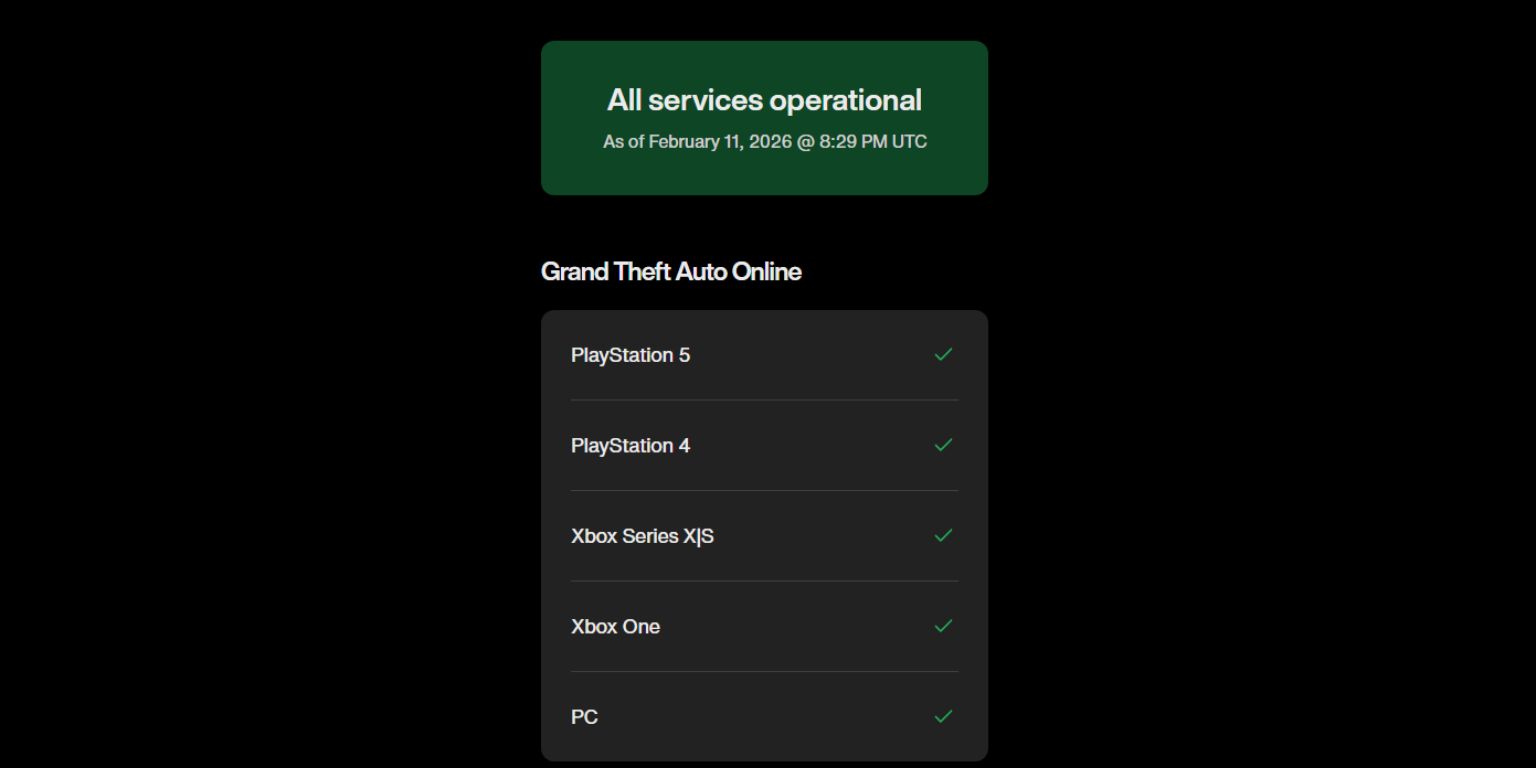 If Rockstar authentication servers are down, your system cannot complete login verification. Therefore, always confirm server health before changing anything on your PC.
Follow the steps below to easily check Rockstar server status.
- Open your web browser.
- Visit the official Rockstar Games Service Status page.
- Look at GTA Online and Social Club status indicators.
- Check for maintenance or outage notices.
- If servers show problems, wait until Rockstar restores service.
When servers return online, authentication usually works without further changes.
Fix #2: Restart Rockstar Games Launcher and PC
Sometimes the launcher stores a broken session or expired authentication token. Restarting clears temporary data and refreshes the connection to Rockstar servers.
Try these simple steps to quickly restart everything.
- Close Rockstar Games Launcher.
- Open Task Manager and end Rockstar processes.
- Restart your computer.
- Launch Rockstar Games Launcher again.
- Enter your Social Club login details.
After restarting, the launcher sends a new verification request to Rockstar servers.
Fix #3: Disable VPN or Proxy
VPN services can assign shared or restricted IP addresses. Rockstar security systems may block certain IP ranges to prevent abuse. Because of that, login verification may fail when a VPN is active.
Here’s how you can disable VPN in just a few seconds.
- Open your VPN application.
- Disconnect from the current server.
- Close the VPN completely.
- Restart Rockstar Games Launcher.
If you use a Windows proxy, turn it off in Network Settings. Once your ISP provides a direct connection, authentication often succeeds.
Fix #4: Change DNS Server
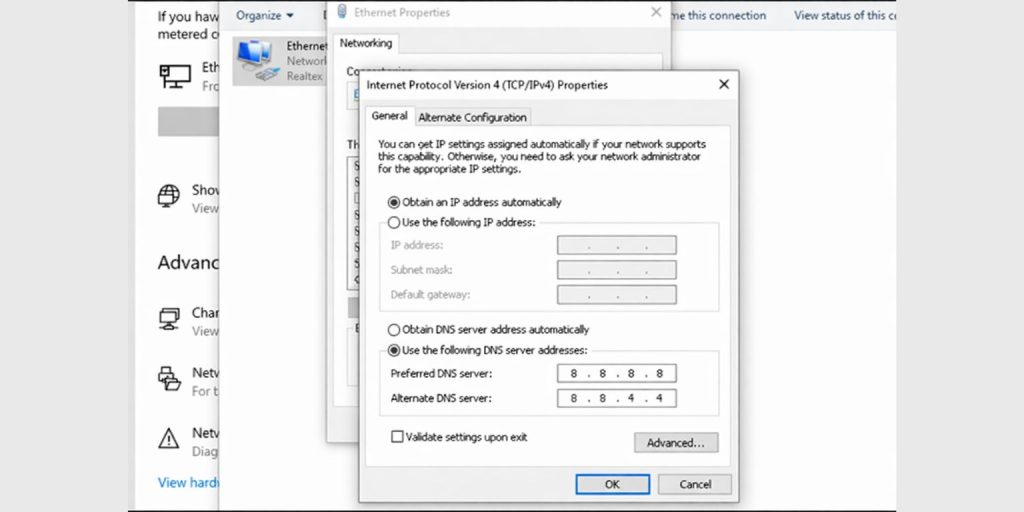 DNS servers translate Rockstar domain names into IP addresses. If your DNS cache is outdated or misconfigured, your PC may fail to reach Rockstar authentication servers.
The following steps will show you how to change DNS properly.
- Open Control Panel.
- Click Network and Internet.
- Select Network and Sharing Center.
- Click your active network connection.
- Choose Properties.
- Select Internet Protocol Version 4.
- Enter Google DNS – 8.8.8.8 and 8.8.4.4 or Cloudflare DNS – 1.1.1.1
Restart your PC after saving changes. Your system will now resolve Rockstar server addresses through a stable DNS provider.
Fix #5: Clear Rockstar Games Launcher Cache
Corrupted cache files can store invalid login data. When that happens, the launcher keeps trying to authenticate with outdated session information.
Perform the following steps carefully to clear launcher cache.
- Close Rockstar Games Launcher.
- Open File Explorer.
- Go to the Documents folder.
- Open the Rockstar Games folder.
- Delete the Launcher cache folder.
- Restart your PC and relaunch the launcher.
Once cleared, the launcher creates fresh configuration files and new authentication tokens.
Fix #6: Check Firewall and Antivirus Settings
Windows Defender Firewall or third-party antivirus software may block outgoing connections to Rockstar servers. When the firewall blocks RockstarLauncher.exe, authentication requests cannot reach Rockstar Games login systems.
Because of this restriction, the launcher displays the authentication error instead of completing the verification process.
Antivirus software can also flag network traffic incorrectly, especially during updates. Therefore, checking network permissions becomes necessary when other fixes do not work.
You can temporarily disable antivirus software to test login. If the game works, add Rockstar Games Launcher as an allowed application instead of keeping protection off.
Prevention Tips to Avoid This Error in Future
Prevention reduces frustration and keeps GTA Online running smoothly. Small maintenance steps help avoid login interruptions and server communication issues.
- Keep Windows 10 or Windows 11 updated with security patches
- Update Rockstar Games Launcher whenever a new version releases
- Restart your router once a week to refresh IP routing
- Avoid unstable VPN services while playing GTA Online
- Use reliable DNS servers like Google DNS or Cloudflare DNS
- Keep firewall rules clean and remove unused blocking entries
- Monitor your internet connection for packet loss or frequent disconnects
Conclusion
In short, this authentication error means your Rockstar Games Launcher cannot verify your Rockstar Social Club account with Rockstar authentication servers. The issue usually relates to server outages, unstable internet connection, DNS problems, VPN conflicts, corrupted cache, or firewall restrictions. Most of the time, simple fixes like restarting the launcher, checking server status, or changing DNS resolve the problem quickly.
If this guide helped you fix GTA V or GTA Online login issues, share it with other Rockstar players. And if the error still appears, comment below with your platform – Steam, Epic Games, Windows 10, or Windows 11 – and explain what you already tried. That makes troubleshooting easier for everyone.
