


A check mark (✓) is a small tick, and it means that a task is finished, correct or agreed. Copy it from here or use your device’s keyboard shortcut to enter it. There are also a couple of variations, such as the heavy check mark (✔), the ballot box with check mark (☑) and the green check mark emoji (✅).
Copy and Paste Check Mark Symbols
If the symbol is needed just once, copy it. Choose the one you prefer and copy and paste it to where you need it. The basic check mark works in practically any situation. The emoji version looks great in chats and social posts, but it might look different depending on the app or phone.
| Symbol | Name | Unicode | HTML code |
|---|---|---|---|
| ✓ | Check mark | U+2713 | ✓ |
| ✔ | Heavy check mark | U+2714 | ✔ |
| ☑ | Ballot box with check | U+2611 | ☑ |
| ✅ | Check mark button (emoji) | U+2705 | ✅ |
How to Type a Check Mark on Windows
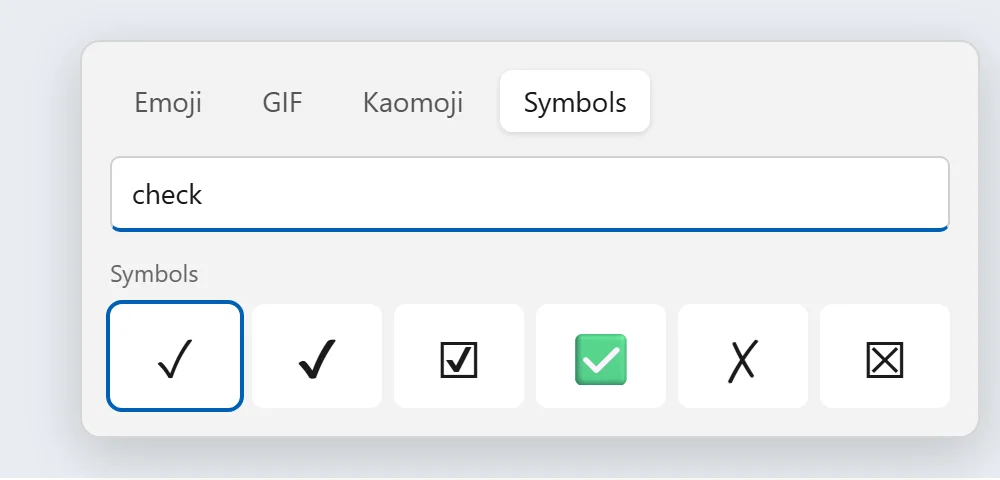
The easiest way on Windows 10 or Windows 11 is the built-in emoji and symbol panel, which works in almost any app, including browsers, email or chat. Click where you want the check mark to be displayed. To open up the panel, hold the Windows key and press the period (.) key. Type check to search, or view the Symbols tab, then select the check mark you wish.
Or you can simply put a tick in a frequently-used note or document and copy it from there.
How to Type a Check Mark on Mac
On a Mac, hold down Control + Command + Space and the Character Viewer will pop up. Find the check by typing check, then double-click the check mark to place it in your text.
At times, people will suggest the Option + V keys on a Mac. That will actually create the square root sign (√). It looks like a check mark, which is fine for quick notes, but for anything important, use the real check mark.
How to Insert a Check Mark in Microsoft Word
Here are 3 ways in Word:
- Just enter 2713 and press Alt + X, and Word will turn it into a check mark. Use 2714 for the heavy one.
- Go to Insert > Symbol > More Symbols, choose the Wingdings font and pick the check mark near the bottom (character code 252).
- Create a to-do list by opening the Bullets menu on the Home tab, choosing Define New Bullet, and picking a check mark for the bullet.
This works the same way in Outlook and other Office apps.
How to Add a Check Mark in Google Docs
In Google Docs, go to Insert > Special characters and type in “check.” Click on the symbol to drop it into your document. In the same window, you can also draw a check mark in the drawing box and Google will find the nearest match. The Checklist button in the toolbar creates check boxes for a to-do list, which can then be ticked when you’re done.
How to Type a Check Mark on iPhone and Android
The quickest way on a phone is the emoji keyboard. To find the check mark emojis, press the emoji button on the keyboard and type check.
If you need to type a lot of check marks, make a text shortcut. On iPhone, the Text Replacement option is in Settings > General > Keyboard. On Android with Gboard, use the Personal dictionary in Gboard settings. Now when you type your shortcut, it automatically turns into a check mark.
How to Add a Check Mark in HTML
For the normal check mark in HTML, use the numeric entity ✓, while for the heavy check mark use ✔. The escape code \2713 is a big help inside the CSS content property for creating custom bullet lists.
Final Thoughts
Once you know your device’s shortcut, adding the check mark symbol is hassle-free. On Windows, use the Windows key and the period key. On a Mac, open the Character Viewer. In Word, type 2713 and press Alt + X, and on a phone, use the emoji keyboard or a text shortcut.
If you only need it in one place, then simply copy and paste it from the table above. Which way do you like to type the check mark? Tell us in the comments, particularly if you know a quicker one.