

If you see “unable to connect to Anthropic services,” it usually means Claude or the Anthropic API cannot reach the server. This can stop your workflow, especially if you are using Claude.ai, Claude Code, or API requests. In this guide, you will learn what this error means, why it happens, and how to fix it step by step.
What Does “Unable to Connect to Anthropic Services” Mean?
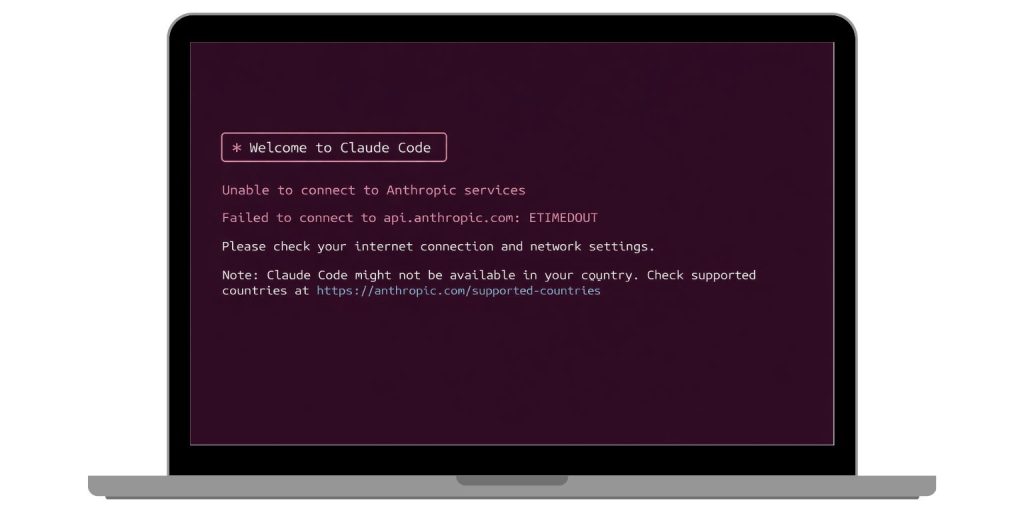 This error means your app, browser, or API request failed to connect to Anthropic’s servers. When you send a request to Claude or the Anthropic API, your system must reach the endpoint and complete a network handshake. If something blocks that connection, like a firewall rule, VPN, or network restriction, the request fails before it finishes. So the error is not about your prompt or input. It happens earlier, at the connection level, before any response is returned.
You may see this error in Claude.ai while logging in, inside Claude Code in a terminal, or when making API calls to api.anthropic.com. Sometimes it also shows timeout messages like connection refused or request timed out.
Common Causes of “Unable to Connect to Anthropic Services”
This error usually comes from network setup issues or temporary service problems. In many cases, the cause is local, meaning something on your system or network is blocking access. In other cases, Anthropic services may be temporarily unavailable.
Common causes include:
- Firewall blocking access to Anthropic API endpoints
- VPN interfering with network routing or authentication
- Proxy or corporate proxy misconfiguration
- Restricted network preventing access to api.anthropic.com
- DNS issues or connection timeout errors
- Temporary outage or degraded Anthropic service
- Region or country where the service is not supported
What Should You Check First?
Start by checking whether the issue is on your side or Anthropic’s side. Open the Claude status page and see if there is a current outage or login issue. If everything looks normal, test your internet connection and try opening other websites. Then temporarily disable your VPN and try again. If the error disappears, the VPN is likely the cause. If it remains, the issue is likely related to firewall rules, proxy settings, or network configuration.
How to Fix “Unable to Connect to Anthropic Services”
Fixing this issue depends on where the connection is failing. In most cases, you can solve it by adjusting your network setup or retrying after a service issue. Go through each fix carefully and test the connection after each step.
Fix #1: Check the Anthropic status page
Sometimes the problem is not on your system. Anthropic services may be down or partially affected.
Follow the steps below to easily check the service status.
- Open the Claude status page
- Look for ongoing incidents
- Check login or API issues
- Read recent updates
- Wait if there is an active issue
Fix #2: Turn off your VPN
VPNs can block or reroute traffic in a way that prevents connection to Anthropic services.
Try these simple steps to quickly disable your VPN and test again.
- Open your VPN app
- Turn off the VPN connection
- Disconnect and reconnect your internet
- Restart your browser or tool
- Try accessing Claude again
Fix #3: Check firewall and network rules
Firewall settings can block requests to api.anthropic.com.
Below are the steps that will guide you to review firewall rules.
- Open your firewall settings
- Check blocked connections
- Allow outbound access to Anthropic endpoints
- Save changes
- Test the connection again
Fix #4: Review proxy settings
If you use a corporate or manual proxy, it may block certain endpoints.
The following steps will show you how to test proxy settings properly.
- Open network or proxy settings
- Check if a proxy is enabled
- Disable it temporarily
- Restart your system
- Try connecting again
Fix #5: Try another network
Sometimes the issue is limited to one network environment.
Here are the following steps which help you test another network.
- Switch from Wi-Fi to mobile hotspot
- Or use a different internet connection
- Restart your device
- Open Claude or API again
- Check if it works
Fix #6: Check access to api.anthropic.com
If your system cannot reach the API endpoint, the connection will fail.
Perform the following steps carefully to verify access.
- Open a browser
- Try reaching api.anthropic.com
- Check for errors or timeout
- Test with a simple API request
- Confirm response or failure
Fix #7: Check region availability
Some Anthropic services may not work in all regions.
These are the exact steps you need to follow to check region support.
- Confirm your country or region
- Check if the service is supported
- Avoid VPN location switching
- Use a supported region if required
- Retry connection
Fix #8: Contact Anthropic support
If none of the fixes work, support may be needed.
Explain your issue clearly, include error messages, and mention your network setup. Support can help identify deeper connection issues.
Prevention Tips to Avoid This Error in Future
Avoiding this issue mostly depends on stable network setup and correct configuration. If you use Anthropic services regularly, especially in development or enterprise environments, a few habits can reduce connection failures.
Follow these tips:
- Allow Anthropic endpoints in firewall settings
- Avoid unnecessary VPN usage
- Keep proxy configuration correct
- Use stable internet connection
- Check status page before troubleshooting
- Use supported regions
- Keep system network settings consistent
Conclusion
In short, “unable to connect to Anthropic services” means your system cannot reach the server due to network or service issues. The most common causes include firewall restrictions, VPN interference, proxy settings, or temporary outages. The good part is that most of these problems can be fixed with simple checks and adjustments.
Start with the status page, then check your VPN, firewall, and network settings. Work step by step and test after each fix. If the issue continues, contact support for help. If this guide helped you, share it with others and leave a comment with the solution that worked for you.
