

Noticing a white spot on your Lenovo laptop screen can be frustrating, especially when it shows up while you are working or watching something. Sometimes it is a small issue, but other times it points to screen damage. This guide explains what the white spot means, why it appears, and how you can fix or reduce it.
What Does a White Spot on a Lenovo Laptop Screen Mean?
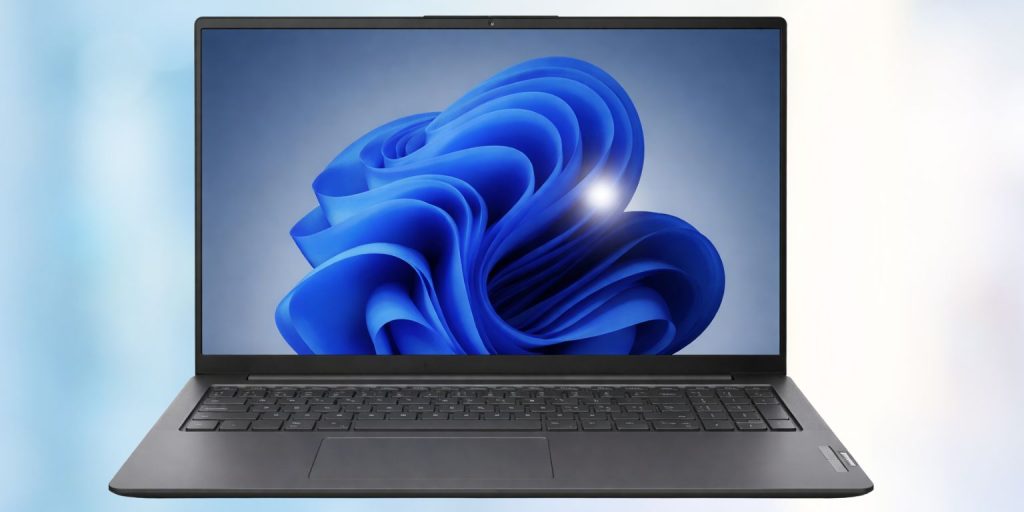 A white spot on a Lenovo laptop screen usually means there is a problem inside the display panel. Most Lenovo laptops use an LCD panel with LED backlight, and this setup has multiple layers that control light and color. When one part of this system is disturbed, the screen may show a bright patch or faded white area. This can come from pressure on the screen, a stuck pixel cluster, or uneven backlight distribution. The spot may stay in one place and become more visible on certain backgrounds.
You may notice the white spot in the center, near the edges, or in random areas of the screen. Sometimes it looks brighter when you increase brightness, and sometimes it fades slightly on darker backgrounds.
Common Causes of White Spots on Lenovo Laptop Screens
White spots can come from both hardware and software, but in most cases, the issue is physical rather than software-related. Small pressure or internal panel damage can affect how light spreads across the LCD screen. Other times, the issue may be linked to display settings or drivers, but that is less common.
Common causes include:
- Pressure on the screen from the keyboard or closing the lid tightly
- Backlight bleed caused by uneven LED lighting
- Dead or stuck pixels forming a bright cluster
- Aging LCD panel or internal layer wear
- Heat exposure or liquid damage affecting the display
- Manufacturing defect in the screen panel
- Graphics driver or display glitch
How to Diagnose the White Spot Issue?
Before trying to fix the issue, it is important to check whether the problem is hardware or software. A quick test can help you understand what is causing the white spot. If the spot stays the same across all tests, it is likely a screen issue. If it changes or disappears, it could be a software or driver problem.
You can try the following checks:
- Change the screen background to white, black, red, and blue
- Adjust brightness levels and see if the spot changes
- Restart the laptop to rule out temporary glitches
- Connect an external monitor to compare display output
If the external monitor looks normal, the problem is likely inside the laptop screen.
How to Fix a White Spot on Lenovo Laptop Screen?
Fixing a white spot depends on what is causing it. Some solutions are simple and quick, while others may require repair or replacement. It is better to try safe methods first before moving to hardware fixes.
Fix #1: Restart Your Laptop
A restart can fix temporary display glitches caused by the graphics system or background processes.
Follow the steps below to restart your laptop properly.
- Click the Start menu
- Select Restart
- Wait for the system to reload
- Check if the white spot is still there
- Repeat once if needed
Fix #2: Update Graphics Drivers
Outdated or corrupted display drivers can sometimes create visual issues on the screen.
Try these simple steps to quickly update your graphics driver.
- Open Device Manager
- Expand Display adapters
- Right-click your GPU
- Select Update driver
- Restart your laptop
Fix #3: Adjust Brightness and Display Settings
Sometimes the white spot becomes more noticeable due to brightness or contrast settings.
The following steps will show you how to adjust display settings.
- Open Settings
- Go to System and then Display
- Adjust brightness level
- Test different screen resolutions
- Observe any changes
Fix #4: Use Pixel Fixing Tools
If the white spot comes from stuck pixels, pixel repair tools may help. These tools flash colors rapidly to reset pixel behavior. Results are not guaranteed, but they can work in some cases.
Fix #5: Clean the Screen Carefully
Dust or pressure marks on the screen surface can sometimes look like white spots.
Below are the steps that will guide you to clean the screen safely.
- Turn off the laptop
- Use a soft microfiber cloth
- Wipe gently without pressing
- Avoid liquid cleaners directly on the screen
- Turn the laptop back on and check
Fix #6: Check for Pressure Damage
If the white spot appeared after carrying the laptop in a tight bag or closing the lid hard, it may be a pressure mark. These marks affect the LCD layers and are usually permanent. Avoid pressing the screen further, as this can make it worse.
Fix #7: Contact Lenovo Support
If your laptop is still under warranty, it is best to contact Lenovo support. They can check whether the issue is covered and guide you through repair options or replacement.
Fix #8: Replace the Screen
If the white spot is caused by internal panel damage, screen replacement is the final solution. A technician can replace the LCD panel, restoring normal display quality. This is common for pressure damage, backlight issues, or panel defects.
How to Prevent White Spots on Laptop Screens
Preventing white spots is easier than fixing them. Most screen issues happen due to pressure, heat, or poor handling. Taking care of your laptop can extend the life of the display and avoid costly repairs.
Follow these tips:
- Avoid pressing on the screen when closing the lid
- Keep objects away from the keyboard before closing
- Use a soft cloth to clean the display
- Do not expose the laptop to high heat
- Store the laptop in a padded bag
- Carry it carefully to avoid pressure
- Keep the keyboard area clean
Conclusion
In short, a white spot on a Lenovo laptop screen is usually caused by display panel issues like pressure damage, backlight problems, or pixel defects. While some minor cases can be improved with simple fixes, most hardware-related spots do not disappear completely. That is why proper diagnosis is important before trying solutions.
If the problem continues or spreads, contacting Lenovo support or replacing the screen may be the best option. Try the fixes carefully and avoid putting pressure on the display. If this guide helped you, share it with others and leave a comment about what worked for you.
