

You try to log into your Discord account, but instead of loading your server list, you see Error 2015. It stops you from accessing messages, voice channels, and communities. That can feel stressful, especially if you rely on Discord daily. This error usually connects to login authentication or network restrictions.
In this guide, you’ll learn what Error 2015 means, why it appears, and how to fix it step by step.
What Is Error 2015 on Discord?
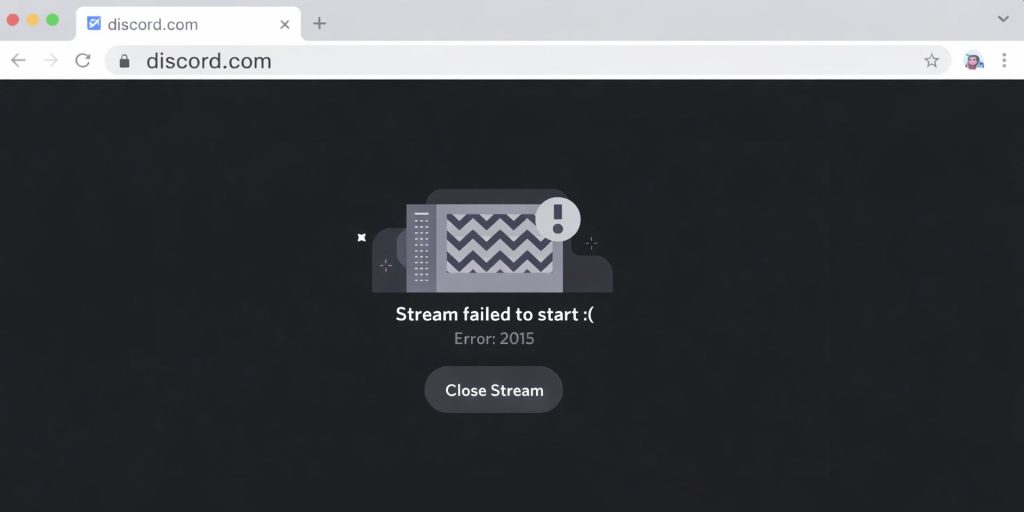 Error 2015 on Discord usually appears when the login process fails during authentication. When you enter your email and password, Discord sends a request to its authentication server. If the system detects suspicious activity, too many login attempts, an invalid two-factor authentication code, or an unusual IP address, it blocks access. Discord uses rate limit protection and security filters to protect accounts from hacking attempts.
Because of that, even small issues like an expired 2FA code or VPN usage can trigger the error. In most cases, the issue connects to account verification or network configuration rather than Discord servers being down.
You typically see Error 2015 during login on the Discord desktop app, web browser version, or sometimes on the mobile app after multiple failed attempts.
Common Causes of Discord Error 2015
This error usually relates to authentication or IP-related security checks. Below are some main causes:
- Incorrect email or password
- Expired or invalid two-factor authentication code
- Too many login attempts triggering rate limit
- VPN or proxy changing your IP address
- Corrupted browser cookies or session data
- Temporary Discord server authentication issue
- Firewall blocking connection to Discord servers
- Incorrect DNS server settings
How to Fix Error 2015 Discord?
Fixing this problem depends on whether the issue comes from login credentials, IP restrictions, or browser conflicts. However, most users regain access quickly by following simple steps. Start from the first solution and move forward if needed.
Fix #1: Double-Check Your Login Details
Small typing mistakes often cause login failures. Follow the steps below to easily verify your credentials.
- Re-enter your email address carefully
- Re-type your password
- Check Caps Lock is off
- Try copying and pasting the password
- Click Log In again
Correct credentials solve many login errors immediately.
Fix #2: Verify Your Two-Factor Authentication Code
2FA codes expire quickly. An outdated code will not work. Try these simple steps to quickly verify your 2FA.
- Open your authentication app
- Wait for a new code to generate
- Enter the new 6-digit code
- Confirm and log in
If you use SMS verification, ensure your phone has network signal.
Fix #3: Wait and Try Again Later
If you attempted login many times, Discord’s rate limit system may block you temporarily. This security measure prevents brute-force attacks.
Wait 15 to 30 minutes without trying again. Then attempt login once more. Avoid repeated attempts during the cooldown period.
Fix #4: Disable VPN or Proxy
VPN or proxy services change your IP address. Discord may detect this as suspicious activity. Perform the following steps carefully to disable VPN.
- Open Windows Network Settings
- Disconnect any active VPN connection
- Disable manual proxy settings
- Restart your browser or app
- Try logging in again
A stable local IP address reduces login blocks.
Fix #5: Clear Browser Cache and Cookies
Corrupted session cookies may prevent proper authentication. Here are the following steps which help you to clear browser data.
- Open Google Chrome or your browser
- Go to Settings
- Select Privacy and Security
- Click Clear browsing data
- Choose Cookies and Cached files
- Confirm the action
Restart the browser and open Discord web again.
Fix #6: Flush DNS and Restart Router
Incorrect DNS resolution may block authentication requests. The following steps will show you how to flush DNS properly.
- Open Command Prompt as Administrator
- Type ipconfig /flushdns
- Press Enter
- Restart your router
- Reconnect to the internet
This refreshes DNS server settings and network routing.
Fix #7: Try Discord Desktop or Mobile App
Sometimes the issue is browser-specific. Switching platforms helps confirm whether the problem is local.
Download the Discord desktop app from the official website or log in using the mobile app. If login works there, your browser settings likely caused the issue.
Fix #8: Contact Discord Support
If none of the above fixes work, the issue may involve account-level restrictions.
Visit the official Discord Support page and submit a request. Provide details like your email, IP region, and the exact error message. Discord’s support team can review account flags or security locks.
Prevention Tips to Avoid Error 2015
Preventing login issues helps keep your Discord account secure and accessible. Follow given prevention tips to avoid error in future:
- Use the correct password and update it safely
- Set up two-factor authentication properly
- Avoid rapid repeated login attempts
- Do not use unstable VPN connections
- Keep Discord app updated
- Clear cache occasionally
- Monitor account security alerts
Conclusion
In short, Error 2015 on Discord usually appears because of authentication failure, expired 2FA codes, rate limit restrictions, or IP changes caused by VPN or proxy services. The issue often connects to login security rather than server downtime.
Follow the fixes step by step and test after each change. If the problem continues, contact Discord Support for further assistance.
If this guide helped you, share it and leave a comment about which solution worked for you.
