

You open YouTube Shorts to watch one video, but it keeps scrolling by itself. You try to stop it, but it jumps to the next clip again. That feels annoying, especially when you just want to watch one Short calmly. This issue usually connects to the YouTube app, touchscreen behavior, or phone settings.
In this guide, you’ll learn why Shorts auto-scroll and how to fix it with 8 simple solutions.
What Does “YouTube Shorts Won’t Stop Scrolling” Mean?
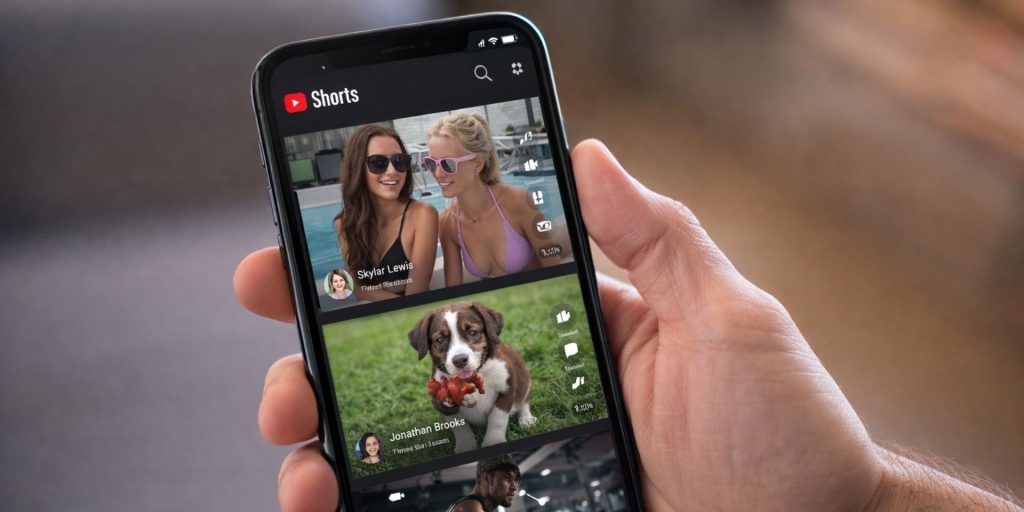 When YouTube Shorts won’t stop scrolling, it means your device keeps detecting swipe gestures even when you are not touching the screen. YouTube Shorts use vertical swipe detection to load the next video. If the touchscreen sends extra signals, or if the YouTube app glitches, the Shorts feed automatically jumps forward.
This may happen due to corrupted app cache, screen sensitivity issues, accessibility gesture settings, or software bugs inside Android or iOS. In most cases, the problem comes from the device, not YouTube servers.
You will notice this issue inside the Shorts feed, where the vertical video player keeps moving to the next clip without manual input.
Common Causes of YouTube Shorts Auto-Scrolling
This issue usually connects to app behavior or touchscreen sensitivity rather than YouTube itself.
Below are some main causes:
- Corrupted YouTube app cache
- Outdated YouTube version
- Screen protector causing ghost touch
- Display sensitivity set too high
- Accessibility gesture settings enabled
- Background apps interfering with touch input
- Android or iOS software glitch
- Physical touchscreen hardware issue
How to Fix YouTube Shorts Won’t Stop Scrolling?
Fixing this issue depends on whether the problem comes from the app, the touchscreen, or system settings. However, most users solve it quickly with simple troubleshooting steps. Follow these fixes in order.
Fix #1: Restart Your Phone
Temporary system glitches sometimes cause false touch signals. Try these simple steps to quickly restart your device.
- Hold the power button
- Tap Restart
- Wait for the phone to reboot
- Open the YouTube app
- Test Shorts again
A fresh restart clears background processes and resets touch input.
Fix #2: Clear YouTube App Cache (Android)
Corrupted app cache can break swipe detection. Follow the steps below to easily clear YouTube cache.
- Open Settings
- Go to Apps
- Select YouTube
- Tap Storage
- Tap Clear Cache
Do not tap Clear Data unless needed. Open Shorts again and check.
Fix #3: Update the YouTube App
Older app versions sometimes contain bugs that affect swipe gestures. Here’s how you can update YouTube in just a few steps.
- Open Google Play Store or Apple App Store
- Search for YouTube
- Tap Update if available
- Wait for installation
- Relaunch the app
Updates often fix scrolling and gesture issues.
Fix #4: Remove or Adjust Screen Protector
A damaged or poorly fitted screen protector may cause ghost touch. Small air bubbles or dirt can create false swipe signals.
Remove the protector temporarily and test YouTube Shorts. If the problem stops, replace it with a better-quality protector.
Fix #5: Check Accessibility Settings
Accessibility features sometimes change gesture behavior. Perform the following steps carefully to check accessibility settings.
- Open Settings
- Tap Accessibility
- Look for gesture or touch control features
- Disable extra gesture options
- Restart the phone
Some Android and iOS features modify swipe behavior without you noticing.
Fix #6: Lower Screen Sensitivity
Some phones allow touch sensitivity adjustments. The following steps will show you how to check screen sensitivity.
- Open Settings
- Go to Display
- Look for Touch Sensitivity
- Disable High Sensitivity mode
- Restart device
Lower sensitivity reduces accidental swipe detection.
Fix #7: Boot Into Safe Mode (Android)
Third-party apps sometimes interfere with touch input. You can perform the following steps to enter Safe Mode.
- Hold the power button
- Tap and hold Power Off
- Select Safe Mode
- Wait for reboot
- Open YouTube and test Shorts
If scrolling stops in Safe Mode, another app may be causing interference.
Fix #8: Reinstall the YouTube App
If the issue continues, reinstalling resets app data fully. These are the exact steps you need to follow to reinstall YouTube successfully.
- Go to Settings
- Open Apps
- Select YouTube
- Tap Uninstall or Remove Updates
- Reinstall from Play Store or App Store
- Log in and test Shorts
A clean reinstall removes hidden corrupted files.
Prevention Tips to Avoid Shorts Scrolling Issues
Preventing the issue helps keep the YouTube app stable and smooth. Perform these simple tips:
- Keep YouTube updated
- Avoid damaged screen protectors
- Restart your phone weekly
- Clear app cache occasionally
- Keep Android or iOS updated
- Avoid installing unknown background apps
- Check touchscreen for hardware issues
Conclusion
In short, YouTube Shorts auto-scrolling usually happens because of touchscreen glitches, corrupted app cache, accessibility settings, or software bugs. It is rarely a YouTube server problem. Most fixes involve restarting your device, clearing cache, updating the app, or adjusting screen settings.
Try each solution step by step and test after every fix. If the problem continues, contact YouTube Help through the app for further support.
If this guide helped you, share it and leave a comment about which fix worked for you.
