

A cracked or malfunctioning MacBook Air display can be alarming, especially when the damage appears to be internal. You may see black spots spreading across the screen, colorful vertical lines, flickering sections, or areas that no longer respond. Unlike an obvious shattered glass panel, internal screen damage can be confusing and stressful because the laptop may still power on while the display becomes increasingly unusable.
TLDR: Internal screen damage on a MacBook Air usually requires professional repair or full display replacement. First, confirm the issue is truly internal and not caused by software or cables. If the device is under warranty or covered by AppleCare+, contact Apple immediately. If not, compare official repair costs with reputable third‑party services and consider whether replacement is more economical than repair.
What Does “Screen Broken Internally” Mean?
An internal screen break refers to damage beneath the outer glass layer of your MacBook Air display. In many modern models, the glass and LCD are fused together, meaning even a small impact can damage the display matrix without necessarily shattering the exterior.
Common signs of internal display damage include:
- Black ink-like blotches that spread over time
- Vertical or horizontal colored lines
- Flickering or ghosting images
- Partial screen darkness
- Distorted or pixelated sections
These symptoms usually indicate a cracked LCD panel rather than a superficial glass issue. Internal damage typically does not resolve on its own and often worsens with continued use.
Step 1: Confirm the Damage Is Hardware-Related
Before assuming a costly repair is needed, it’s important to verify that the issue is truly physical damage and not a software malfunction.
Restart Your MacBook Air
A simple restart can eliminate temporary graphical glitches. If the problem persists immediately after rebooting, hardware damage becomes more likely.
Reset NVRAM and SMC (for Intel models)
Corrupted system settings can occasionally cause display irregularities. Resetting NVRAM and the System Management Controller may resolve brightness and resolution issues, though it will not fix a physically cracked LCD.
Connect to an External Monitor
This is one of the most reliable tests:
- If the external monitor displays perfectly, your MacBook Air logic board and graphics processor are functioning correctly.
- If the same distortion appears externally, the issue may involve the GPU or logic board rather than just the screen.
In most cases of visible blotches or spreading black areas, the internal LCD panel itself is cracked.
Step 2: Check Your Warranty or AppleCare+ Coverage
Screen replacement costs can be significant, so the next step is checking your coverage status.
You can verify warranty coverage by:
- Visiting Apple’s Check Coverage website
- Entering your MacBook Air’s serial number
Standard Limited Warranty
Apple’s one-year limited warranty covers manufacturing defects but does not cover accidental damage such as drops or pressure cracks.
AppleCare+
If you have AppleCare+, accidental damage is typically covered for a service fee. This is often significantly less than full out-of-warranty replacement costs.
Important: Internal cracks often result from pressure (for example, closing the laptop with a small object inside). Apple may classify this as accidental damage, even if no visible external crack exists.
Step 3: Understand Repair Options
Once you confirm internal screen damage, you typically have three main options:
1. Apple Store or Authorized Service Provider
This is the safest route for maintaining device integrity and resale value. Apple typically replaces the entire display assembly, not just the damaged layer.
Advantages:
- Genuine Apple parts
- Warranty on the repair
- No compatibility concerns
Disadvantages:
- Higher cost without AppleCare+
- Limited negotiation on pricing

2. Reputable Third-Party Repair Shops
Independent repair centers can sometimes offer lower prices. However, quality varies.
Before proceeding, ask:
- Do they use original or high-quality compatible displays?
- Is there a warranty on parts and labor?
- Are they experienced with your specific MacBook Air model?
A poorly installed display can result in uneven brightness, color inconsistency, or loose lid alignment.
3. DIY Screen Replacement
This option is only recommended for technically confident individuals. Modern MacBook Air displays are delicate and difficult to replace due to:
- Strong adhesive components
- Fragile display cables
- Tight tolerances in the aluminum housing
Additionally, newer models may trigger True Tone calibration issues unless properly configured after replacement.
Step 4: Compare Repair Cost vs. Replacement Value
Internal screen repair on a MacBook Air can sometimes approach a significant percentage of the device’s total value. Before authorizing repairs, consider:
- The age of your MacBook Air
- Battery health
- Storage capacity
- Processor generation
If your model is several years old and nearing other hardware limitations, investing in a new device may offer better long-term value.
However, if the laptop is relatively new, screen replacement is usually the most practical choice.
Can You Keep Using a MacBook Air with Internal Screen Damage?
Technically, yes — but it is not advisable long term.
Reasons include:
- Damage often spreads, increasing repair complexity.
- Strain on damaged display layers may worsen over time.
- Reduced productivity due to visual distortion.
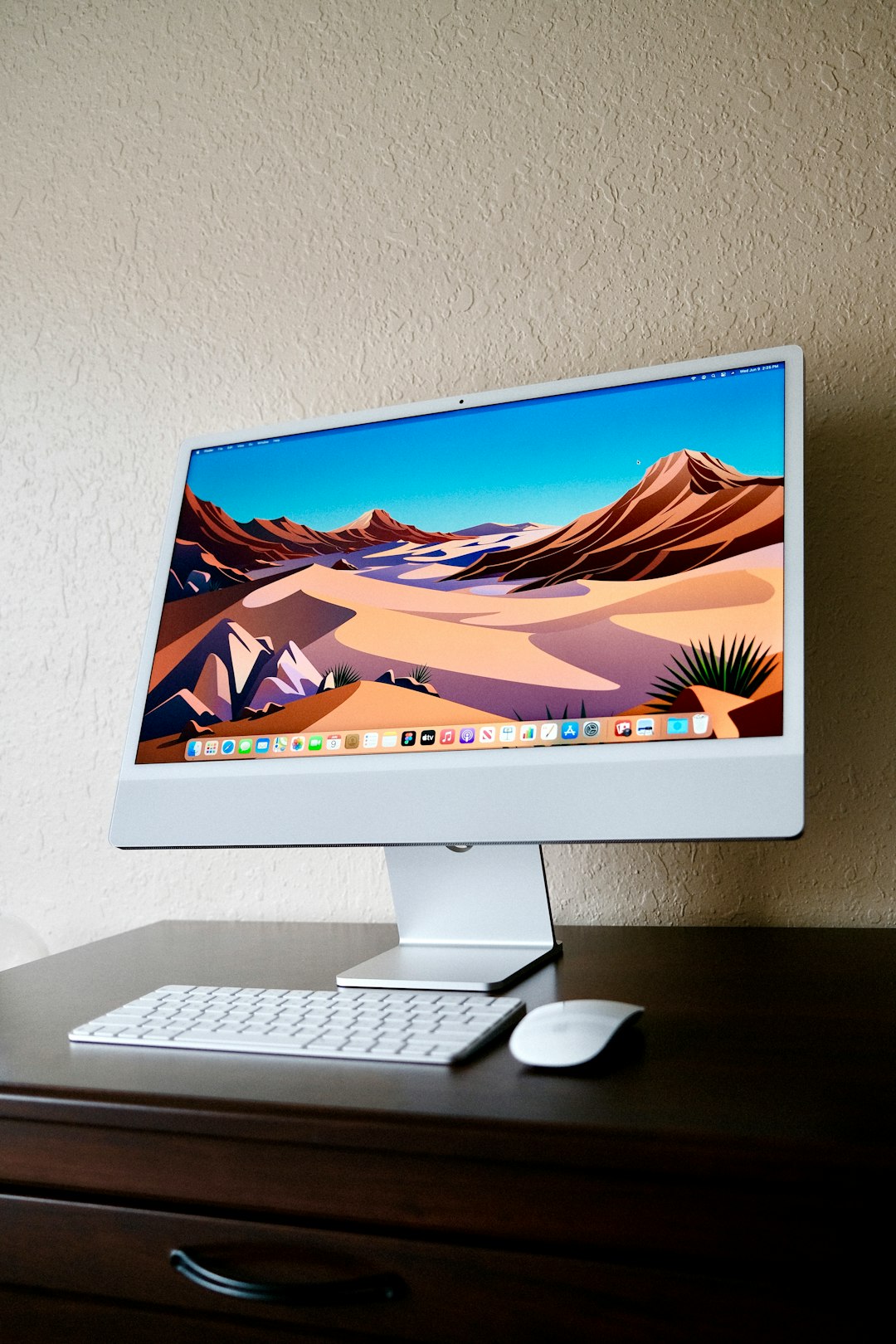
If the MacBook functions normally aside from the display, you can temporarily use an external monitor as a workaround. This essentially turns your MacBook Air into a desktop setup.
How Internal Screen Damage Happens
Understanding the cause can help prevent future issues.
Common causes include:
- Closing the lid on small objects (earbuds, cables, pens)
- Pressure from being packed tightly in a bag
- Dropping the laptop
- Twisting force applied to one corner of the display
MacBook Air models are designed to be thin and lightweight, which unfortunately makes them more susceptible to pressure damage compared to thicker laptops.
Data Safety Concerns
If your MacBook Air screen is broken internally, your data is typically safe. The display is separate from the internal storage.
Still, it is wise to:
- Create a full backup using Time Machine
- Transfer critical files to cloud storage
- Avoid delaying backup in case additional hardware issues arise
If you cannot see enough of the screen to back up files, connect to an external display immediately.
Preventing Future Display Damage
Once repaired or replaced, prevention should become a priority.
Use a Protective Sleeve
A padded sleeve significantly reduces pressure from bags and backpacks.
Keep the Keyboard Area Clear
Always check for small objects before closing the lid.
Avoid Overpacking
Do not wedge your laptop tightly between heavy books or hard objects.
Open and Close from the Center
Opening the lid from one corner repeatedly can create uneven torque stress over time.
When to Seek Immediate Professional Help
You should seek immediate technical attention if:
- The screen rapidly darkens or worsens
- The device overheats near the display hinge
- The screen flickers alongside system crashes
These symptoms could indicate broader internal issues beyond the LCD panel.
Final Thoughts
An internally broken MacBook Air screen is rarely a minor issue. While the device may still power on, the display assembly is a complex and sensitive component that typically requires full replacement. Acting quickly, verifying warranty coverage, and choosing a reputable repair path can prevent further financial loss and frustration.
Although the situation is inconvenient, it is manageable. With proper diagnosis, professional assessment, and thoughtful cost comparison, you can make a confident decision that protects both your device and your investment.
The key takeaway: confirm the damage, check coverage, compare repair costs wisely, back up your data immediately, and prioritize prevention going forward.
