

Many people hit the same problem in Gmail. You try to send a file, click send, and Gmail stops you. It says the attachment is too large. This can be confusing, especially when the file does not seem that big.
This article explains the Gmail attachment size limit, why it exists, and how you can send large files without errors.
What Is the Gmail Attachment Size Limit?
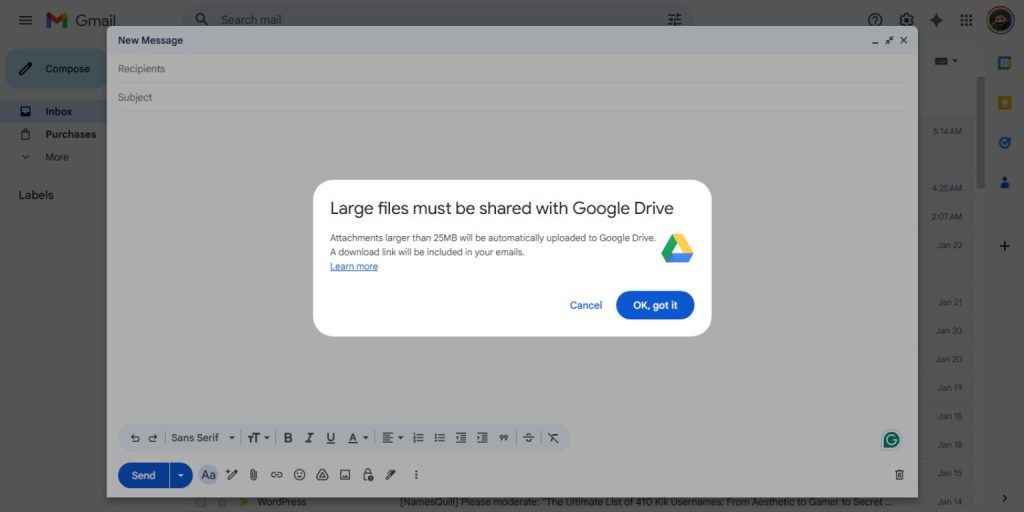 Gmail allows you to send attachments up to 25 MB per email. This limit applies to the total size of all files combined in one message, not just a single file.
If you attach three files that are 10 MB each, Gmail counts that as 30 MB. In that case, the email will not send as a normal attachment.
This limit is set by Google, and it applies to all Gmail users.
Gmail Attachment Size Limit for Receiving Emails
Gmail also limits incoming emails. You can receive messages up to 50 MB in total size.
If someone sends you a file larger than 25 MB, Gmail usually delivers it as a Google Drive link instead of a direct attachment.
Emails larger than 50 MB may not arrive at all.
Why Gmail Has Attachment Size Limits?
Gmail uses standard email systems that have size restrictions. These limits help keep email fast and secure.
Main reasons include:
- Limits in SMTP
- Faster email delivery
- Protection against spam and abuse
- Reduced server load
Large files work better in cloud storage than in email attachments.
What Happens When an Attachment Is Too Large?
When you attach a file over 25 MB, Gmail reacts in one of two ways.
Sometimes Gmail shows an error and stops the message. Other times, Gmail uploads the file to Google Drive and adds a sharing link automatically.
The recipient then downloads the file from Drive instead of the email itself.
How Gmail Uses Google Drive for Large Files
When Gmail switches to Google Drive, the file is stored in your Drive account. The email contains a link to that file.
Important details:
- The file uses your Drive storage space
- You control who can view or download it
- Access depends on sharing settings
- The file stays in Drive even after the email is sent
This method avoids attachment size limits.
Attachment vs Google Drive Link
There is a clear difference between the two.
Email attachments:
- Are stored inside the email
- Count toward the 25 MB limit
- Download directly from Gmail
Google Drive links:
- Store files in Drive
- Do not count toward attachment limits
- Allow access control and sharing options
For large files, Drive links work better.
Common File Types That Hit Gmail Limits
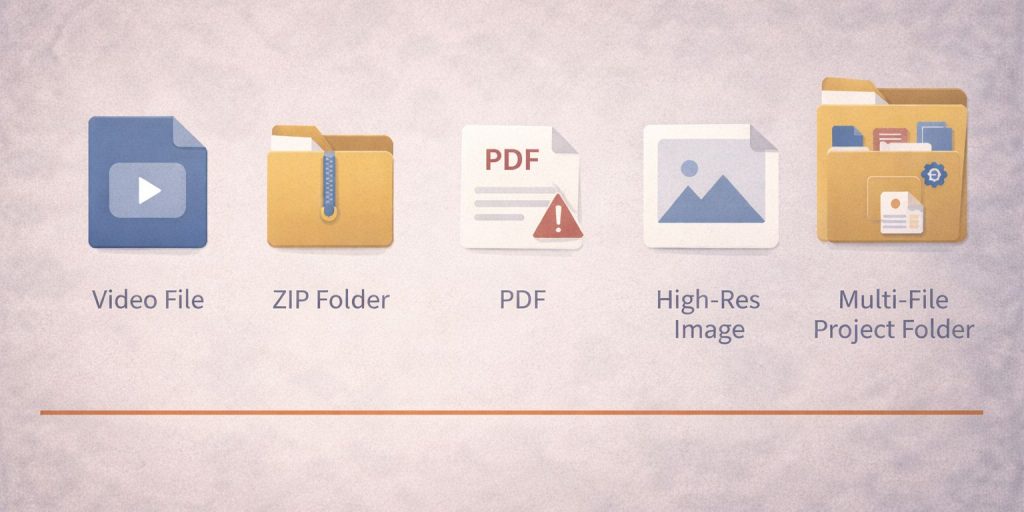 Some file types reach the limit quickly.
Examples include:
- Video files like MP4
- Compressed folders such as ZIP
- Large PDF files
- High-resolution images
- Project folders with many files
Even short videos can exceed 25 MB.
Does File Compression Help?
Compression can help sometimes, but not always.
ZIP files reduce size only if the content allows compression. Videos and images are often already compressed, so zipping them does not change much.
If the file stays over 25 MB after compression, Gmail will still block it.
Gmail Attachment Limits on Mobile and Desktop
The attachment size limit is the same on all platforms. This includes web Gmail, Android apps, and desktop browsers.
The difference is how Gmail handles uploads. Mobile apps may take longer to upload files, especially on slow connections, but the size rules do not change.
Best Ways to Send Large Files Using Gmail
If your file is too large, these options work well:
- Use Google Drive links instead of attachments
- Check sharing permissions before sending
- Split files into smaller parts if needed
- Clean up Drive storage to avoid upload issues
These methods avoid repeated send errors.
Final Thoughts
The Gmail attachment size limit exists for a reason. Email is not built for large files. Cloud storage works better.
Once you understand the limits and use Google Drive correctly, sending large files becomes easy.
If this guide helped, share it with others who hit the same Gmail error. You can also leave a comment with the file type that caused your issue.
