

If your Windows PC feels slow and noisy, you’re not alone. Many people open Task Manager and see SearchApp.exe using a lot of CPU or memory. When this happens, apps lag, searches freeze, and the whole system feels off.
This guide helps you understand what SearchApp.exe is, why it causes trouble sometimes, how to fix it step by step, and how to stop it from coming back.
What Is SearchApp.exe?
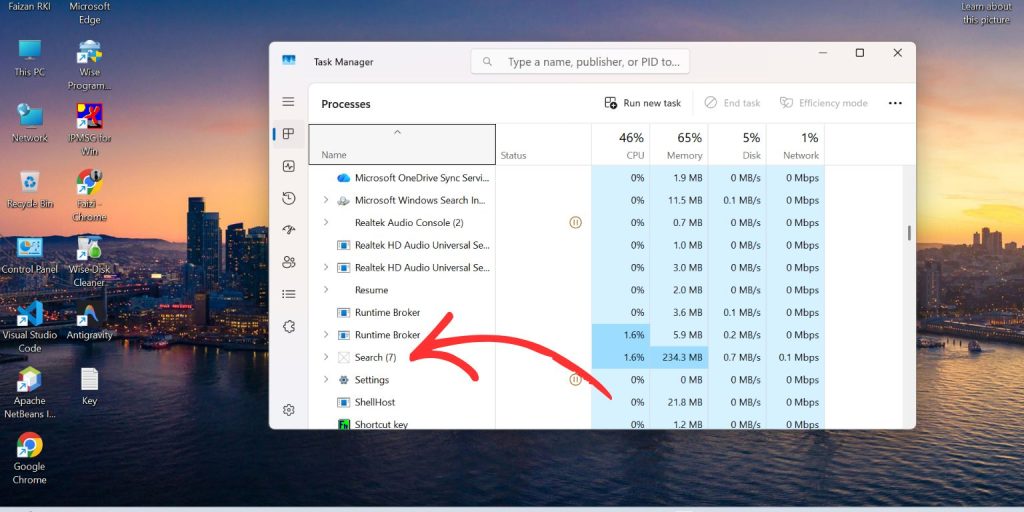 SearchApp.exe is a built-in process in Microsoft Windows. It runs the Windows Search feature that you use in the Start Menu and File Explorer. When you type to find apps, files, or settings, SearchApp.exe helps make that search fast and smooth.
You usually notice this issue inside Task Manager. CPU usage or RAM usage may spike, even when you are not searching for anything. This can happen on both Windows 10 and Windows 11, and it often shows up as constant background activity tied to Windows Search.
Common Causes of SearchApp.exe High CPU or Memory Usage
This issue can happen for several reasons, depending on your system settings and Windows behavior. Below are the most common causes you should be aware of.
- Corrupted Windows Search index files that force constant reindexing
- A stuck background indexing process scanning the same files again
- A broken or incomplete Windows Update affecting system services
- Damaged system files linked to Windows Search components
- Large folders like Downloads or Videos being indexed nonstop
- Conflicts with third-party antivirus software scanning the same files
- A user profile glitch causing SearchApp.exe to loop
How to Fix SearchApp.exe High CPU or Memory Usage in Windows?
In most cases, fixing this issue depends on both system settings and Windows services. Sometimes one fix works right away. Other times, you may need to try more than one solution.
Fix #1: Restart Windows Search and Explorer
This issue often appears when Windows Search or Explorer gets stuck. Restarting them refreshes background processes and clears temporary loops. Once restarted, Windows usually restores normal search behavior.
Follow the steps below to easily restart these services.
- Press Ctrl + Shift + Esc to open Task Manager
- Find Windows Explorer in the list
- Right-click it and select Restart
- Scroll down and locate Search
- Right-click Search and choose Restart
- Close Task Manager and wait a minute
Fix #2: Rebuild the Windows Search Index
A corrupted search index can push SearchApp.exe to use high CPU or memory. Rebuilding it creates a fresh index, which often stops constant background activity. After rebuilding, search performance improves.
Here are the following steps which help you rebuild the search index.
- Open Control Panel
- Click Indexing Options
- Select Advanced
- Click Rebuild under Troubleshooting
- Confirm and wait for indexing to finish
Indexing may take time, but system usage should settle once it completes.
Fix #3: Run the Windows Search Troubleshooter
Windows includes a built-in troubleshooter that checks common search problems. It can fix service errors automatically, which helps when SearchApp.exe misbehaves.
Try these simple steps to quickly run the troubleshooter.
- Open Settings
- Go to System
- Select Troubleshoot
- Click Other troubleshooters
- Find Search and Indexing
- Click Run and follow on-screen instructions
Fix #4: Repair System Files Using SFC and DISM
Sometimes corrupted system files affect Windows Search. Repairing them can reduce CPU spikes and memory leaks tied to SearchApp.exe.
Below are the steps that will guide you to repair system files.
- Open Command Prompt as administrator
- Type sfc /scannow and press Enter
- Wait until the scan completes
- Then type DISM /Online /Cleanup-Image /RestoreHealth
- Press Enter and wait
- Restart your PC
Fix #5: Check If SearchApp.exe Is Legitimate
SearchApp.exe is a safe Windows process, but fake files can exist. Checking the file location helps rule out malware. The real file should be inside the Windows system folder. If it’s elsewhere, scan your PC.
You can right-click SearchApp.exe in Task Manager, choose Open file location, and confirm it points to the Windows directory. Running Windows Defender adds extra safety.
Fix #6: Disable Windows Search Temporarily (Optional)
If nothing else works, disabling Windows Search can reduce resource usage. However, this also removes Start Menu search features. This option works best as a temporary test, not a long-term fix.
Perform the following steps carefully to disable Windows Search.
- Press Windows + R
- Type services.msc and press Enter
- Find Windows Search
- Right-click and choose Properties
- Set Startup type to Disabled
- Click Stop and then OK
Prevention Tips to Avoid SearchApp.exe High CPU Usage in the Future
Prevention helps you avoid slowdowns and repeated fixes. Small habits can keep Windows Search running normally.
- Keep Windows updates installed
- Restart your PC at least once a week
- Limit folders included in search indexing
- Avoid aggressive system cleaner tools
- Use trusted antivirus software only
- Keep enough free disk space available
- Check Task Manager when the system feels slow
Conclusion
In short, SearchApp.exe is part of Windows Search, but it can use high CPU or memory when indexing breaks, system files fail, or updates go wrong. These issues slow your PC and make everyday tasks harder.
Try the fixes step by step and apply the prevention tips to keep your system stable. If the issue continues after all fixes, contacting Microsoft support or a qualified technician is the next safe step. If this guide helped you, share it with others and leave a comment about which fix worked for you.
