

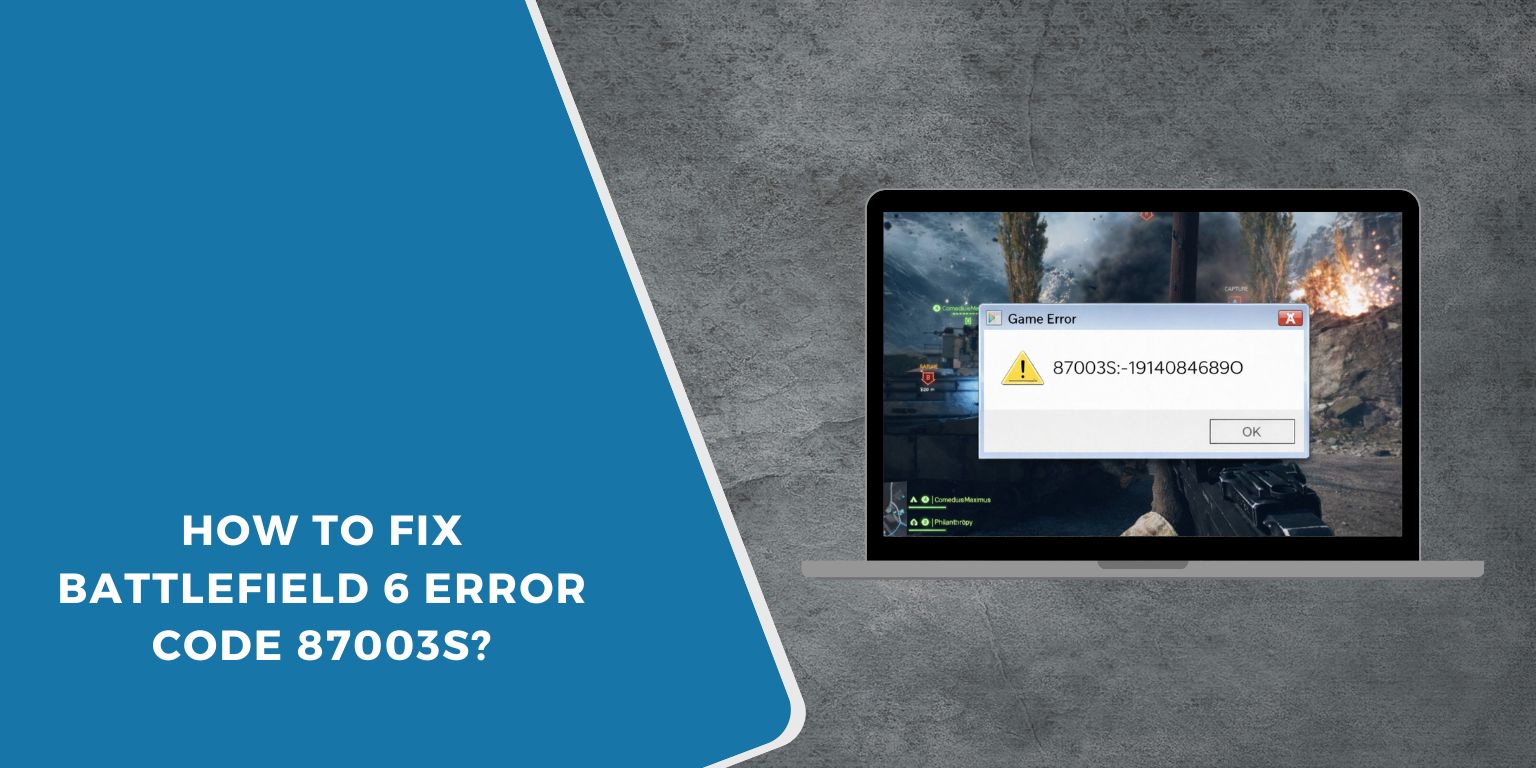
Getting hit with BF6 error code 87003S can ruin a gaming session fast. You load Battlefield 6, try to join multiplayer, and the game blocks you with an error. It usually means the game can’t connect online. This guide explains what the error means, why it happens, how to fix it step by step, and how to avoid it later.
What Is BF6 Error Code 87003S?
 BF6 error code 87003S is an online connection error. It appears when Battlefield 6 fails to reach EA online services. When this happens, the game cannot verify servers or start multiplayer features.
Players usually see this error during game launch, while joining a multiplayer match, or when connecting to online services. The game may stop loading or return to the main menu with the error message.
Common Causes of BF6 Error Code 87003S
This error usually happens because of network or service-related issues.
- EA servers are down or under maintenance
- Internet connection is unstable or slow
- NAT type is set to strict
- Firewall or router blocks Battlefield 6
- EA App or console services are not working
- Battlefield 6 is not updated
- EA account sign-in problems
How to Fix Battlefield 6 Error Code 87003S?
In most cases, this error can be fixed by checking your connection, game status, and account setup. Try the fixes below one by one.
Fix #1: Check EA Server Status
Sometimes the problem is not on your device. Here are the steps to check EA server status:
- Open a web browser
- Go to EA’s official server status page
- Look for Battlefield or EA Online Services
- Check if servers show downtime or maintenance
If servers are down, wait. The error will go away once EA fixes the issue.
Fix #2: Restart Your Game and Device
Temporary glitches can break the connection.
Close Battlefield 6 fully. Restart your PC, PlayStation, or Xbox. Launch the game again and try connecting to multiplayer.
Fix #3: Test Your Internet Connection
A weak connection can stop the game from reaching servers.
Run a speed test and check for packet loss. If the connection is unstable, switch to a wired connection or move closer to the router.
Fix #4: Restart Router and Modem
Network routing issues can cause login errors. Unplug your router and modem. Wait about 30 seconds. Plug them back in and let the connection stabilize before launching the game.
Fix #5: Adjust NAT Type to Open or Moderate
Strict NAT settings can block matchmaking. Follow these steps to improve NAT type:
- Open your router’s settings page
- Enable UPnP if available
- Restart the router
- Check NAT status on your console or PC
- Make sure it shows Open or Moderate
An open NAT allows better server communication.
Fix #6: Disable Firewall or Security Software Temporarily
Firewalls may block Battlefield 6 by mistake. Follow these steps carefully:
- Open your antivirus or firewall settings
- Temporarily disable protection
- Launch Battlefield 6
- Test online connection
- Add BF6 and EA App to the allow list
- Turn protection back on
Never leave security software off permanently.
Fix #7: Update Battlefield 6 and EA App
Outdated files can cause connection errors.
Check for updates in the EA App or console dashboard. Install all available updates, then restart the system and launch the game again.
Fix #8: Sign Out and Back Into Your EA Account
Account authentication can sometimes fail. Sign out of your EA account in the EA App or console. Restart the app, sign back in, and then start Battlefield 6. This refreshes account sessions.
Prevention Tips to Avoid BF6 Error Code 87003S in the Future
Prevention helps keep your multiplayer sessions smooth.
- Use a stable internet connection
- Keep Battlefield 6 updated
- Avoid strict NAT settings
- Restart your router weekly
- Do not use VPNs while gaming
- Check EA server status during peak times
- Keep your system software updated
Conclusion
In short, BF6 error code 87003S means Battlefield 6 cannot connect to EA online services. It usually links to server issues, network settings, or account problems.
Try the fixes above and follow the prevention tips. If the error keeps showing, contact EA Support for further help. If this guide helped you, share it and leave a comment to help other players get back into the game.
