

Many people see the term HID on their computer and wonder what it means. It often appears in Windows Device Manager or when a keyboard, mouse, or controller connects. The name sounds technical, but the idea is simple. A Human Interface Device is any device that lets you control your computer using actions like clicking, typing, touching, or moving a stick. This guide explains HID in plain language so you can understand why so many devices use it.
Simple Definition of a Human Interface Device
 A Human Interface Device, or HID, is a type of device that sends input from a user to a computer. It covers anything that helps you control a screen or send commands. The HID standard was created so computers could recognize these devices quickly without installing special drivers.
This makes setup easier. You plug in the device, and the computer already understands the basic signals.
Common Devices That Use the HID Standard
Many everyday items use HID. Here are some examples:
- keyboards
- mice
- trackpads
- touchscreens
- game controllers
- joysticks
- stylus and pen tablets
- barcode scanners
- VR hand controllers
When you plug in one of these devices, your computer reads it as an HID and loads a simple driver automatically.
Many modern devices also break into multiple HID parts. A keyboard with media keys might appear as two HID devices instead of one.
How HID Works Inside a Computer
HID devices send small packets of data to your computer. Each packet contains simple information such as:
- key pressed
- mouse movement
- button click
- trigger pull
- touch position
The operating system reads these packets and turns them into actions on the screen. This process keeps the device responsive and fast without needing heavy software.
What “HID-Compliant” Means?
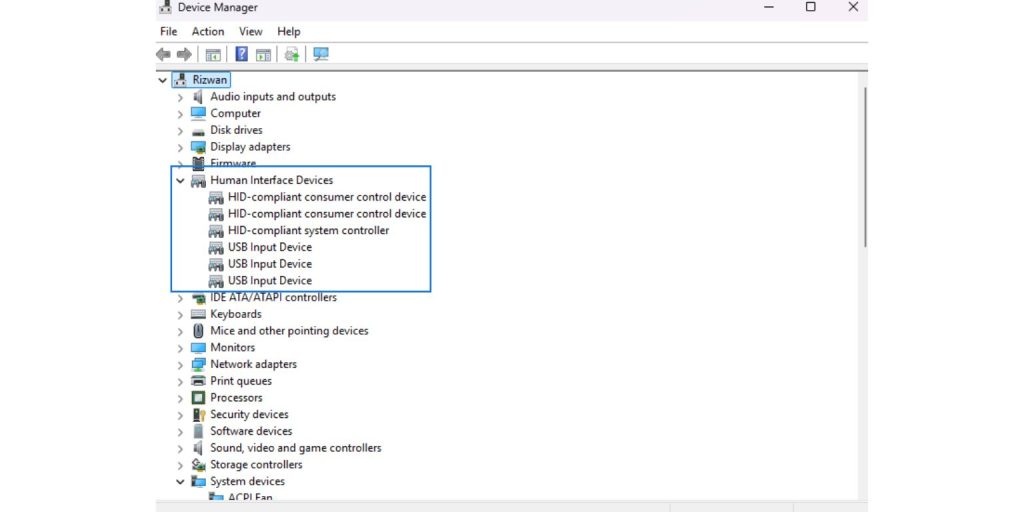
When you see “HID-compliant” in Windows or other systems, it means the device follows the USB HID standard. Your computer uses a built-in driver to handle the input. No extra software is needed for basic use.
Because many devices share the same standard, you may see multiple entries named “HID-compliant device.” This is normal. It does not mean anything is wrong. It simply shows different parts of the device.
Why HID Shows Up So Often in Device Manager
Device Manager lists many HID items because modern devices use several HID functions at once. For example:
- a gaming controller might show two or three HID entries
- a keyboard with lighting controls may show separate HID parts
- a headset with media buttons might appear as an HID device
Windows groups these under the HID category so the system can manage them using shared drivers. This also helps keep devices compatible across versions of Windows.
HID vs Non-HID Devices
Not every device uses HID. Printers, cameras, external drives, and audio devices use different standards. These often need custom drivers or extra setup. HID devices avoid this by following a universal rule that most computers understand without help.
This is why HIDs feel “plug and play” while other devices sometimes need more steps.
Troubleshooting HID Device Problems
Most HID devices work without trouble, but problems can happen. Here are simple fixes:
- unplug the device and plug it back in
- try a different USB port
- replace the cable if it’s loose or damaged
- update drivers in Device Manager
- check batteries on wireless devices
- re-pair the device if it uses Bluetooth
These steps solve most recognition issues.
Extra HID Uses You Might Not Know
HID is not limited to keyboards and mice. Some niche tools also use the HID system:
- accessibility switches
- special input tools for people with limited mobility
- presentation remotes
- handheld scanners
- VR tracking tools
These devices benefit from the HID standard because they connect quickly and work on many operating systems.
Final Notes
A Human Interface Device is simply a device that sends user input to your computer. The HID standard keeps things easy and supports a wide range of tools, from everyday mice to advanced controllers. If you want help understanding another device type or need troubleshooting tips, feel free to ask and share what you need.
